Free Shipping on Domestic Orders $75+

Acer Chromebook C720-2848 Keyboard Replacement

What you need

  1. Acer Chromebook C720-2848 Keyboard Replacement, Back Cover: step 1, image 1 of 2 Acer Chromebook C720-2848 Keyboard Replacement, Back Cover: step 1, image 2 of 2
    • Use a Phillips head screw driver to remove the 13 screws in these locations.

    Ask FixBot

    Add Comment

  2. Acer Chromebook C720-2848 Keyboard Replacement: step 2, image 1 of 3 Acer Chromebook C720-2848 Keyboard Replacement: step 2, image 2 of 3 Acer Chromebook C720-2848 Keyboard Replacement: step 2, image 3 of 3
    • Use a plastic spudger to pry up the bottom cover and remove it.

    • Be sure to pry along other edges if necessary to avoid damaging the back cover.

    Ask FixBot

    Add Comment

  3. Acer Chromebook C720-2848 Keyboard Replacement, Battery: step 3, image 1 of 3 Acer Chromebook C720-2848 Keyboard Replacement, Battery: step 3, image 2 of 3 Acer Chromebook C720-2848 Keyboard Replacement, Battery: step 3, image 3 of 3
    • Unscrew the 2 battery screws.

    • Make sure you keep these screws separate from the back cover screws; they are different!

    Ask FixBot

    Add Comment

  4. Acer Chromebook C720-2848 Keyboard Replacement: step 4, image 1 of 2 Acer Chromebook C720-2848 Keyboard Replacement: step 4, image 2 of 2
    • Use two fingers to unplug the battery-to-motherboard connection.

    Ask FixBot

    Add Comment

  5. Acer Chromebook C720-2848 Keyboard Replacement: step 5, image 1 of 1
    • Take out battery by lifting it up in the manner pictured.

    Ask FixBot

    Add Comment

  6. Acer Chromebook C720-2848 Keyboard Replacement, SSD: step 6, image 1 of 2 Acer Chromebook C720-2848 Keyboard Replacement, SSD: step 6, image 2 of 2
    • Unscrew screw holding SSD card in place.

    • Slide out the SSD card towards you to remove it.

    • The SSD card is the blue chip on the right connected to the motherboard.

    • Be sure to store this screw apart from the others as it is a different length.

    Ask FixBot

    Add Comment

  7. Acer Chromebook C720-2848 Keyboard Replacement, Motherboard: step 7, image 1 of 3 Acer Chromebook C720-2848 Keyboard Replacement, Motherboard: step 7, image 2 of 3 Acer Chromebook C720-2848 Keyboard Replacement, Motherboard: step 7, image 3 of 3
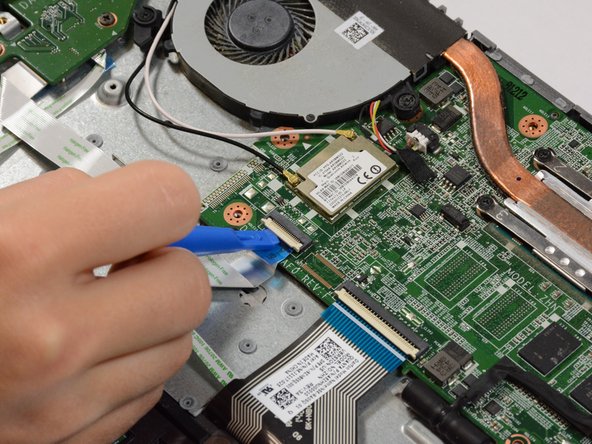
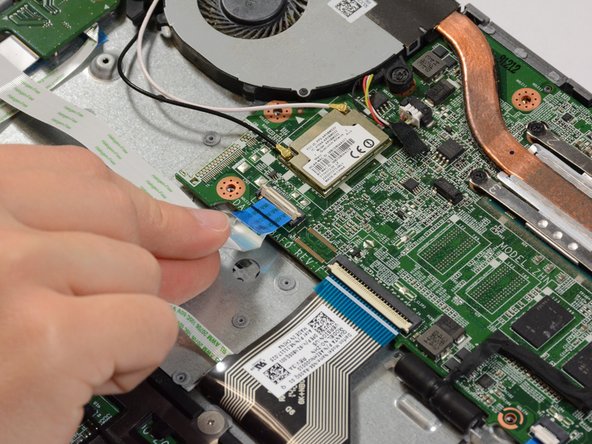
    • Remove the three ribbon cables connected to the bottom of the motherboard.

    • Use the plastic spudger to lift the white hinges from on top of the ribbon cables.

    • Then gently pull the cables out.

    Ask FixBot

    Add Comment

  8. Acer Chromebook C720-2848 Keyboard Replacement: step 8, image 1 of 3 Acer Chromebook C720-2848 Keyboard Replacement: step 8, image 2 of 3 Acer Chromebook C720-2848 Keyboard Replacement: step 8, image 3 of 3
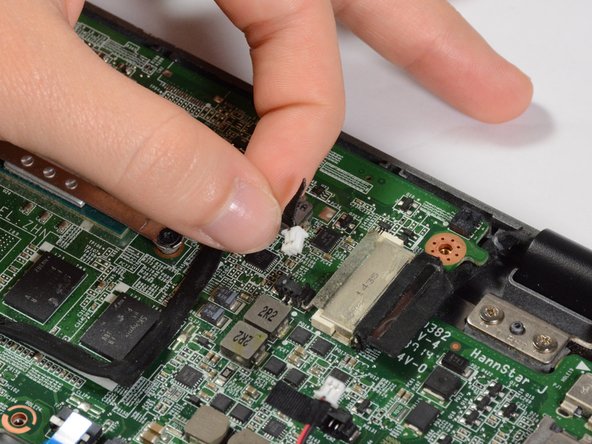
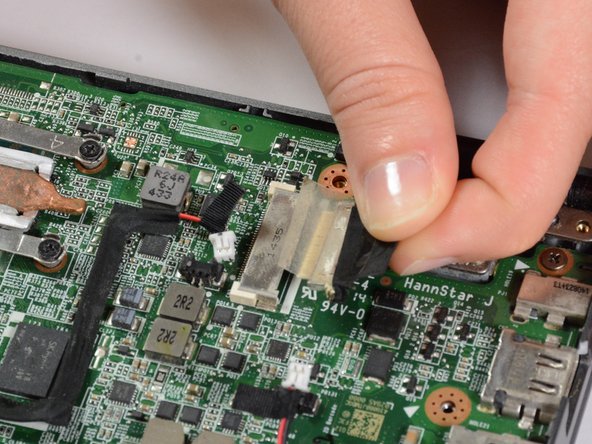
    • Remove 4 connectors from the right side of the motherboard.

    • All of these connectors release by simply pulling back.

    • To disconnect the connector shown in the third picture, you will need to peel back some tape first.

    Ask FixBot

    Add Comment

  9. Acer Chromebook C720-2848 Keyboard Replacement: step 9, image 1 of 3 Acer Chromebook C720-2848 Keyboard Replacement: step 9, image 2 of 3 Acer Chromebook C720-2848 Keyboard Replacement: step 9, image 3 of 3
    • On the left side of the motherboard, remove one more connector and two cables.

    • To remove the cables, lift them up with a plastic spudger.

    • Take note of which cable connects where.

    Ask FixBot

    Add Comment

  10. Acer Chromebook C720-2848 Keyboard Replacement: step 10, image 1 of 3 Acer Chromebook C720-2848 Keyboard Replacement: step 10, image 2 of 3 Acer Chromebook C720-2848 Keyboard Replacement: step 10, image 3 of 3
    • Remove the 2 fan screws and the 4 heat sink screws.

    • The screws don't necessarily need to be removed from the component, but rather just loosened enough to remove the component from the motherboard.

    • Now remove the fan/heat sink component.

    • Once again, make sure to keep these screws separate from all others.

    Ask FixBot

    Add Comment

  11. Acer Chromebook C720-2848 Keyboard Replacement: step 11, image 1 of 2 Acer Chromebook C720-2848 Keyboard Replacement: step 11, image 2 of 2
    • Remove the 2 motherboard screws.

    • Now you can remove the motherboard.

    • Be careful not to damage any of the loose connectors and cables you disconnected in the previous steps.

    Ask FixBot

    Add Comment

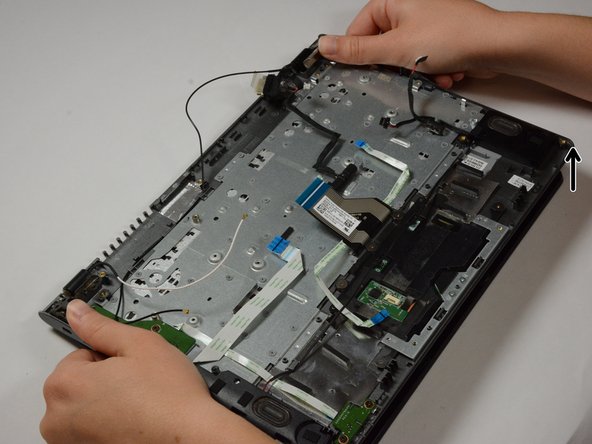
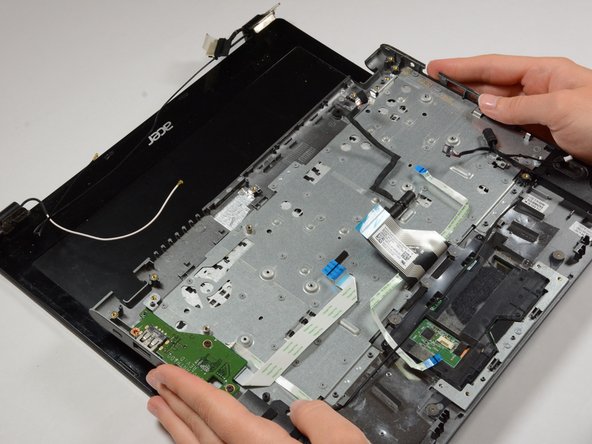
  12. Acer Chromebook C720-2848 Keyboard Replacement, Keyboard: step 12, image 1 of 3 Acer Chromebook C720-2848 Keyboard Replacement, Keyboard: step 12, image 2 of 3 Acer Chromebook C720-2848 Keyboard Replacement, Keyboard: step 12, image 3 of 3
    • Remove the 4 keyboard screws.

    • Lastly, remove the keyboard. To do this, slightly hinge open the laptop and pull back.

    • Make sure to be wary of the cables that connect to the display when removing the keyboard.

    Ask FixBot

    Add Comment

Conclusion

To reassemble your device, follow these instructions in reverse order.

Cancel: I did not complete this guide.

3 other people completed this guide.

Richard Schmidt

Member since: 03/19/18

337 Reputation

2 Guides authored

Team

Baylor, Team S3-G1, Williams Spring 2018 Member of Baylor, Team S3-G1, Williams Spring 2018

BU-WILLIAMS-S18S3G1

4 Members

4 Guides authored

2 Guide Comments

This should really be title keyboard ASSEMBLY replacement. The keyboard involves quite a bit more work on its own.

avarno - Reply Share

! ATTENTION ! Comme l’a dit avarno il y a quelques mois, le tutoriel ne propose QUE DE REMPLACER LE BLOC CLAVIER + PAVÉ TACTILE. Sur Ifixit on peut aussi acheter le clavier seul (ce que j’ai fait). On se retrouve bloqué à l’étape 12. J’ai posté une solution en commentaire de l’étape 12 (peut être pas très conventionnelle, à vos risques et périls !)

adrien - Reply Share

Add Comment

View Statistics:

Past 24 Hours: 1

Past 7 Days: 6

Past 30 Days: 37

All Time: 1,024