Introduction
Use this guide to replace the screen display for the Acer Chromebook c-720 2844.
The screen display is used to represent information visually computer.
To know if you have a faulty screen display include: no images will be present on your screen or if you have missing pixels.
Before referring to this guide make sure you look at the Acer Chromebook c-720 2844 troubleshooting page to ensure the screen display is the problem. Make sure to completely shut off the device before starting the replacement procedure for this guide.
What you need
-
-
-
Unscrew and remove the 1 cm Phillips #00 screws from motherboard.
 Ask FixBot
-
-
-
Unscrew and remove the 1 cm Phillips #00 screw that secures the solid state drive.
-
Lift and pull towards you to remove.
-
-
-
-
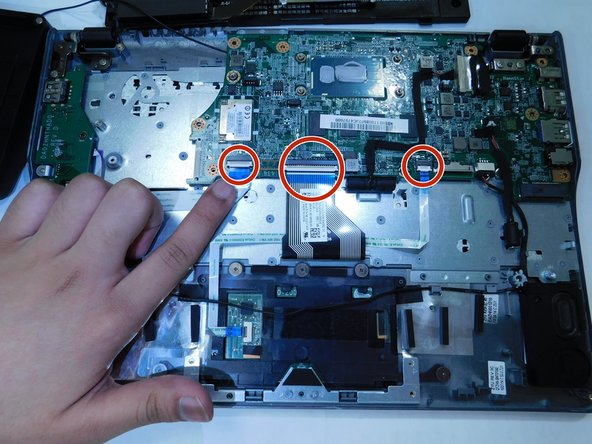
Unlock the cables shown by lifting the white tab on each.
-
Pull back on the blue tab to remove each cable from the motherboard.
-
-
-
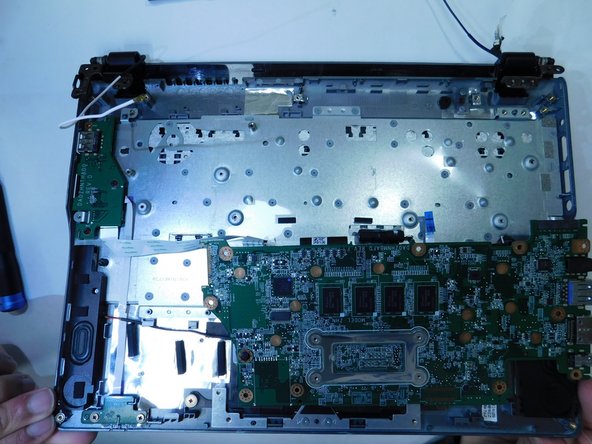
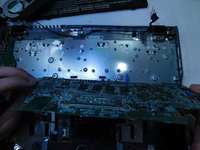
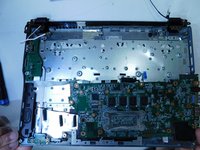
Remove the motherboard by shifting to the left and lifting up.
-
Unhook the black and white cables from underneath the motherboard.
-
-
-
Unscrew and remove the 1 cm Phillips #00 screws from the display brackets.
-
Lift bracket to detach from the screen.
-
-





To reassemble your device, follow these instructions in reverse order.

Team

Gateway, Team 1-2, Pee Spring 2022 Member of Gateway, Team 1-2, Pee Spring 2022
GCC-PEE-S22S1G2
4 Members
44 Guides authored
