Free Shipping on Domestic Orders $75+

Acer Chromebook C720-2827 Display Replacement

What you need

  1. Acer Chromebook C720-2827 Display Replacement, Back Panel Assembly: step 1, image 1 of 2 Acer Chromebook C720-2827 Display Replacement, Back Panel Assembly: step 1, image 2 of 2
    • Remove the thirteen 6.0mm screws on the back panel using your Phillips #1 screwdriver.

    Ask FixBot

    Add Comment

  2. Acer Chromebook C720-2827 Display Replacement: step 2, image 1 of 2 Acer Chromebook C720-2827 Display Replacement: step 2, image 2 of 2
    • Pry the back panel open with the plastic opening tool.

    Ask FixBot

    Add Comment

  3. Acer Chromebook C720-2827 Display Replacement, Battery: step 3, image 1 of 1
    • Remove the two 6.0mm screws securing the battery with your Phillips #1 screwdriver.

    Ask FixBot

    Add Comment

  4. Acer Chromebook C720-2827 Display Replacement: step 4, image 1 of 2 Acer Chromebook C720-2827 Display Replacement: step 4, image 2 of 2
    • Carefully pull out the battery wire connected to the battery port.

    Ask FixBot

    Add Comment

  5. Acer Chromebook C720-2827 Display Replacement: step 5, image 1 of 1
    • Slowly lift the battery to remove it from the Chromebook.

    Ask FixBot

    Add Comment

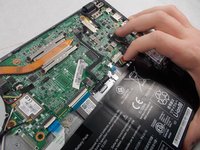
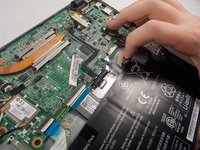
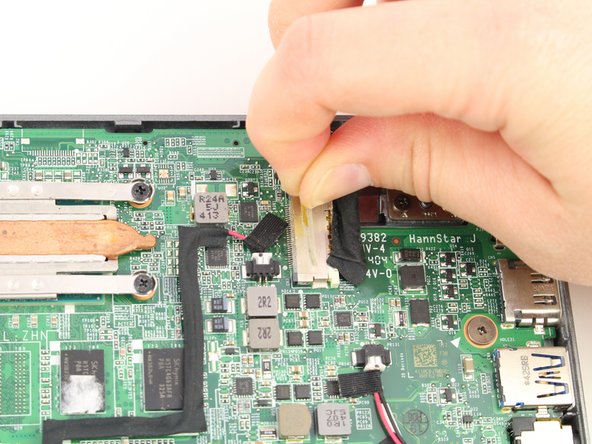
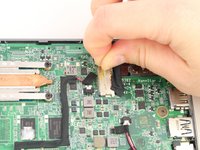
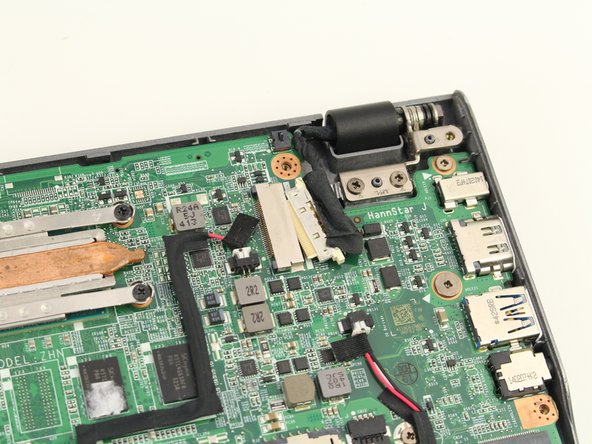
  6. Acer Chromebook C720-2827 Display Replacement, Display: step 6, image 1 of 2 Acer Chromebook C720-2827 Display Replacement, Display: step 6, image 2 of 2
    • Using your fingers, pull the tape off of the display connector.

    Ask FixBot

    Add Comment

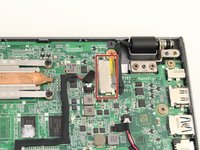
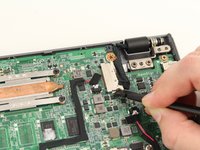
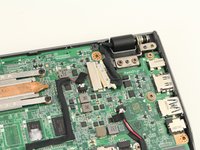
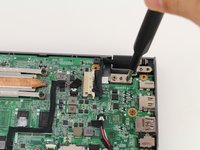
  7. Acer Chromebook C720-2827 Display Replacement: step 7, image 1 of 2 Acer Chromebook C720-2827 Display Replacement: step 7, image 2 of 2
    • Use the spudger to disconnect the display connector from the motherboard.

    Ask FixBot

    Add Comment

  8. Acer Chromebook C720-2827 Display Replacement: step 8, image 1 of 3 Acer Chromebook C720-2827 Display Replacement: step 8, image 2 of 3 Acer Chromebook C720-2827 Display Replacement: step 8, image 3 of 3
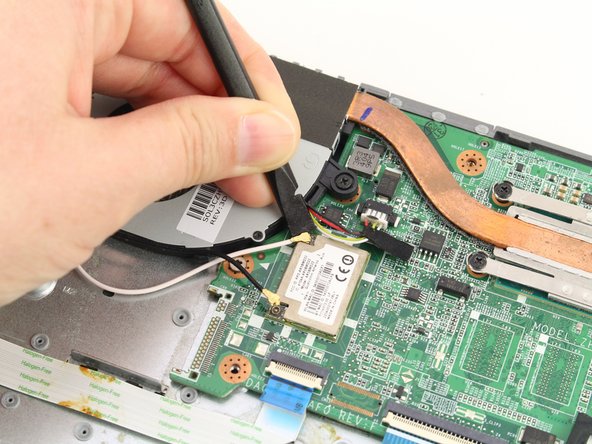
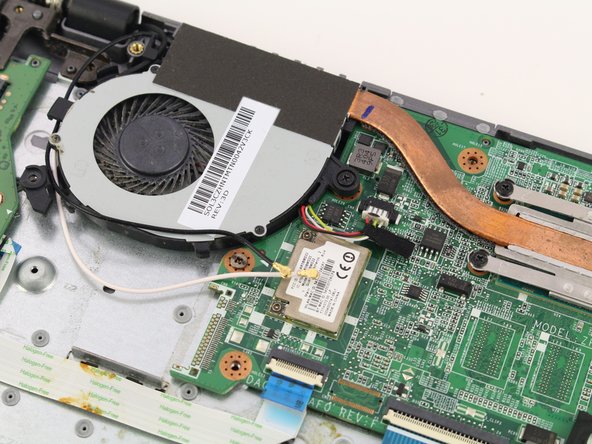
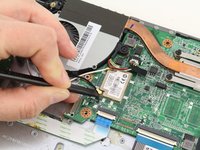
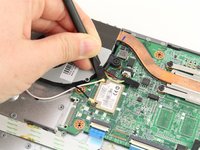
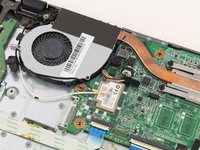
    • Use the spudger to gently disconnect the black and white coaxial antenna cables off of the WLAN card.

    Ask FixBot

    Add Comment

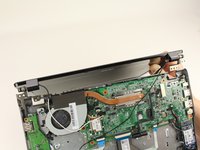
  9. Acer Chromebook C720-2827 Display Replacement: step 9, image 1 of 3 Acer Chromebook C720-2827 Display Replacement: step 9, image 2 of 3 Acer Chromebook C720-2827 Display Replacement: step 9, image 3 of 3
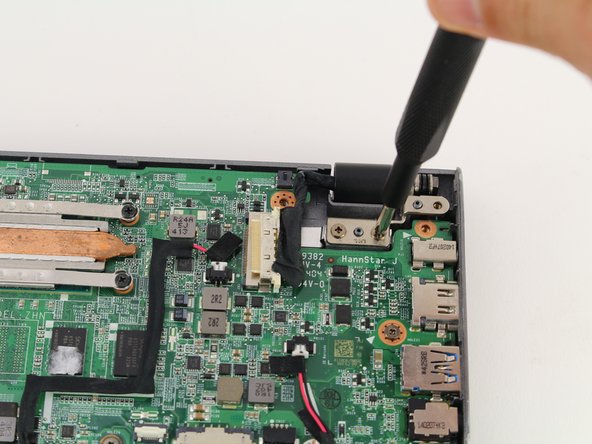
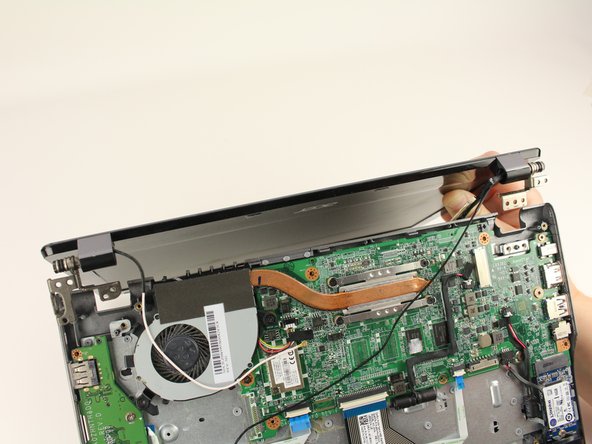
    • Using your Phillips #1 screwdriver, unscrew two 3.7mm screws from the right display hinge.

    • Using your Phillips #1 screwdriver, unscrew two 5.7mm screws from the left display hinge.

    • When removing the display, be careful to unthread the black coaxial antenna cable underneath the motherboard from the opposite side of the panel.

    Ask FixBot

    Add Comment

Conclusion

To reassemble your device, follow these instructions in reverse order.

Cancel: I did not complete this guide.

Sarah Westberg

Member since: 03/11/19

40,997 Reputation

72 Guides authored

0 Guide Comments

Add Comment

View Statistics:

Past 24 Hours: 1

Past 7 Days: 9

Past 30 Days: 36

All Time: 786