Free Shipping on Domestic Orders $75+

Acer Aspire One 751h-1948 Keyboard Replacement

What you need

  1. Acer Aspire One 751h-1948 Keyboard Replacement, Battery: step 1, image 1 of 1
    • Close the laptop and flip it over to view the back of the laptop.

    Ask FixBot

    Add Comment

  2. Acer Aspire One 751h-1948 Keyboard Replacement: step 2, image 1 of 3 Acer Aspire One 751h-1948 Keyboard Replacement: step 2, image 2 of 3 Acer Aspire One 751h-1948 Keyboard Replacement: step 2, image 3 of 3
    • Unlock the right side of the battery by sliding the battery lock to the right. Then slide the left lock to the left and remove the battery.

    Ask FixBot

    Add Comment

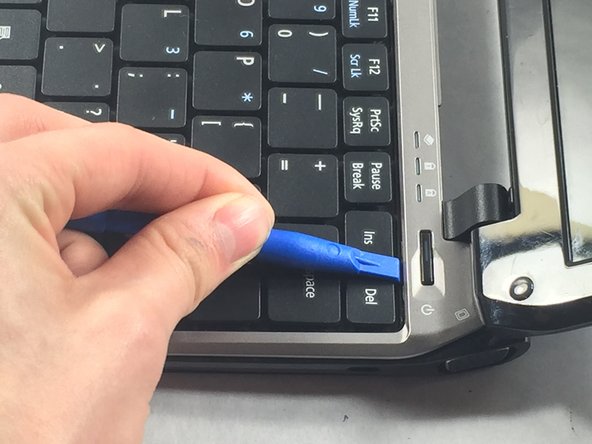
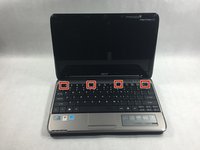
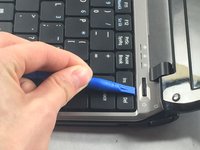
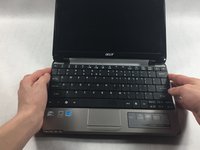
  3. Acer Aspire One 751h-1948 Keyboard Replacement, Keyboard: step 3, image 1 of 3 Acer Aspire One 751h-1948 Keyboard Replacement, Keyboard: step 3, image 2 of 3 Acer Aspire One 751h-1948 Keyboard Replacement, Keyboard: step 3, image 3 of 3
    • Use the plastic opening tool to push in each of the four clips and carefully lift the keyboard.

    • Don't lift the keyboard completely so that you don't damage the ribbon cable underneath.

    Ask FixBot

    Add Comment

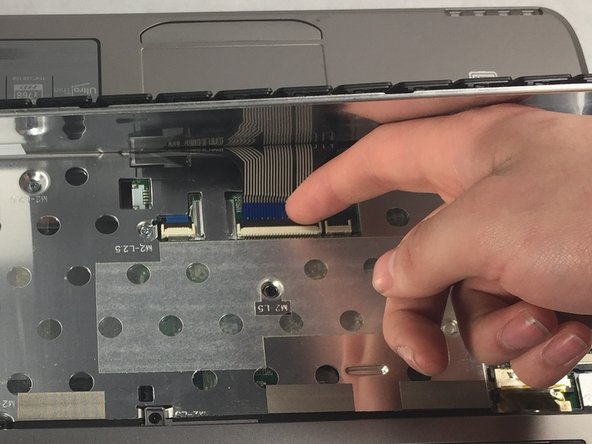
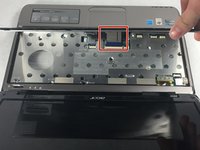
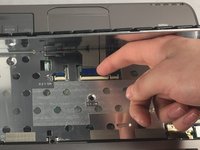
  4. Acer Aspire One 751h-1948 Keyboard Replacement: step 4, image 1 of 2 Acer Aspire One 751h-1948 Keyboard Replacement: step 4, image 2 of 2
    • When you remove the keyboard, be careful not to damage the ribbon cable that attaches it to the motherboard.

    • Unplug the ribbon cable by gently lifting the black tab up. Then remove the cable.

    Ask FixBot

    Add Comment

Conclusion

To reassemble your device, follow these instructions in reverse order.

Cancel: I did not complete this guide.

One other person completed this guide.

Chris Bolton

Member since: 03/22/17

434 Reputation

4 Guides authored

Team

0 Guide Comments

Add Comment

View Statistics:

Past 24 Hours: 0

Past 7 Days: 9

Past 30 Days: 29

All Time: 501