Free Shipping on Domestic Orders $75+

Acer Aspire E5-571 CPU Fan Replacement

What you need

    1. Acer Aspire E5-571 CPU Fan Replacement, Battery: step 1, image 1 of 1
      • Make sure the laptop is shut down.

      • Flip the laptop upside down. Rotate it so the battery faces you.

      Ask FixBot

      Add Comment

    2. Acer Aspire E5-571 CPU Fan Replacement: step 2, image 1 of 1
      • Place the pointed end of a spudger into the battery lock. Slide the battery lock to the left using the spudger. A "click" sound will accompany the release of the battery.

      Ask FixBot

      Add Comment

    3. Acer Aspire E5-571 CPU Fan Replacement: step 3, image 1 of 1
      • Pull the battery towards you to remove it from the laptop.

      Ask FixBot

      Add Comment

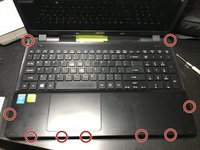
    1. Acer Aspire E5-571 CPU Fan Replacement, Keyboard: step 4, image 1 of 1
      • Remove all eighteen 8 mm screws with a Phillips #0 screwdriver.

      Ask FixBot

      Add Comment

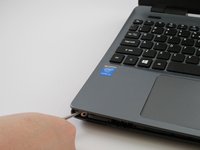
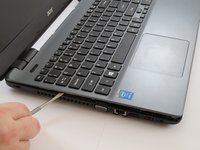
    2. Acer Aspire E5-571 CPU Fan Replacement: step 5, image 1 of 3 Acer Aspire E5-571 CPU Fan Replacement: step 5, image 2 of 3 Acer Aspire E5-571 CPU Fan Replacement: step 5, image 3 of 3
      • Carefully pry apart the clips holding the keyboard in place by moving a metal spudger along the seam.

      • Be careful not to break the plastic clips.

      Ask FixBot

      Add Comment

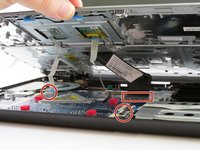
    3. Acer Aspire E5-571 CPU Fan Replacement: step 6, image 1 of 2 Acer Aspire E5-571 CPU Fan Replacement: step 6, image 2 of 2
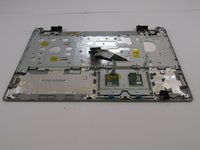
      • Carefully flip up the white hinge. Detach the three ZIF ribbons connected to the motherboard.

      • Remove the panel with the keyboard and the touchpad.

      Ask FixBot

      Add Comment

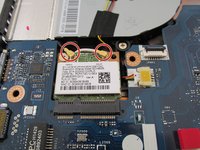
    1. Acer Aspire E5-571 CPU Fan Replacement, WiFi: step 7, image 1 of 1
      • Locate the WiFi card on the motherboard.

      Ask FixBot

      Add Comment

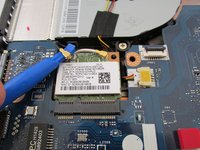
    2. Acer Aspire E5-571 CPU Fan Replacement: step 8, image 1 of 2 Acer Aspire E5-571 CPU Fan Replacement: step 8, image 2 of 2
      • Locate the two antenna cables shown.

      • Using a plastic opening tool, remove both antenna cables from the WiFi card by gently prying them up.

      • Black on left. White on right.

      Ask FixBot

      Add Comment

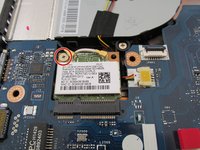
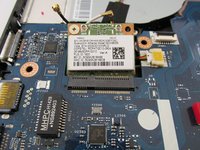
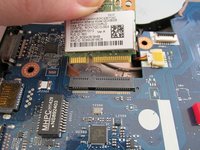
    3. Acer Aspire E5-571 CPU Fan Replacement: step 9, image 1 of 3 Acer Aspire E5-571 CPU Fan Replacement: step 9, image 2 of 3 Acer Aspire E5-571 CPU Fan Replacement: step 9, image 3 of 3
      • Remove this 3 mm Phillips #0 screw and the WiFi card should pop up.

      • Make sure antenna cables are removed before removing the screw.

      • Gently lift WiFi card off of the motherboard.

      Ask FixBot

      Add Comment

    1. Acer Aspire E5-571 CPU Fan Replacement, CPU Fan: step 10, image 1 of 1
      • Locate the CPU Fan in the case right above the motherboard.

      Ask FixBot

      Add Comment

    2. Acer Aspire E5-571 CPU Fan Replacement: step 11, image 1 of 1
      • Detach the power cable by carefully pulling on it, it will come off easily.

      Ask FixBot

      Add Comment

    3. Acer Aspire E5-571 CPU Fan Replacement: step 12, image 1 of 1
      • Remove both of these 6 mm Phillips #1 screws which hold the fan onto the case.

      • Now carefully lift the fan straight up and out of its place in the case.

      • The fan should easily come right out with no trouble.

      Ask FixBot

      Add Comment

Conclusion

To reassemble your device, follow these instructions in reverse order.

Cancel: I did not complete this guide.

4 other people completed this guide.

daniel sawyer

Member since: 08/23/15

2,602 Reputation

5 Guides authored

Team

USF Tampa, Team 4-2, Meier Fall 2015 Member of USF Tampa, Team 4-2, Meier Fall 2015

USFT-MEIER-F15S4G2

3 Members

60 Guides authored

0 Guide Comments

Add Comment

View Statistics:

Past 24 Hours: 0

Past 7 Days: 7

Past 30 Days: 51

All Time: 4,822