Introduction
Use this guide to replace the keyboard on your Acer Aspire 5740-6378. Without a functioning keyboard, you would not be able to enter your password to unlock your device, search the web, or type in any program you need. Luckily, the keyboard is easy to replace and will have your Acer Aspire 5740-6378 running like its keyboard is brand new. It is highly suggested that you remove the battery before performing this replacement.
What you need
-
-
-
Slide the locking switch into the unlocked position to ready the battery for removal.
 Ask FixBot
-
-
-
-
-
-
Pry off the mid cover using a spudger to reveal a cable attaching to the keyboard.
-
-
-
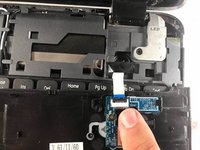
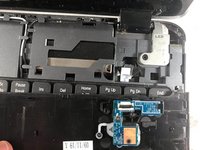
Detach the cable by flipping the securing tab up and gently pulling the cable away from it.
-
-
-
Unlock the keyboard ribbon cable by flipping up the securing tab on the Zero Insertion Force (ZIF) connector.
-
Slide the ribbon cable free of the connector.
-
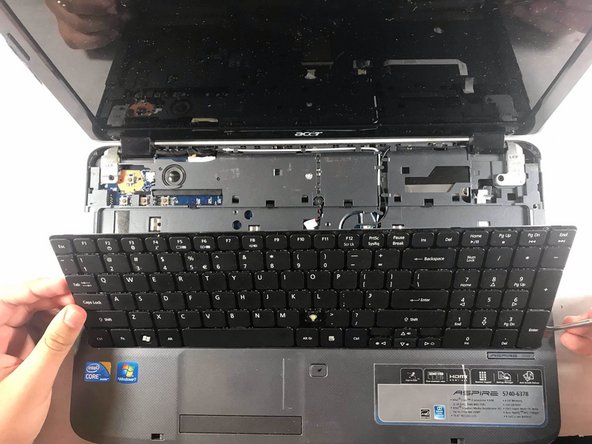
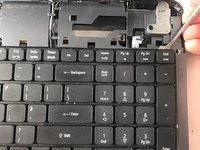
Remove the keyboard.
-


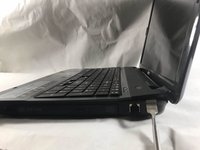
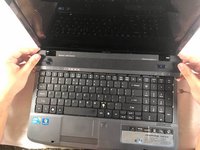
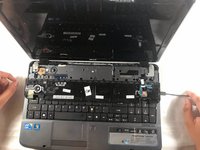

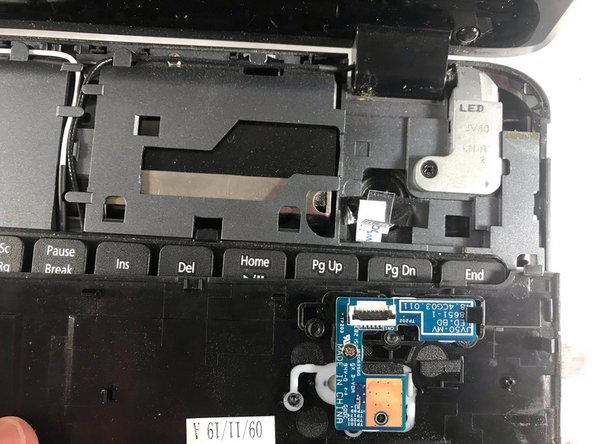

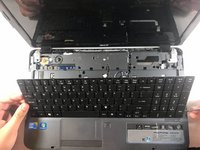

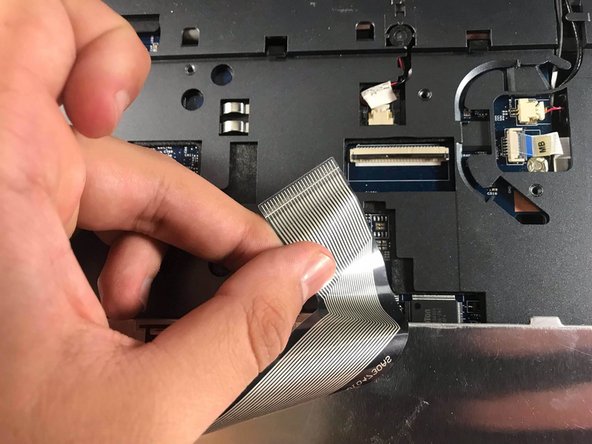
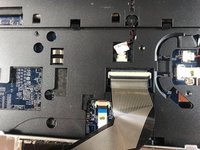
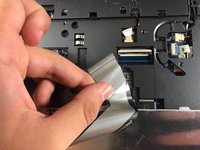
To reassemble your device, follow these instructions in reverse order.

Team

UMass Dartmouth, Team S2-G5, Bailey Spring 2019 Member of UMass Dartmouth, Team S2-G5, Bailey Spring 2019
UMASSD-BAILEY-S19S2G5
3 Members
60 Guides authored
