Free Shipping on Domestic Orders $75+

Acer Aspire 5734z-4836 Screen Replacement

What you need

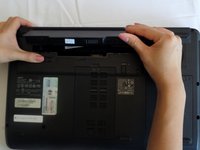
    1. Acer Aspire 5734z-4836 Screen Replacement, Battery: step 1, image 1 of 1
      • Before removing the battery, power off your laptop and disconnect the AC adapter.

      • Flip your laptop on its back so the battery is facing up and the hinges are facing away from you.

      Ask FixBot

      Add Comment

    2. Acer Aspire 5734z-4836 Screen Replacement: step 2, image 1 of 1
      • Slide the right latch down to unlock the battery.

      Ask FixBot

      Add Comment

    3. Acer Aspire 5734z-4836 Screen Replacement: step 3, image 1 of 2 Acer Aspire 5734z-4836 Screen Replacement: step 3, image 2 of 2
      • Slide and hold the left latch below the battery.

      • While holding this latch in place, pry the battery up from its bottom edge.

      • Lift the old battery out of its compartment.

      Ask FixBot

      Add Comment

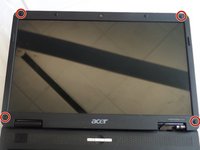
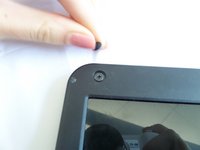
    1. Acer Aspire 5734z-4836 Screen Replacement, Screen: step 4, image 1 of 2 Acer Aspire 5734z-4836 Screen Replacement, Screen: step 4, image 2 of 2
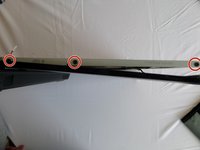
      • Remove rubber bumpers from each four corners to expose the hidden screws that hold the screen bezel in place.

      Ask FixBot

      Add Comment

    2. Acer Aspire 5734z-4836 Screen Replacement: step 5, image 1 of 1
      • Extract the hidden screws from each of the bezel's four corners, using a #00 Phillips screwdriver.

      Ask FixBot

      Add Comment

    3. Acer Aspire 5734z-4836 Screen Replacement: step 6, image 1 of 1
      • Pop the bezel loose along the edges with a plastic opening tool.

      Ask FixBot

      Add Comment

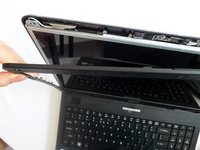
    4. Acer Aspire 5734z-4836 Screen Replacement: step 7, image 1 of 2 Acer Aspire 5734z-4836 Screen Replacement: step 7, image 2 of 2
      • Gently pry off the bezel by holding each edge of the bezel with a forefinger and applying pressure onto the screen with your thumbs.

      • Lift the bezel away completely.

      Ask FixBot

      Add Comment

    5. Acer Aspire 5734z-4836 Screen Replacement: step 8, image 1 of 1
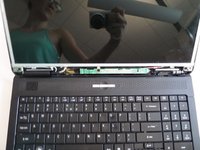
      • Unscrew the middle screw on the green strip under the screen.

      Ask FixBot

      Add Comment

    6. Acer Aspire 5734z-4836 Screen Replacement: step 9, image 1 of 2 Acer Aspire 5734z-4836 Screen Replacement: step 9, image 2 of 2
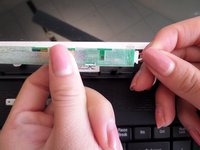
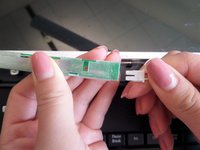
      • Gently detach the red-and-white cable from the right end of the green strip under the screen.

      Ask FixBot

      Add Comment

    7. Acer Aspire 5734z-4836 Screen Replacement: step 10, image 1 of 2 Acer Aspire 5734z-4836 Screen Replacement: step 10, image 2 of 2
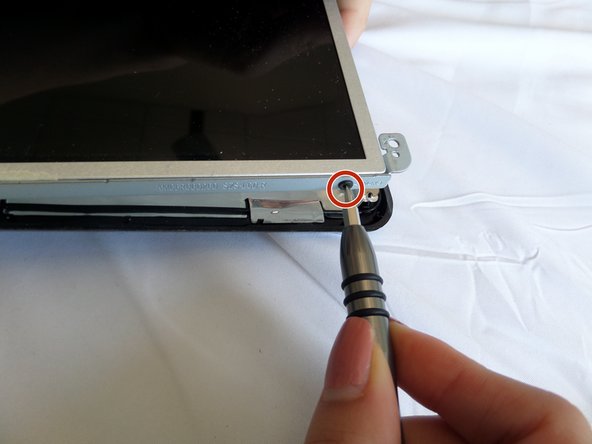
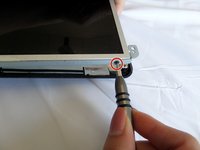
      • Locate six small screws, three on each side of the screen.

      • Remove all six screws with a #000 Phillips screwdriver.

      Ask FixBot

      Add Comment

    8. Acer Aspire 5734z-4836 Screen Replacement: step 11, image 1 of 2 Acer Aspire 5734z-4836 Screen Replacement: step 11, image 2 of 2
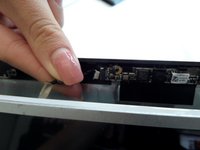
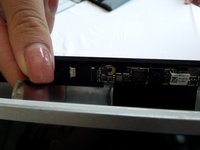
      • Disconnect wires from the webcam located above the screen.

      Ask FixBot

      Add Comment

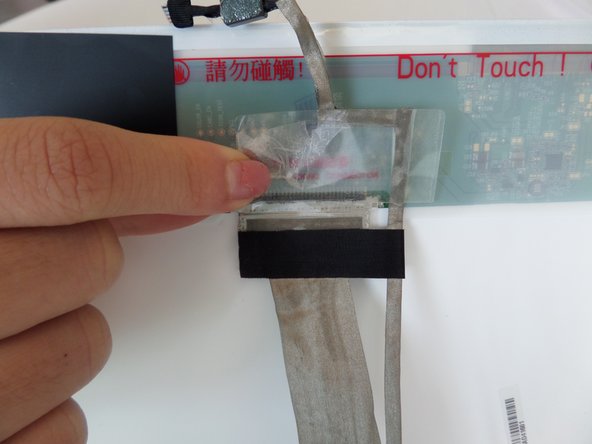
    9. Acer Aspire 5734z-4836 Screen Replacement: step 12, image 1 of 3 Acer Aspire 5734z-4836 Screen Replacement: step 12, image 2 of 3 Acer Aspire 5734z-4836 Screen Replacement: step 12, image 3 of 3
      • Lift the screen up from the laptop and turn it around.

      • Gently peel back the tape located behind the screen.

      Ask FixBot

      Add Comment

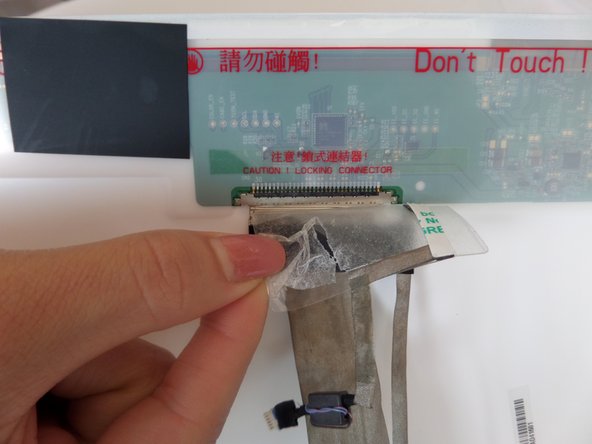
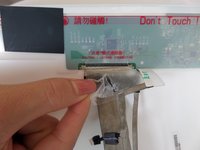
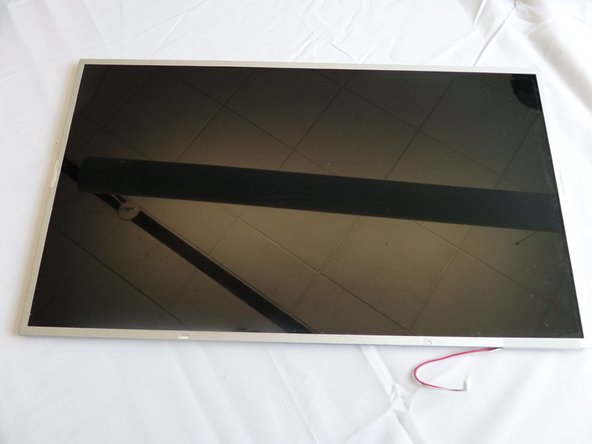
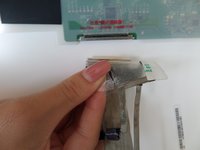
    10. Acer Aspire 5734z-4836 Screen Replacement: step 13, image 1 of 2 Acer Aspire 5734z-4836 Screen Replacement: step 13, image 2 of 2
      • Pull the connector straight down to remove it.

      • You can now safely lift the screen out of the laptop.

      Ask FixBot

      Add Comment

Conclusion

To reassemble your device, follow these instructions in reverse order.

Cancel: I did not complete this guide.

One other person completed this guide.

Susan Cao

Member since: 09/12/16

121 Reputation

1 Guide authored

Team

CSU Fullerton, Team 2-3, Bruce Fall 2016 Member of CSU Fullerton, Team 2-3, Bruce Fall 2016

CSUF-BRUCE-F16S2G3

4 Members

72 Guides authored

0 Guide Comments

Add Comment

View Statistics:

Past 24 Hours: 0

Past 7 Days: 4

Past 30 Days: 26

All Time: 1,245