Free Shipping on Domestic Orders $75+

Acer Aspire 5100 CPU Replacement

What you need

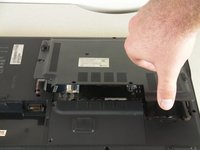
  1. Acer Aspire 5100 CPU Replacement, Fan: step 1, image 1 of 1
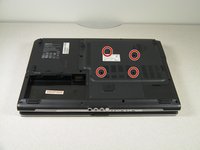
    • Flip the laptop upside-down.

    • Remove the battery as a safety precaution.

    • Remove the four screws attached to the large panel.

    Ask FixBot

    Add Comment

  2. Acer Aspire 5100 CPU Replacement: step 2, image 1 of 1
    • Lift and remove the panel.

    Ask FixBot

    Add Comment

  3. Acer Aspire 5100 CPU Replacement: step 3, image 1 of 1
    • Remove the two screws attached to the fan.

    Ask FixBot

    Add Comment

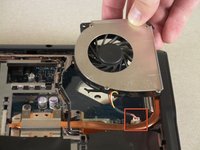
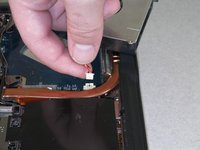
  4. Acer Aspire 5100 CPU Replacement: step 4, image 1 of 2 Acer Aspire 5100 CPU Replacement: step 4, image 2 of 2
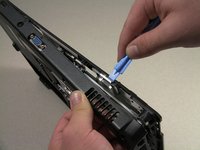
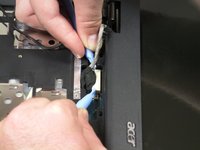
    • Lift the fan and detach the cable that connects the fan to the motherboard.

    • The fan can break easily. Be careful when removing.

    • When detaching the cable, do not pull on the cable itself. Instead, use a small spudger to detach it at the white section that connects it to the motherboard.

    Ask FixBot

    Add Comment

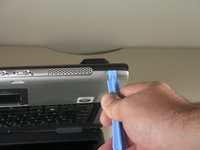
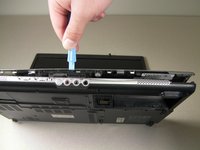
  5. Acer Aspire 5100 CPU Replacement, Keyboard: step 5, image 1 of 2 Acer Aspire 5100 CPU Replacement, Keyboard: step 5, image 2 of 2
    • Open and push the screen back all the way until it is horizontal with the rest of the laptop.

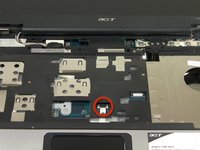
    • Use an opening tool to remove the panel above the keyboard that has the power button on it.

    • After you have released the tabs, lift up the panel.

    Ask FixBot

    Add Comment

  6. Acer Aspire 5100 CPU Replacement: step 6, image 1 of 3 Acer Aspire 5100 CPU Replacement: step 6, image 2 of 3 Acer Aspire 5100 CPU Replacement: step 6, image 3 of 3
    • Under the panel, remove the two screws that connect the keyboard to the laptop.

    • One screw is located above the F5 button, and the other one is located above the F10 button.

    • Potential for device damage: Lift up the keyboard CAREFULLY because there is a ribbon that connects the keyboard to the motherboard.

    Ask FixBot

    Add Comment

  7. Acer Aspire 5100 CPU Replacement: step 7, image 1 of 1
    • Release the catch on the ribbon socket by sliding the two tabs toward the ribbon.

    • Pull the ribbon under the keyboard to detach it from the motherboard.

    • Remove the keyboard.

    Ask FixBot

    Add Comment

  8. Acer Aspire 5100 CPU Replacement, Track Pad: step 8, image 1 of 1
    • Remove the nine screws from the back edges of the laptop.

    Ask FixBot

    Add Comment

  9. Acer Aspire 5100 CPU Replacement: step 9, image 1 of 3 Acer Aspire 5100 CPU Replacement: step 9, image 2 of 3 Acer Aspire 5100 CPU Replacement: step 9, image 3 of 3
    • Open the lid of the laptop and locate the cover that surrounds the keyboard and track pad.

    • Use the spudger to pry open the sides of this cover.

    • DO NOT lift cover off after detaching it because the track pad is connected to the motherboard.

    Ask FixBot

    Add Comment

  10. Acer Aspire 5100 CPU Replacement: step 10, image 1 of 2 Acer Aspire 5100 CPU Replacement: step 10, image 2 of 2
    • Slightly lift up the cover to see the ribbon connection.

    • Release the catch by sliding the two lugs toward the ribbon, then pull the ribbon to detach it from the motherboard.

    • Lift up the cover from the laptop.

    Ask FixBot

    Add Comment

  11. Acer Aspire 5100 CPU Replacement: step 11, image 1 of 1
    • On the cover that was removed, flip it around and locate where the back of the track pad is.

    • Remove the three screws located at the corners.

    • Lift up the bracket that you just unscrewed and remove track pad.

    Ask FixBot

    Add Comment

  12. Acer Aspire 5100 CPU Replacement, LCD Monitor: step 12, image 1 of 1
    • Remove the two screws from each corner beneath the LCD screen.

    Ask FixBot

    Add Comment

  13. Acer Aspire 5100 CPU Replacement: step 13, image 1 of 2 Acer Aspire 5100 CPU Replacement: step 13, image 2 of 2
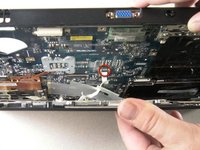
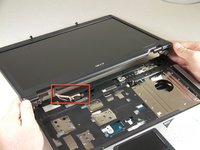
    • Detach the white rectangle located on the motherboard at the end of the wire connected to the LCD screen.

    Ask FixBot

    Add Comment

  14. Acer Aspire 5100 CPU Replacement: step 14, image 1 of 2 Acer Aspire 5100 CPU Replacement: step 14, image 2 of 2
    • Flip the laptop upside down.

    • Remove the four screws from the back panel of the laptop.

    • Lift the panel up and set it aside.

    Ask FixBot

    Add Comment

  15. Acer Aspire 5100 CPU Replacement: step 15, image 1 of 1
    • Detach the black and white wire.

    • You do not need to remove the cooling fan.

    Ask FixBot

    Add Comment

  16. Acer Aspire 5100 CPU Replacement: step 16, image 1 of 1
    • Lift up the monitor to detach it.

    Ask FixBot

    Add Comment

  17. Acer Aspire 5100 CPU Replacement, Motherboard: step 17, image 1 of 1
    • Remove the 15 screws from the motherboard.

    • There is normally only one remaining screw attached to the motherboard on the bottom right beneath the tape.

    • All the other screw holes (except screws holding the base cover on) are kept empty.

    Ask FixBot

    Add Comment

  18. Acer Aspire 5100 CPU Replacement: step 18, image 1 of 1
    • Flip the laptop upside down.

    • Locate the heat sink, which is the copper "L" shaped component, and unscrew the four screws that connect it to the motherboard.

    Ask FixBot

    Add Comment

  19. Acer Aspire 5100 CPU Replacement: step 19, image 1 of 1
    • Push out the back of the casing by the VGA connector to remove the motherboard.

    Ask FixBot

    Add Comment

  20. Acer Aspire 5100 CPU Replacement: step 20, image 1 of 2 Acer Aspire 5100 CPU Replacement: step 20, image 2 of 2
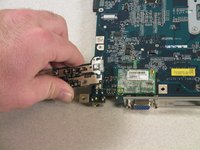
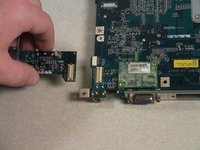
    • Lift up and remove the motherboard from the laptop casing.

    • Remove the USB add-on card to use it with the new motherboard.

    • To remove, grab on the sides and lift upward.

    Ask FixBot

    Add Comment

  21. Acer Aspire 5100 CPU Replacement, CPU: step 21, image 1 of 1
    • Loosen the screw to the CPU by rotating counter clockwise. The use of a flat head screwdriver will be needed.

    Ask FixBot

    Add Comment

  22. Acer Aspire 5100 CPU Replacement: step 22, image 1 of 1
    • Carefully pull up on the CPU from the circuit board without twisting or rotating as connections may become bent.

    • You now have the CPU, you may inspect it to check for any damages or replacement as necessary

    Ask FixBot

    Add Comment

Conclusion

To reassemble your device, follow these instructions in reverse order.

Cancel: I did not complete this guide.

One other person completed this guide.

2 Guide Comments

Hello sir

Can I switch to cpu amd advanced chip intel or I can not do so

Thank you

Message me on email

rabaharif1993@gmail.com

rabah arif - Reply Share
It is not worth the improvement.

Imi13 - Reply Share
Add Comment

View Statistics:

Past 24 Hours: 1

Past 7 Days: 17

Past 30 Days: 53

All Time: 5,129