
Acer Aspire 3003WLCi Internal Fan Replacement

Tristin Viale and 3 other contributors
Last updated on Jul 9, 2019
Views: 575
View statistics:
- Past 24 Hours:
- 1
- Past 7 Days:
- 13
- Past 30 Days:
- 56
- All Time:
- 575
Comments: 0
No one has left comments on this guide. Will you be first?
Go to guide commentsCompleted: 0 1
No one has marked this guide "completed." Will you be the first?
1 person has marked this guide "completed." It's you — great job!
Favorites: 0 1
No one has favorited (and subscribed to) this guide. Will you be the first?
1 person has favorited (and subscribed to) this guide — and that's you!
Introduction
Go to step 1 ↓In this guide, you will be instructed on how to replace the internal fan in your laptop. The internal fan helps to remove hot air from inside your laptop, keeping the internal components from overheating and causing damage to your laptop.
This replacement is of moderate difficulty, but will take you no more than fifteen minutes to complete. It requires very few tools, and can be completed in 6 steps.
What you need
Tools
-
Spudger4.9


-
-
-
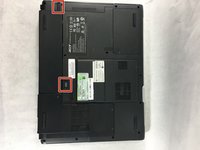
Turn the Acer Aspire 3003WLCi so that the bottom of the laptop is facing up. Orient it so that the battery is on your left.
 Ask FixBot
-
-
-
There will be two switches on the back of the laptop: one at the top of the battery, and one at the bottom.
-
Shift the bottom switch into an upward position in order to unlock the battery.
-
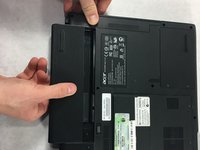
To unlock the upper switch, forcefully push the switch up and hold it in this position.
-
-
-
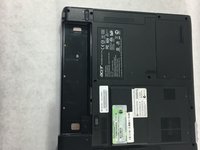
While holding the upper switch in the upward position, remove the battery by pulling it out to the left.
-
-
-
-
-
The panel you will be removing to access the internal fan is located at the bottom of the laptop.
-
-
-
Using a Phillips #0 screwdriver, unscrew the two 5mm captive screws on the panel.
-
-
-
-
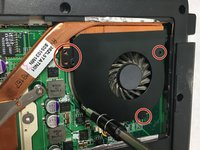
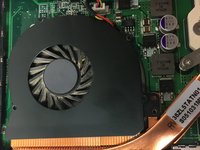
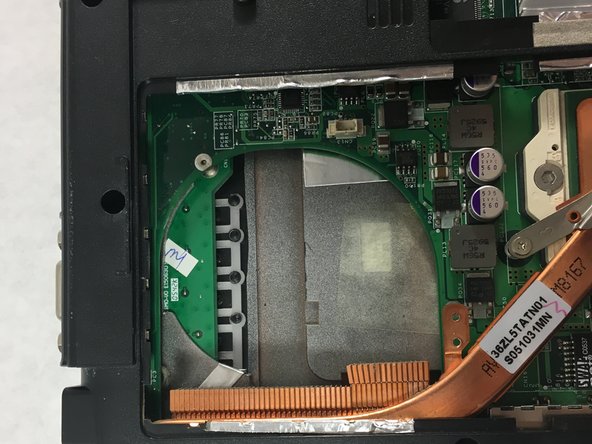
The fan is in the upper right corner of the panel.
-
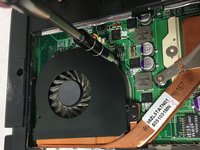
Using a Phillips #00 screwdriver, remove each of the four 2.5mm screws securing the fan to the laptop.
-
-
-
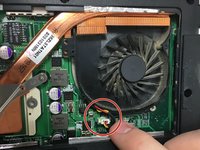
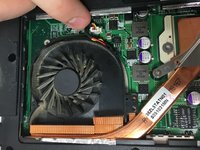
Disconnect the fan power cable from the motherboard by pulling the cable up and out of the connector.
-
-









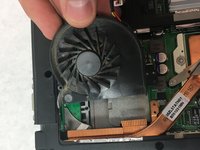
To reassemble your device, follow these instructions in reverse order.

Team

UMass Dartmouth, Team S2-G2, Bailey Spring 2019 Member of UMass Dartmouth, Team S2-G2, Bailey Spring 2019
UMASSD-BAILEY-S19S2G2
4 Members
60 Guides authored
