Free Shipping on Domestic Orders $75+

Acer Aspire 3000 Wireless Card Replacement

Views: 1.6K

View statistics:

Past 24 Hours:
2
Past 7 Days:
17
Past 30 Days:
91
All Time:
1,566
Comments: 0

No one has left comments on this guide. Will you be first?

Go to guide comments
Completed: 0

No one has marked this guide "completed." Will you be the first?

Favorites: 2

2 people have favorited (and subscribed to) this guide. Will you be next?

Time Required: 15 - 30 minutes
Difficulty: Moderate
Acer Aspire 3000 Wireless Card Replacement

Introduction

Go to step 1 ↓

This step-by- step process demonstrates how to install remove and install a new wireless card on your Acer Aspire 3000. It is important to follow the steps carefully in order to prevent damage to the cables upon removal. Damage to the cables may cause a bad connection with the replacement wireless card. Use caution to always remove the battery whenever you are repairing parts of your device.

What you need

Tools

    1. Acer Aspire 3000 Wireless Card Replacement, Battery: step 1, image 1 of 1
      • Begin with the device face down.

      • Orient the laptop so that the battery is on the side opposite of you and the headphone ports are facing towards you.

      Ask FixBot

      Add Comment

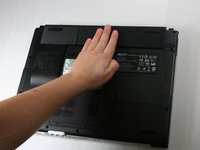
    2. Acer Aspire 3000 Wireless Card Replacement: step 2, image 1 of 2 Acer Aspire 3000 Wireless Card Replacement: step 2, image 2 of 2
      • Slide the button found below the battery to the left into the unlocked position.

      • You will know the battery is unlocked if the tab is pushed to the side where the symbol is unlocked.

      Ask FixBot

      Add Comment

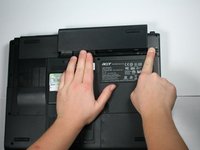
    3. Acer Aspire 3000 Wireless Card Replacement: step 3, image 1 of 2 Acer Aspire 3000 Wireless Card Replacement: step 3, image 2 of 2
      • Locate the battery and the tab to the right of it.

      • Pull the tab to the right while simultaneously pushing the battery away from you.

      • Make sure you push the battery only when tab is held in the right position in order to avoid damage to the device.

      Ask FixBot

      Add Comment

    1. Acer Aspire 3000 Wireless Card Replacement, Wireless Card: step 4, image 1 of 1
      • Remove the two 4.6 mm Phillips #1 screws on the lower edge of the laptop case.

      Ask FixBot

      Add Comment

    2. Acer Aspire 3000 Wireless Card Replacement: step 5, image 1 of 1
      • Pop the three side tabs out of the back case.

      Ask FixBot

      Add Comment

    3. Acer Aspire 3000 Wireless Card Replacement: step 6, image 1 of 1
      • Remove the panel that covers the graphics card.

      Ask FixBot

      Add Comment

    4. Acer Aspire 3000 Wireless Card Replacement: step 7, image 1 of 1
      • Remove the black and white cables attached to the graphics card.

      • Be careful to lift vertically as to not mess up either part of the connectors.

      Ask FixBot

      Add Comment

    5. Acer Aspire 3000 Wireless Card Replacement: step 8, image 1 of 1
      • Push the white flanges on either side of the graphics card out.

      • The card should lift on its own slightly out of the case.

      Ask FixBot

      Add Comment

    6. Acer Aspire 3000 Wireless Card Replacement: step 9, image 1 of 1
      • Remove the card by lifting up and away from the edge that has all of the contacts on it.

      Ask FixBot

      Add Comment

Conclusion

To reassemble your device, follow these instructions in reverse order.

Cancel: I did not complete this guide.

Lykia Harper

Member since: 10/29/16

282 Reputation

2 Guides authored

Team

Baylor, Team 4-2, Williams Fall 2016 Member of Baylor, Team 4-2, Williams Fall 2016

BU-WILLIAMS-F16S4G2

4 Members

72 Guides authored

0 Guide Comments

Add Comment

View Statistics:

Past 24 Hours: 2

Past 7 Days: 17

Past 30 Days: 91

All Time: 1,566