Introduction
This step-by- step process demonstrates how to replace an old keyboard on your Acer Aspire 3000. It is important to follow the steps carefully in order to prevent damage to the connectors or laptop itself upon removal of the keyboard. Damage to the connectors may cause a bad connection with the new replacement keyboard. Use caution to always remove the battery whenever you are repairing parts of your device.
What you need
-
-
-
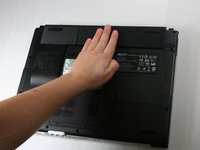
Begin with the device face down.
-
Orient the laptop so that the battery is on the side opposite of you and the headphone ports are facing towards you.
 Ask FixBot
-
-
-
Slide the button found below the battery to the left into the unlocked position.
-
-
-
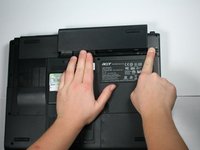
Locate the battery and the tab to the right of it.
-
Pull the tab to the right while simultaneously pushing the battery away from you.
-
-
-
-
-
-
Lift the laptop to be on its edge, with the bottom of the screen in the air.
-
-
-
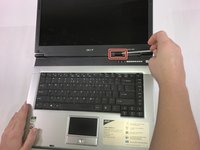
Wedge a spudger into the latch on the right side.
-
Pull the handle of the spudger towards you to pop the first of the tabs that hold this piece in place.
-
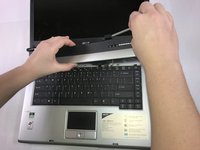
Starting from right to left, pop the remaining tabs by lifting up on the panel and rotating the panel to the left.
-
-
-
Lift the ZIF connector's black retaining flap. Then gently slide the ribbon cable out.
-
Remove the keyboard.
-
-






To reassemble your device, follow these instructions in reverse order.
Cancel: I did not complete this guide.
2 other people completed this guide.

Team

Baylor, Team 4-2, Williams Fall 2016 Member of Baylor, Team 4-2, Williams Fall 2016
BU-WILLIAMS-F16S4G2
4 Members
72 Guides authored
