Free Shipping on Domestic Orders $75+

ASUS ZenPad S 8.0 Motherboard Replacement

What you need

    1. ASUS ZenPad S 8.0 Motherboard Replacement, Rear Cover Removal: step 1, image 1 of 3 ASUS ZenPad S 8.0 Motherboard Replacement, Rear Cover Removal: step 1, image 2 of 3 ASUS ZenPad S 8.0 Motherboard Replacement, Rear Cover Removal: step 1, image 3 of 3
      • if present, remove the MicroSD card before disassembly. Failure to remove could lead to damage to the MicroSD card , rear cover, or MicroSD card slot.

      • Use the plastic tool to pry between the silver bezel and the back case

      • Work the tool around the device to free the back case

      Ask FixBot

      Add Comment

    2. ASUS ZenPad S 8.0 Motherboard Replacement: step 2, image 1 of 2 ASUS ZenPad S 8.0 Motherboard Replacement: step 2, image 2 of 2
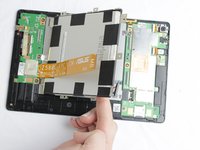
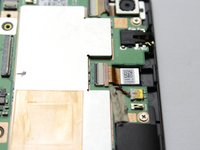
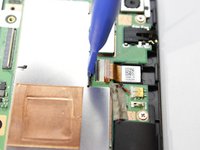
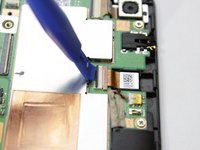
      • Remove the ribbon cables by lifting up the white retaining flap on the ZIF connectors, then pulling the ribbon cable away.

      • Do not kink the ribbon cables as they can break easily

      Ask FixBot

      Add Comment

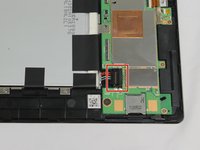
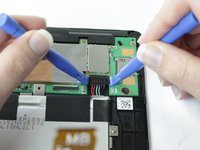
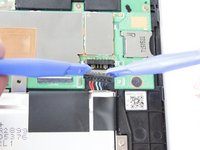
    3. ASUS ZenPad S 8.0 Motherboard Replacement: step 3, image 1 of 3 ASUS ZenPad S 8.0 Motherboard Replacement: step 3, image 2 of 3 ASUS ZenPad S 8.0 Motherboard Replacement: step 3, image 3 of 3
      • Remove the battery connector by prying it up away from the device using 2 plastic pry tools

      Ask FixBot

      Add Comment

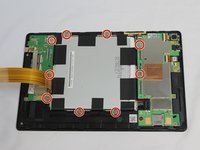
    4. ASUS ZenPad S 8.0 Motherboard Replacement: step 4, image 1 of 2 ASUS ZenPad S 8.0 Motherboard Replacement: step 4, image 2 of 2
      • Remove all 9 of the 1.5mm #00 Philips screws

      • Gently lift the battery out of the device

      • Use an opening pick or similar tool to separate the adhesive on the bottom and top of the battery.

      Ask FixBot

      Add Comment

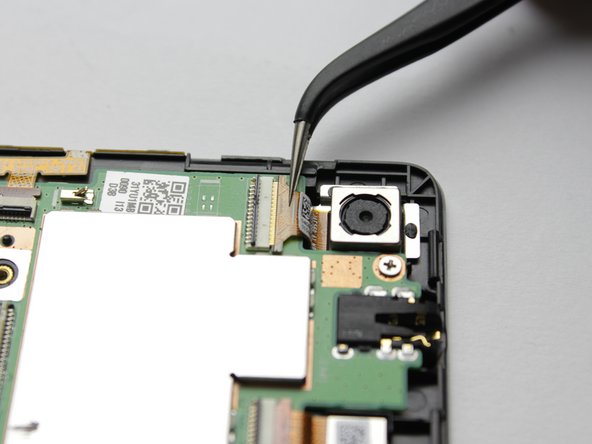
    1. ASUS ZenPad S 8.0 Motherboard Replacement, Front Facing Camera: step 5, image 1 of 3 ASUS ZenPad S 8.0 Motherboard Replacement, Front Facing Camera: step 5, image 2 of 3 ASUS ZenPad S 8.0 Motherboard Replacement, Front Facing Camera: step 5, image 3 of 3
      • Use a plastic opening tool to lift the black retaining flap on the ZIF Connector

      Ask FixBot

      Add Comment

    2. ASUS ZenPad S 8.0 Motherboard Replacement: step 6, image 1 of 1
      Tool used on this step:
      Tweezers
      $4.99
      Buy
      • Use a tweezers to lift out the camera

      • If you lifted the latch for the ribbon cable then it should come out with little resistance.

      Ask FixBot

      Add Comment

    1. ASUS ZenPad S 8.0 Motherboard Replacement, Motherboard: step 7, image 1 of 2 ASUS ZenPad S 8.0 Motherboard Replacement, Motherboard: step 7, image 2 of 2
      • Using the plastic prying tool, lift the small retaining flap on the ZIF Connectors holding the ribbon cables to the motherboard

      • The removing of the ribbon cable is done in the same way as the front facing camera.

      Ask FixBot

      Add Comment

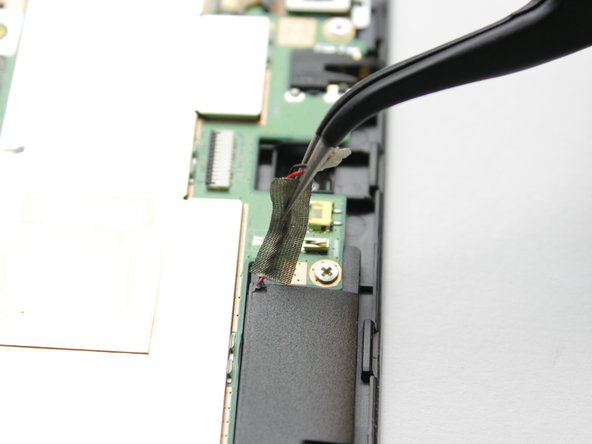
    2. ASUS ZenPad S 8.0 Motherboard Replacement: step 8, image 1 of 3 ASUS ZenPad S 8.0 Motherboard Replacement: step 8, image 2 of 3 ASUS ZenPad S 8.0 Motherboard Replacement: step 8, image 3 of 3
      Tool used on this step:
      Tweezers
      $4.99
      Buy
      • Using the tweezers remove the connector gently from the yellow slot

      • Gently peel up the tape until is is completely released from the motherboard

      Ask FixBot

      Add Comment

    3. ASUS ZenPad S 8.0 Motherboard Replacement: step 9, image 1 of 2 ASUS ZenPad S 8.0 Motherboard Replacement: step 9, image 2 of 2
      • Cut the warranty tape connecting the motherboard to the metal plate under the battery

      Ask FixBot

      Add Comment

    4. ASUS ZenPad S 8.0 Motherboard Replacement: step 10, image 1 of 1
      • Using the #00 Phillips head screwdriver, remove the remaining 1.5mm screws in the motherboard

      Ask FixBot

      Add Comment

    5. ASUS ZenPad S 8.0 Motherboard Replacement: step 11, image 1 of 1
      • Gently lift the motherboard from your device

      Ask FixBot

      Add Comment

Conclusion

To reassemble your device, follow these instructions in reverse order.

Cancel: I did not complete this guide.

One other person completed this guide.

Jessica Voss

Member since: 10/04/16

319 Reputation

1 Guide authored

Team

USF Tampa, Team 2-2, Cagle Fall 2016 Member of USF Tampa, Team 2-2, Cagle Fall 2016

USFT-CAGLE-F16S2G2

4 Members

60 Guides authored

2 Guide Comments

Where can I buy a spare motherboard for this device.

Partha Tripathy - Reply Share
Where are the motherboard sold and how do I purchase micro USB ports

Xibu Zhang - Reply Share

Add Comment

View Statistics:

Past 24 Hours: 3

Past 7 Days: 19

Past 30 Days: 68

All Time: 3,127