Introduction
If your ASUS X571GT struggles to hold a charge or has a short battery life, then you may need to look into replacing your battery. Before using this guide, look at the documentation linked here for possible fixes that may not need any form of disassembly. This guide can be used to remove the back panel and battery for the ASUS 571GT and similar models
The battery is an important part of the your laptop. Before removing the battery, inspect it to make sure that it is not swollen, and that all the battery has fully discharged. For more information about battery safety, please look at this guide that iFixit has provided.
Before you do any type of disassembly to your device, make sure that you have powered it off and that it is unplugged.
What you need
-
-
-
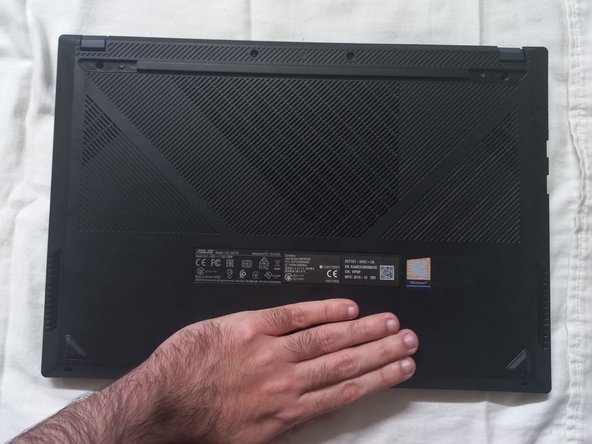
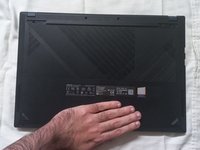
Flip the laptop over so the bottom is facing up.
-
Use a spudger to gently pry off the two screw covers just below each hinge.
 Ask FixBot
-
-
-
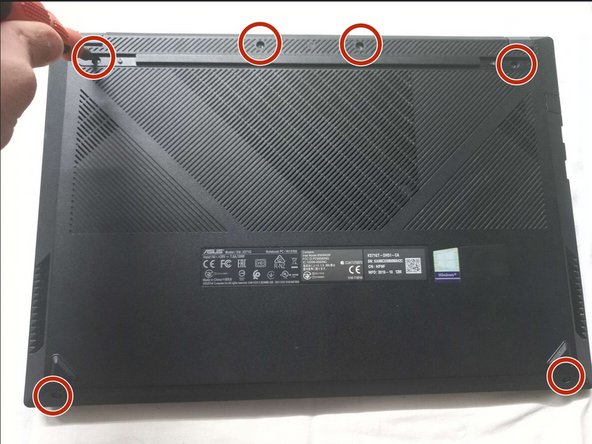
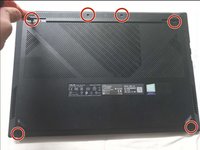
Use a Phillips #00 screwdriver to remove the six 5 mm screws on the back case of the laptop.
-
-
-
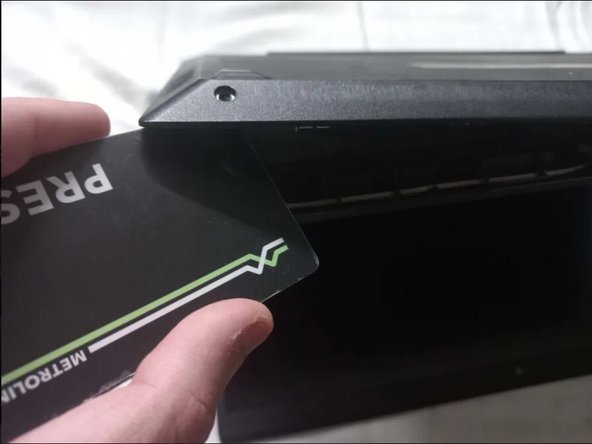
Insert an opening tool or plastic card into the thin seam between the back case and the device.
-
Slide the plastic tool around the perimeter of the laptop to release the clips/connectors.
-
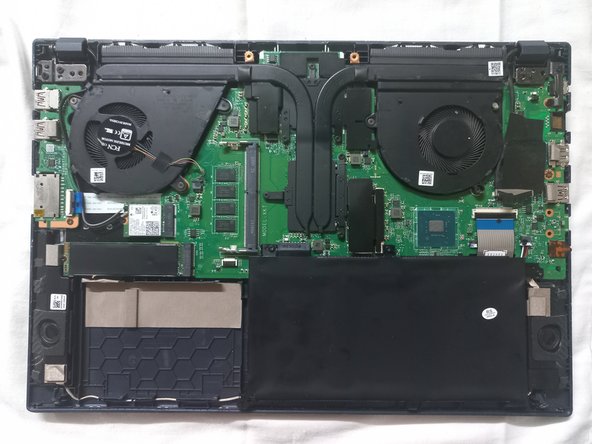
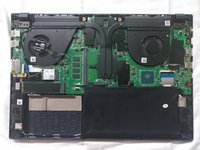
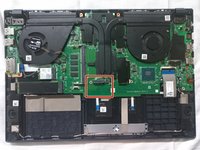
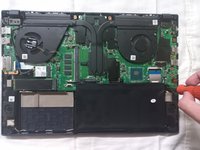
Remove the back case to reveal the internals of the laptop.
-
-
-
-
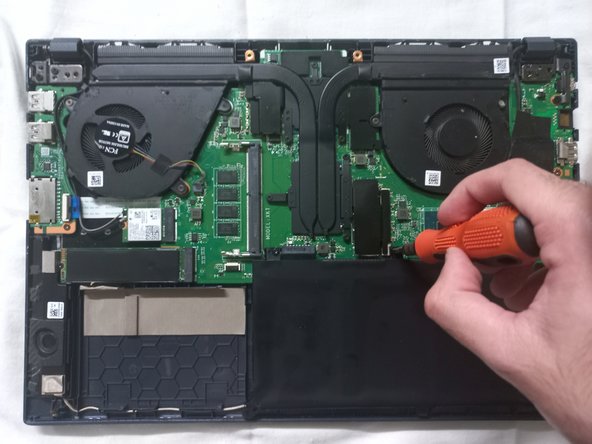
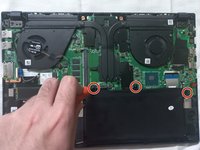
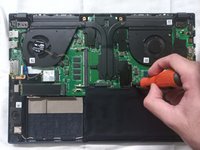
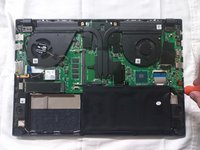
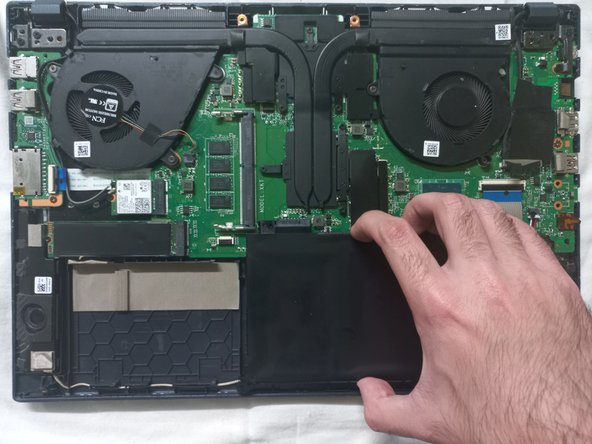
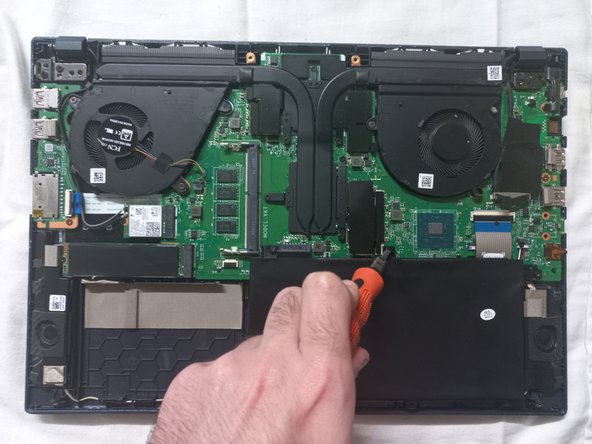
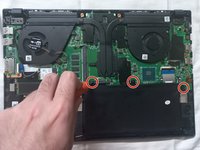
Use a Phillips #00 screwdriver to remove the three 5 mm screws securing the battery.
-
-
-
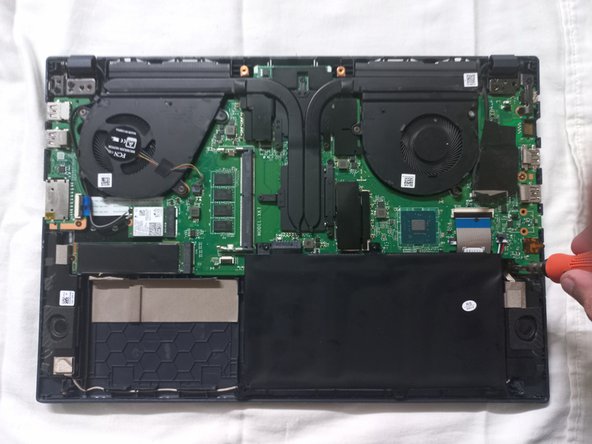
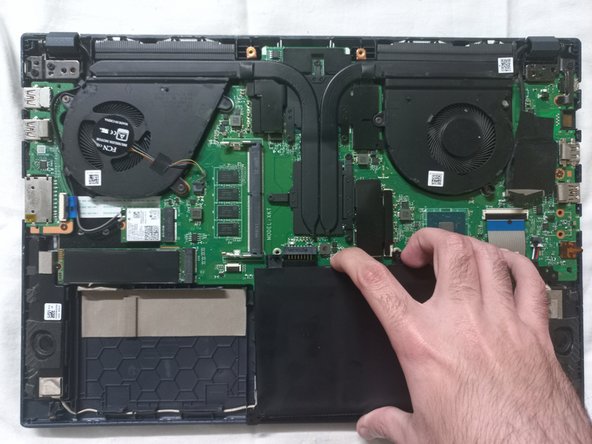
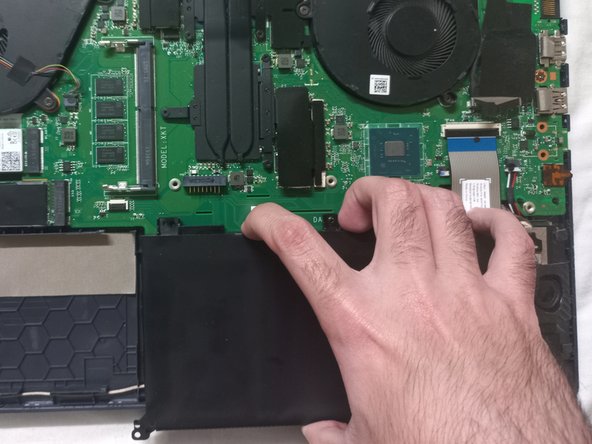
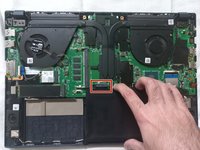
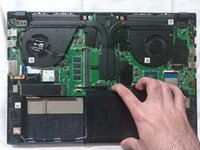
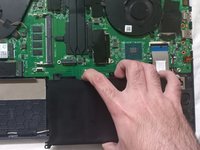
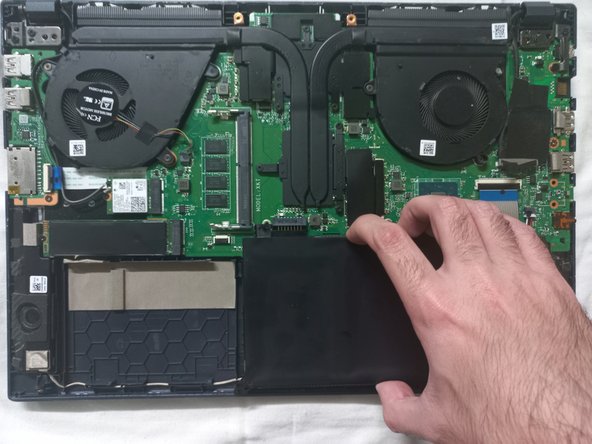
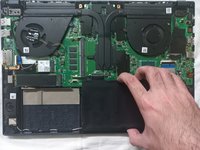
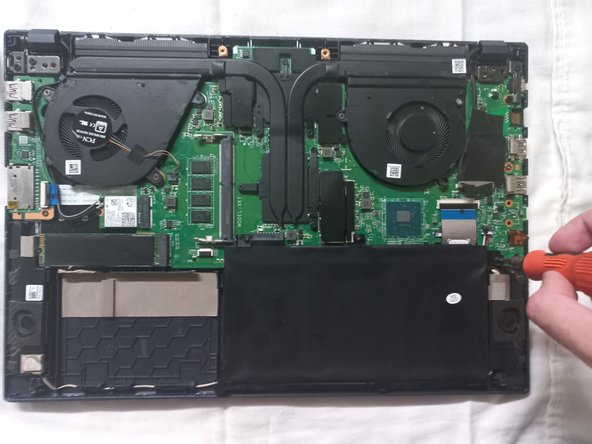
Slide the battery out of the connector to disconnect it from the motherboard.
-
-
-
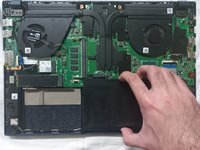
Line up the new replacement battery with the connector pins, and slide it into place.
-
Carefully connect the battery to the socket on the motherboard to prevent bending or damaging the pins.
-
-
-
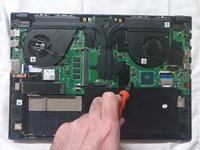
Use a Phillips #00 screwdriver to replace the three 5 mm screws that secure the battery.
-
-
-
Replace the back cover.
-
Use a Phillips #00 screwdriver to secure the six 5 mm screws on the back case.
-
-








To reassemble your device, follow these instructions in reverse order.
Cancel: I did not complete this guide.
4 other people completed this guide.

Team

York University, Team 2-4, O'Regan Winter 2024 Member of York University, Team 2-4, O'Regan Winter 2024
YORK-O'REGAN-W24S2G4
1 Member
12 Guides authored
