Free Shipping on Domestic Orders $75+

ASUS VivoBook S400C Trackpad Replacement

What you need

  1. ASUS VivoBook S400C Trackpad Replacement, Remove the Bottom Cover: step 1, image 1 of 1
    • Flip the device over and remove the ten 5.7 mm screws with a Phillips #0 screwdriver.

    Ask FixBot

    Add Comment

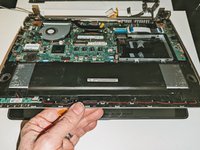
  2. ASUS VivoBook S400C Trackpad Replacement: step 2, image 1 of 2 ASUS VivoBook S400C Trackpad Replacement: step 2, image 2 of 2
    • Use a spudger or your fingers to go around and lift the edges and release the back panel.

    Ask FixBot

    Add Comment

  3. ASUS VivoBook S400C Trackpad Replacement, Disconnect the Battery: step 3, image 1 of 1
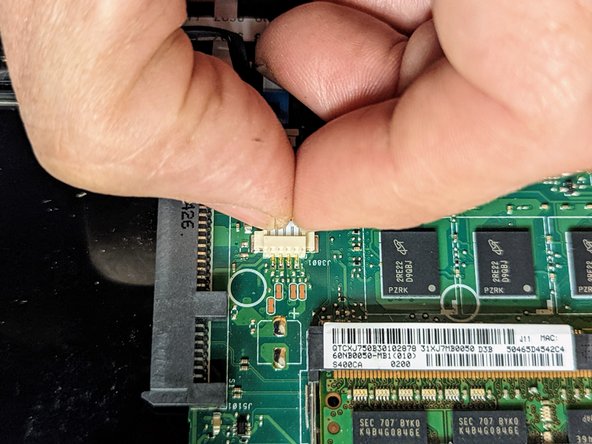
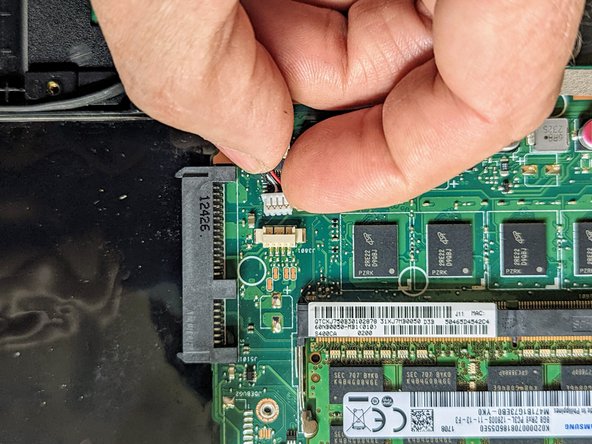
    • Using a spudger, lift up the plug connecting the battery to the motherboard.

    Ask FixBot

    Add Comment

  4. ASUS VivoBook S400C Trackpad Replacement, Battery: step 4, image 1 of 1
    • With a Phillips #0 screwdriver, remove the four 5.7 mm screws holding the battery to the laptop.

    Ask FixBot

    Add Comment

  5. ASUS VivoBook S400C Trackpad Replacement: step 5, image 1 of 1
    • Carefully lift the battery up and out of the device.

    Ask FixBot

    Add Comment

  6. ASUS VivoBook S400C Trackpad Replacement, Hard Drive: step 6, image 1 of 1
    • Remove the three Phillips #0 screws holding the the hard drive in place:

    • Two 3.8 mm screws.

    • One 5.7 mm screw.

    Ask FixBot

    Add Comment

  7. ASUS VivoBook S400C Trackpad Replacement: step 7, image 1 of 1
    • Pull left and lift out the hard drive.

    Ask FixBot

    Add Comment

  8. ASUS VivoBook S400C Trackpad Replacement, Heat Shield: step 8, image 1 of 2 ASUS VivoBook S400C Trackpad Replacement, Heat Shield: step 8, image 2 of 2
    • Remove the black shield covering the display connector and the heat sink.

    • You may need to use double-sided adhesive tape to resecure the shield.

    Ask FixBot

    Add Comment

  9. ASUS VivoBook S400C Trackpad Replacement, Display Assembly: step 9, image 1 of 1
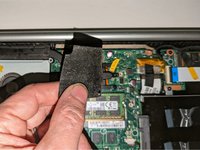
    • Remove the black tape securing the keyboard ribbon cable to the display connector.

    • Fold the ribbon cable the opposite way, resecuring it to the hard drive to keep it out of the way.

    Ask FixBot

    Add Comment

  10. ASUS VivoBook S400C Trackpad Replacement: step 10, image 1 of 2 ASUS VivoBook S400C Trackpad Replacement: step 10, image 2 of 2
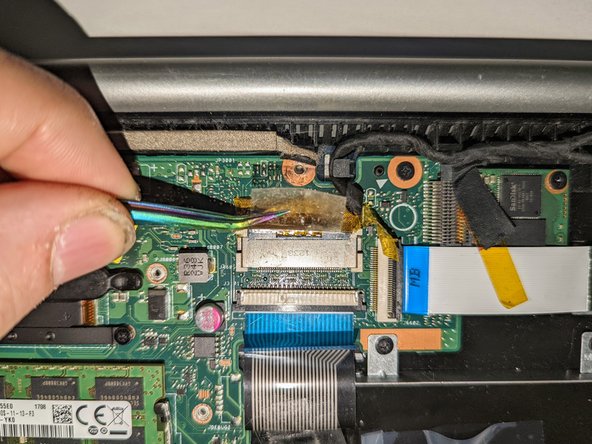
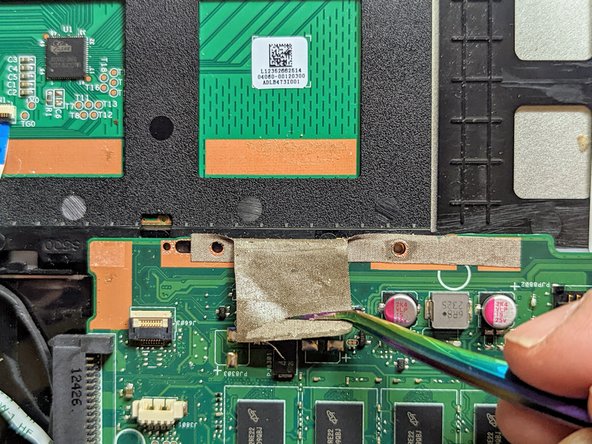
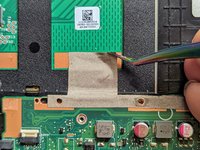
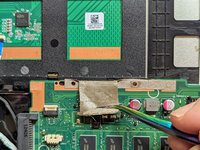
    • Peel off the clear tape from the motherboard display connector.

    Ask FixBot

    Add Comment

  11. ASUS VivoBook S400C Trackpad Replacement: step 11, image 1 of 2 ASUS VivoBook S400C Trackpad Replacement: step 11, image 2 of 2
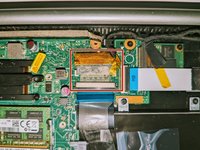
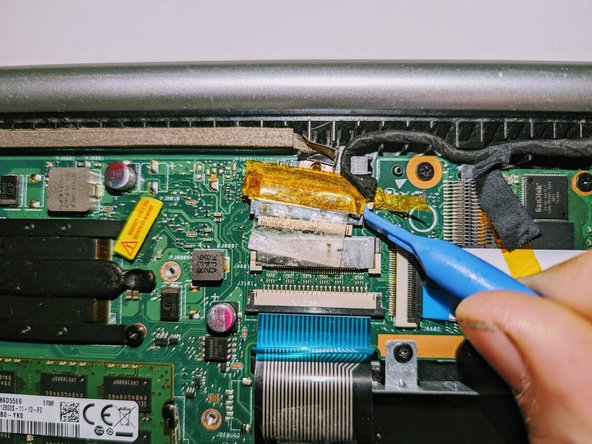
    • Position spudgers on the white tabs on either side of the connector and push evenly to unplug the display.

    Ask FixBot

    Add Comment

  12. ASUS VivoBook S400C Trackpad Replacement: step 12, image 1 of 3 ASUS VivoBook S400C Trackpad Replacement: step 12, image 2 of 3 ASUS VivoBook S400C Trackpad Replacement: step 12, image 3 of 3
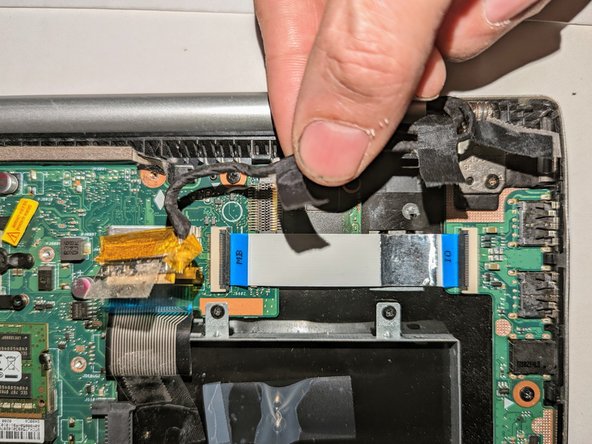
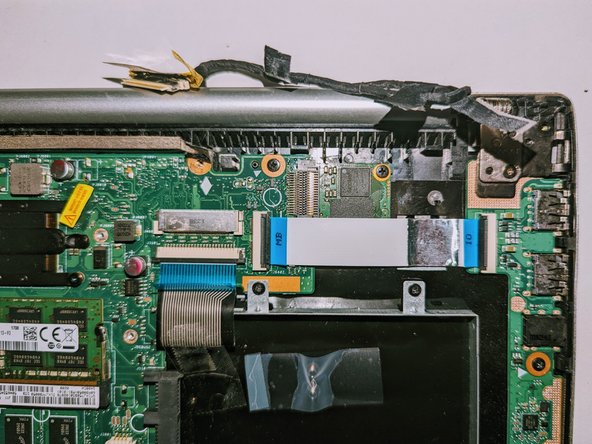
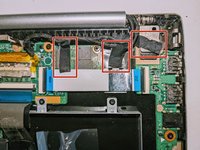
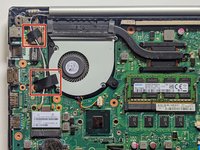
    • Peel off the three pieces of black tape securing the display cable to the motherboard.

    • Deroute the cable from the channel it sits in.

    • Move the cable to the side, out of the way.

    Ask FixBot

    Add Comment

  13. ASUS VivoBook S400C Trackpad Replacement: step 13, image 1 of 3 ASUS VivoBook S400C Trackpad Replacement: step 13, image 2 of 3 ASUS VivoBook S400C Trackpad Replacement: step 13, image 3 of 3
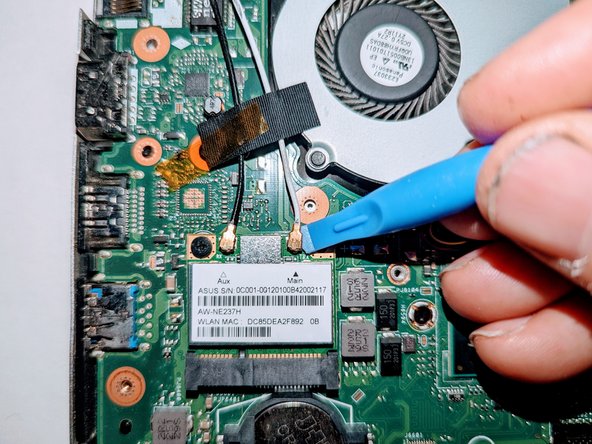
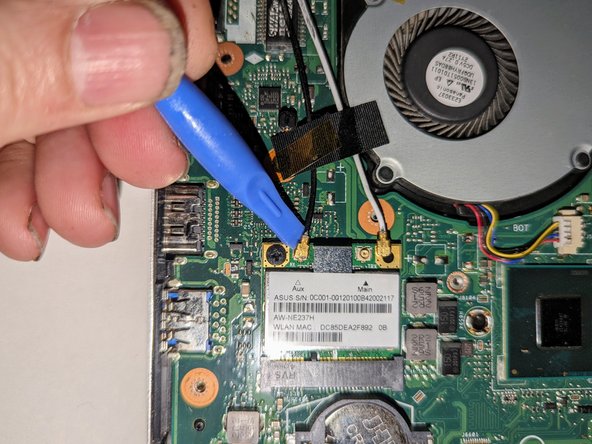
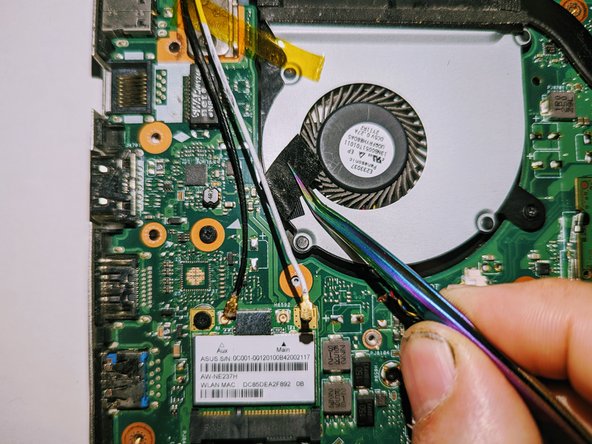
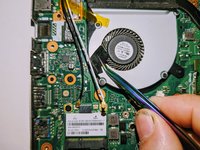
    • Use a spudger to release the cables from the wifi card.

    Ask FixBot

    Add Comment

  14. ASUS VivoBook S400C Trackpad Replacement: step 14, image 1 of 3 ASUS VivoBook S400C Trackpad Replacement: step 14, image 2 of 3 ASUS VivoBook S400C Trackpad Replacement: step 14, image 3 of 3
    • Lift the tapes securing the wires to the motherboard.

    • Move the wires to the side out of the way.

    Ask FixBot

    Add Comment

  15. ASUS VivoBook S400C Trackpad Replacement, Disconnect the Hinges: step 15, image 1 of 2 ASUS VivoBook S400C Trackpad Replacement, Disconnect the Hinges: step 15, image 2 of 2
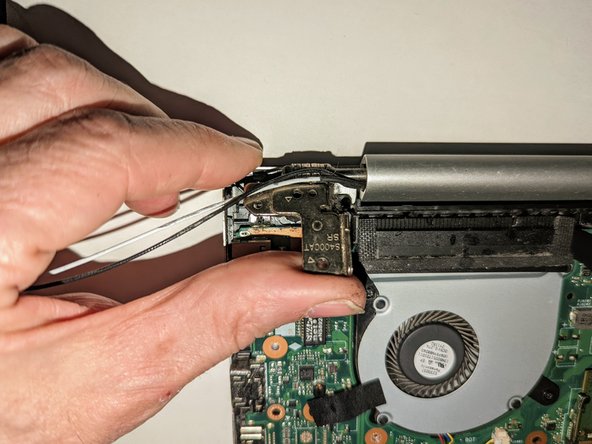
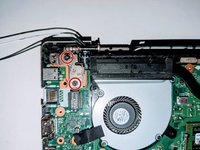
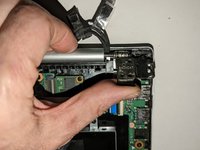
    • Remove the two screws securing the hinge on the left.

    • Pry the hinge up by hand to a 90 degree angle.

    Ask FixBot

    Add Comment

  16. ASUS VivoBook S400C Trackpad Replacement: step 16, image 1 of 2 ASUS VivoBook S400C Trackpad Replacement: step 16, image 2 of 2
    • Remove the two screws securing the hinge on the right.

    • Pry the hinge up by hand to a 90 degree angle.

    Ask FixBot

    Add Comment

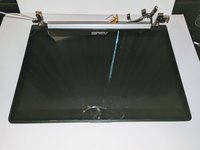
  17. ASUS VivoBook S400C Trackpad Replacement, Remove the Display: step 17, image 1 of 3 ASUS VivoBook S400C Trackpad Replacement, Remove the Display: step 17, image 2 of 3 ASUS VivoBook S400C Trackpad Replacement, Remove the Display: step 17, image 3 of 3
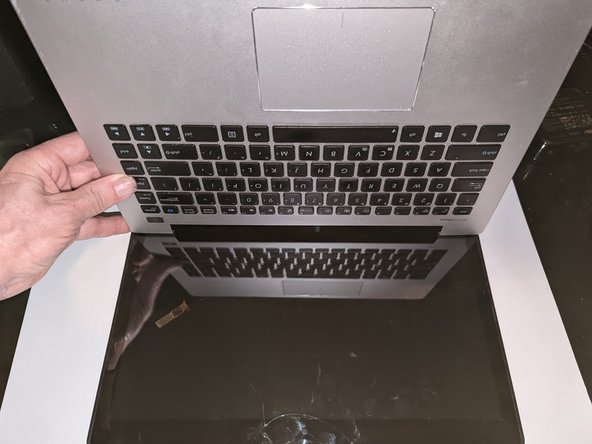
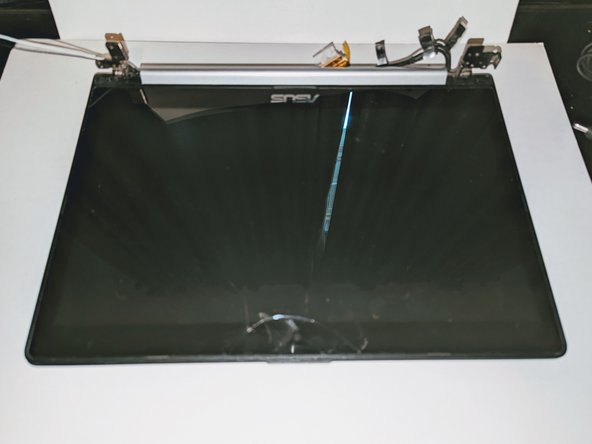
    • Lift the base of the laptop from the front.

    • Raise it to a 90 degree angle.

    • Slide it forward slightly to clear the hinges.

    • The display is now free.

    Ask FixBot

    Add Comment

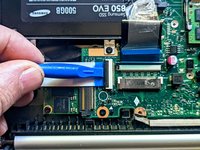
  18. ASUS VivoBook S400C Trackpad Replacement, SSD Card: step 18, image 1 of 3 ASUS VivoBook S400C Trackpad Replacement, SSD Card: step 18, image 2 of 3 ASUS VivoBook S400C Trackpad Replacement, SSD Card: step 18, image 3 of 3
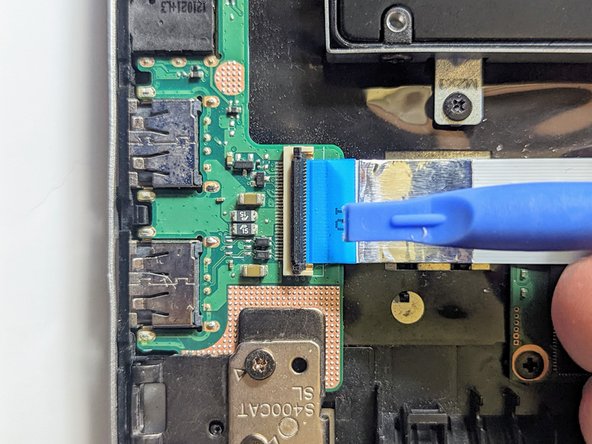
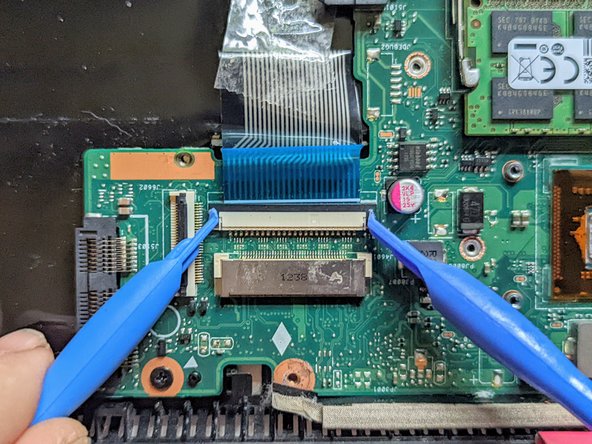
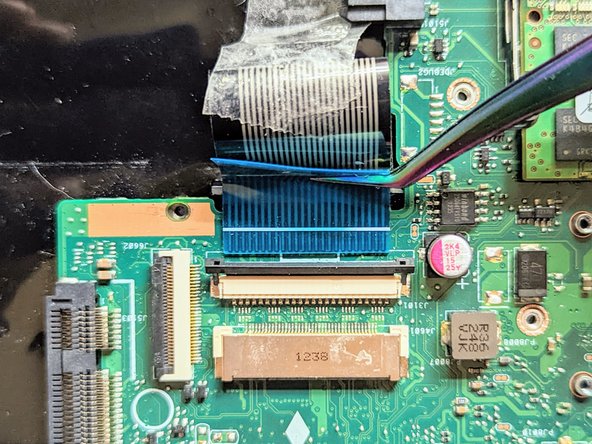
    • Disconnect the I/O Board ribbon cable from the motherboard.

    • Flip up the retaining latch with a spudger.

    Ask FixBot

    Add Comment

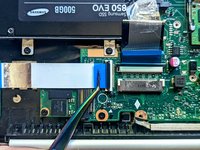
  19. ASUS VivoBook S400C Trackpad Replacement: step 19, image 1 of 2 ASUS VivoBook S400C Trackpad Replacement: step 19, image 2 of 2
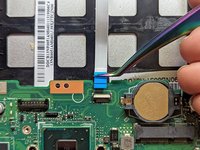
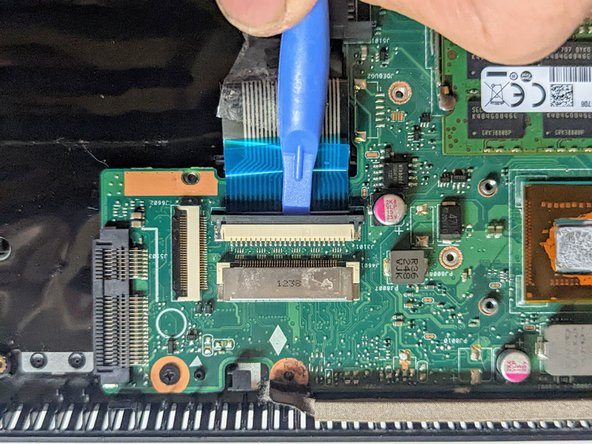
    • Grasp the ribbon cable by the blue tab and pull it straight out from the connector.

    Ask FixBot

    Add Comment

  20. ASUS VivoBook S400C Trackpad Replacement: step 20, image 1 of 3 ASUS VivoBook S400C Trackpad Replacement: step 20, image 2 of 3 ASUS VivoBook S400C Trackpad Replacement: step 20, image 3 of 3
    • Disconnect the I/O Board ribbon cable from the I/O board.

    • Flip up the latch with a spudger.

    Ask FixBot

    Add Comment

  21. ASUS VivoBook S400C Trackpad Replacement: step 21, image 1 of 3 ASUS VivoBook S400C Trackpad Replacement: step 21, image 2 of 3 ASUS VivoBook S400C Trackpad Replacement: step 21, image 3 of 3
    • Grasp the ribbon cable by the blue tab and pull it straight out from the connector.

    • Remove the ribbon cable to expose the SSD device.

    Ask FixBot

    Add Comment

  22. ASUS VivoBook S400C Trackpad Replacement: step 22, image 1 of 1
    • If present, remove any insulating sheet covering the SSD.

    • Remove the single retaining screw.

    Ask FixBot

    Add Comment

  23. ASUS VivoBook S400C Trackpad Replacement, Unplug the SSD from the motherboard: step 23, image 1 of 2 ASUS VivoBook S400C Trackpad Replacement, Unplug the SSD from the motherboard: step 23, image 2 of 2
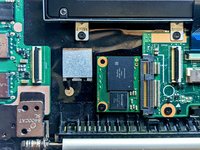
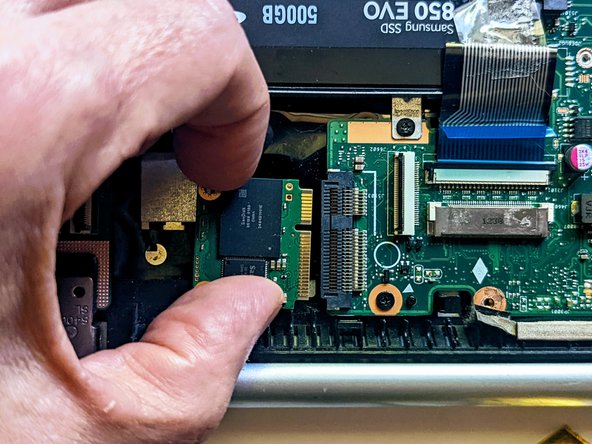
    • Grasp the SSD by the sides and slide it out of the connector.

    Ask FixBot

    Add Comment

  24. ASUS VivoBook S400C Trackpad Replacement, Fan / Heatsink Assembly: step 24, image 1 of 1
    • The fan and heat sink do not need to be removed for this procedure.

    • Remove the screw securing the fan to the palm rest. All other fan and heatsink screws can remain in place.

    Ask FixBot

    Add Comment

  25. ASUS VivoBook S400C Trackpad Replacement, Motherboard: step 25, image 1 of 3 ASUS VivoBook S400C Trackpad Replacement, Motherboard: step 25, image 2 of 3 ASUS VivoBook S400C Trackpad Replacement, Motherboard: step 25, image 3 of 3
    • Unplug the black cable connecting the motherboard to the speakers.

    Ask FixBot

    Add Comment

  26. ASUS VivoBook S400C Trackpad Replacement, Disconnect the Trackpad: step 26, image 1 of 3 ASUS VivoBook S400C Trackpad Replacement, Disconnect the Trackpad: step 26, image 2 of 3 ASUS VivoBook S400C Trackpad Replacement, Disconnect the Trackpad: step 26, image 3 of 3
    • Flip up the trackpad ribbon cable retainer with a spudger.

    Ask FixBot

    Add Comment

  27. ASUS VivoBook S400C Trackpad Replacement: step 27, image 1 of 3 ASUS VivoBook S400C Trackpad Replacement: step 27, image 2 of 3 ASUS VivoBook S400C Trackpad Replacement: step 27, image 3 of 3
    • Pull the cable straight out from the connector.

    • Peel the trackpad cable off the conductive tape strip below it.

    Ask FixBot

    Add Comment

  28. ASUS VivoBook S400C Trackpad Replacement: step 28, image 1 of 2 ASUS VivoBook S400C Trackpad Replacement: step 28, image 2 of 2
    • Remove the first of the two conductive tapes grounding the trackpad.

    Ask FixBot

    Add Comment

  29. ASUS VivoBook S400C Trackpad Replacement: step 29, image 1 of 2 ASUS VivoBook S400C Trackpad Replacement: step 29, image 2 of 2
    • Remove the second conductive tape grounding the trackpad.

    Ask FixBot

    Add Comment

  30. ASUS VivoBook S400C Trackpad Replacement, Disconnect the LED Board Cable: step 30, image 1 of 3 ASUS VivoBook S400C Trackpad Replacement, Disconnect the LED Board Cable: step 30, image 2 of 3 ASUS VivoBook S400C Trackpad Replacement, Disconnect the LED Board Cable: step 30, image 3 of 3
    • Use a spudger to flip up the LED board cable retainer.

    Ask FixBot

    Add Comment

  31. ASUS VivoBook S400C Trackpad Replacement: step 31, image 1 of 2 ASUS VivoBook S400C Trackpad Replacement: step 31, image 2 of 2
    • Pull the ribbon cable straight out from the connector.

    Ask FixBot

    Add Comment

  32. ASUS VivoBook S400C Trackpad Replacement, Disconnect the Keyboard: step 32, image 1 of 3 ASUS VivoBook S400C Trackpad Replacement, Disconnect the Keyboard: step 32, image 2 of 3 ASUS VivoBook S400C Trackpad Replacement, Disconnect the Keyboard: step 32, image 3 of 3
    • Place a spudger on the ears on either side of the keyboard ribbon cable connector and push evenly on both sides to release it.

    • The retainer will only move a very short distance then stop.

    • Lift it slightly to relieve the tension.

    Ask FixBot

    Add Comment

  33. ASUS VivoBook S400C Trackpad Replacement: step 33, image 1 of 2 ASUS VivoBook S400C Trackpad Replacement: step 33, image 2 of 2
    • Unplug the keyboard ribbon cable.

    Ask FixBot

    Add Comment

  34. ASUS VivoBook S400C Trackpad Replacement, Remove the Mounting Screws: step 34, image 1 of 1
    • Remove the two mounting screws.

    • There are triangular arrows printed on the board pointing to each of them.

    Ask FixBot

    Add Comment

  35. ASUS VivoBook S400C Trackpad Replacement, Remove the Motherboard: step 35, image 1 of 2 ASUS VivoBook S400C Trackpad Replacement, Remove the Motherboard: step 35, image 2 of 2
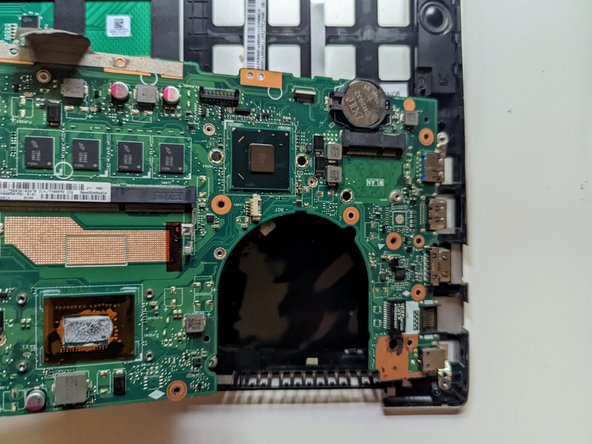
    • Lift and slide the motherboard toward the hard drive to clear the connectors on the opposite side from the case.

    Ask FixBot

    Add Comment

  36. ASUS VivoBook S400C Trackpad Replacement, Trackpad: step 36, image 1 of 3 ASUS VivoBook S400C Trackpad Replacement, Trackpad: step 36, image 2 of 3 ASUS VivoBook S400C Trackpad Replacement, Trackpad: step 36, image 3 of 3
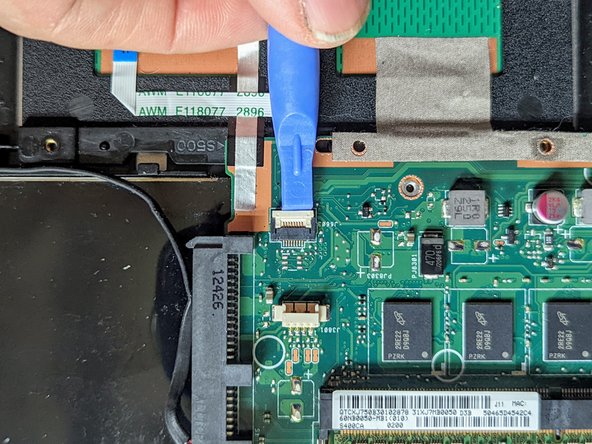
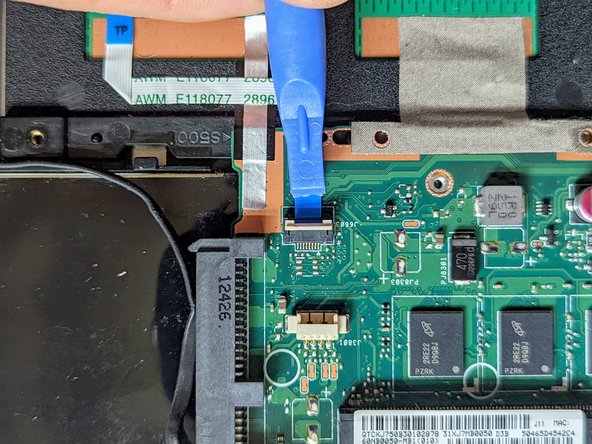
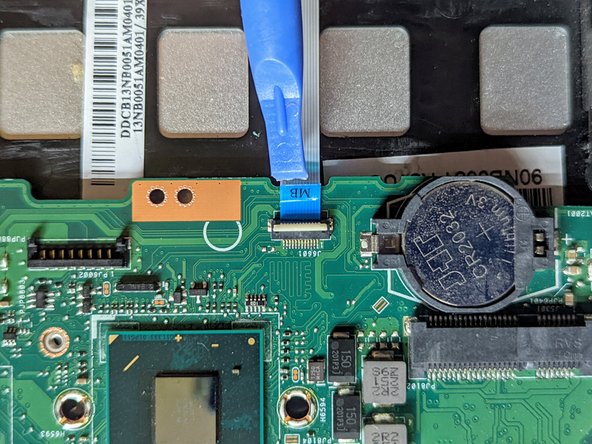
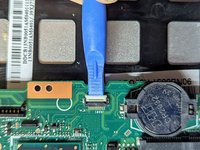
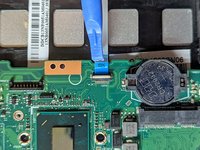
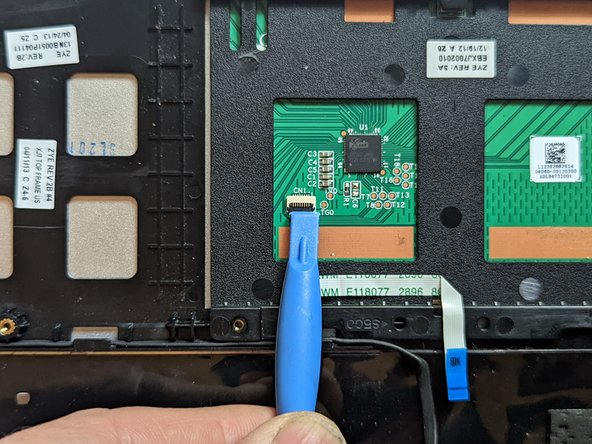
    • Flip the retaining latch on the trackpad ribbon cable connector up with a spudger.

    Ask FixBot

    Add Comment

  37. ASUS VivoBook S400C Trackpad Replacement: step 37, image 1 of 2 ASUS VivoBook S400C Trackpad Replacement: step 37, image 2 of 2
    Tool used on this step:
    Tweezers
    $4.99
    Buy
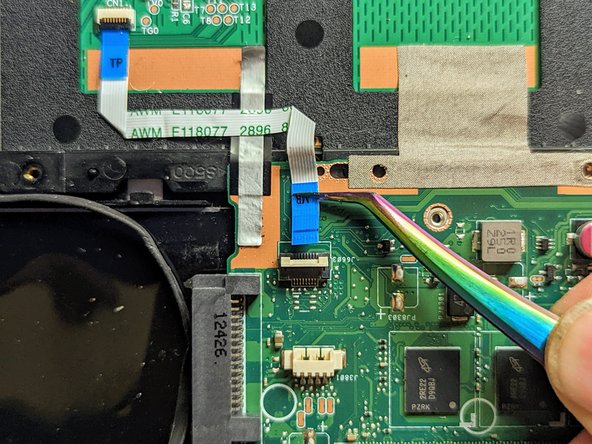
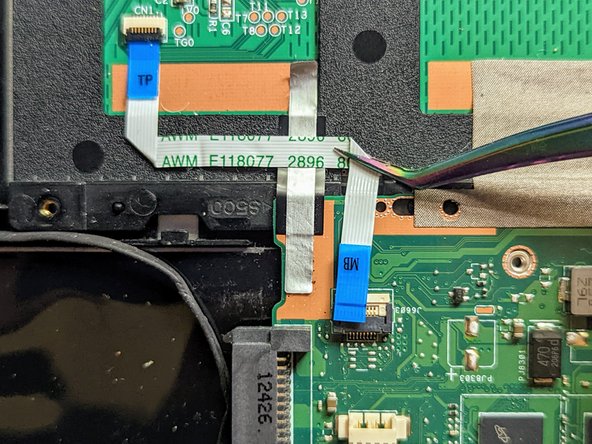
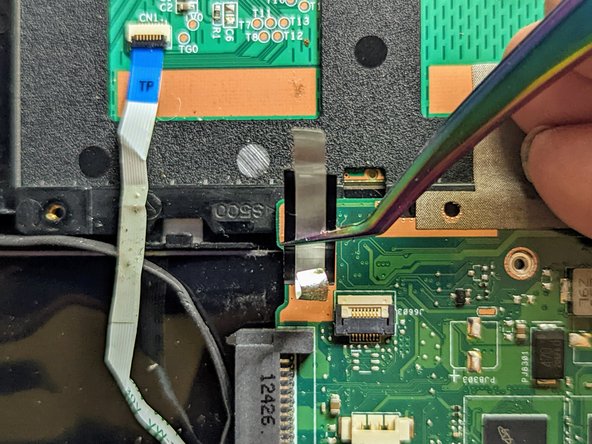
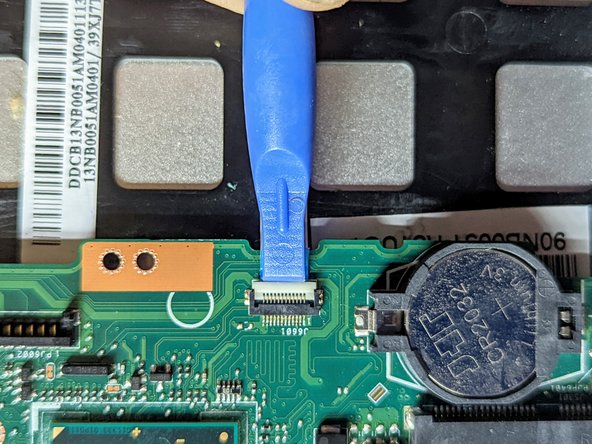
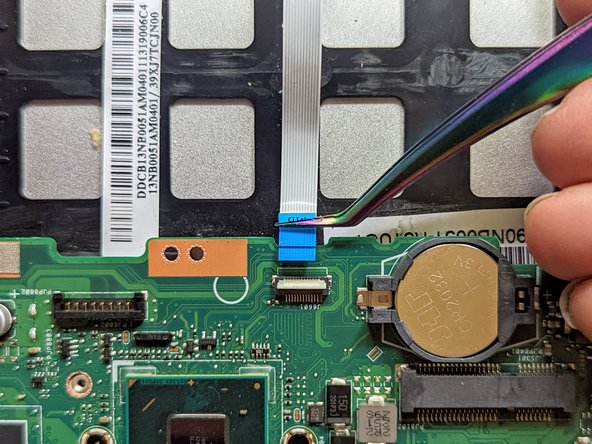
    • Grasp the blue tab with fine tip tweezers and pull the cable straight out from the connector.

    • Gently peel the trackpad ribbon cable off the trackpad.

    Ask FixBot

    Add Comment

  38. ASUS VivoBook S400C Trackpad Replacement, Remove the Trackpad: step 38, image 1 of 2 ASUS VivoBook S400C Trackpad Replacement, Remove the Trackpad: step 38, image 2 of 2
    • Lift the side of the trackpad farthest from the side of the case and slide it away from the edge to remove it.

    Ask FixBot

    Add Comment

Conclusion

To reassemble your device, follow these instructions in reverse order.

Cancel: I did not complete this guide.

Jerry Wheeler

Member since: 03/21/22

95,841 Reputation

92 Guides authored

0 Guide Comments

Add Comment

View Statistics:

Past 24 Hours: 1

Past 7 Days: 11

Past 30 Days: 30

All Time: 571