Free Shipping on Domestic Orders $75+

ASUS VivoBook S400C Keyboard / Palm Rest Replacement

What you need

    1. ASUS VivoBook S400C Keyboard / Palm Rest Replacement, Remove the Bottom Cover: step 1, image 1 of 1
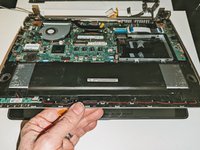
      • Flip the device over and remove the ten 5.7 mm screws with a Phillips #0 screwdriver.

      Ask FixBot

      Add Comment

    2. ASUS VivoBook S400C Keyboard / Palm Rest Replacement: step 2, image 1 of 2 ASUS VivoBook S400C Keyboard / Palm Rest Replacement: step 2, image 2 of 2
      • Use a spudger or your fingers to go around and lift the edges and release the back panel.

      Ask FixBot

      Add Comment

    3. ASUS VivoBook S400C Keyboard / Palm Rest Replacement, Disconnect the Battery: step 3, image 1 of 1
      • Using a spudger, lift up the plug connecting the battery to the motherboard.

      Ask FixBot

      Add Comment

    1. ASUS VivoBook S400C Keyboard / Palm Rest Replacement, Battery: step 4, image 1 of 1
      • With a Phillips #0 screwdriver, remove the four 5.7 mm screws holding the battery to the laptop.

      Ask FixBot

      Add Comment

    2. ASUS VivoBook S400C Keyboard / Palm Rest Replacement: step 5, image 1 of 1
      • Carefully lift the battery up and out of the device.

      Ask FixBot

      Add Comment

    1. ASUS VivoBook S400C Keyboard / Palm Rest Replacement, Hard Drive: step 6, image 1 of 1
      • Remove the three Phillips #0 screws holding the the hard drive in place:

      • Two 3.8 mm screws.

      • One 5.7 mm screw.

      Ask FixBot

      Add Comment

    2. ASUS VivoBook S400C Keyboard / Palm Rest Replacement: step 7, image 1 of 1
      • Pull left and lift out the hard drive.

      Ask FixBot

      Add Comment

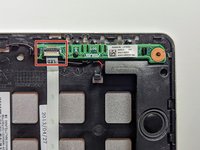
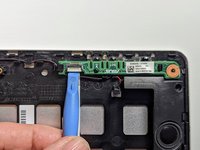
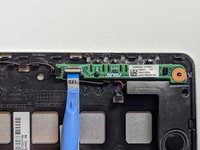
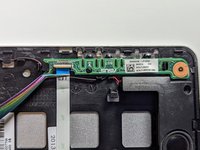
    1. ASUS VivoBook S400C Keyboard / Palm Rest Replacement, LED Board: step 8, image 1 of 3 ASUS VivoBook S400C Keyboard / Palm Rest Replacement, LED Board: step 8, image 2 of 3 ASUS VivoBook S400C Keyboard / Palm Rest Replacement, LED Board: step 8, image 3 of 3
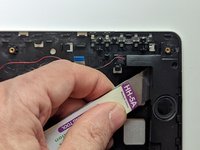
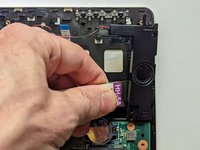
      • Disconnect the ribbon cable connecting the LED daughterboard and the motherboard by lifting the white tab on the LED side of the cable.

      Ask FixBot

      Add Comment

    2. ASUS VivoBook S400C Keyboard / Palm Rest Replacement: step 9, image 1 of 2 ASUS VivoBook S400C Keyboard / Palm Rest Replacement: step 9, image 2 of 2
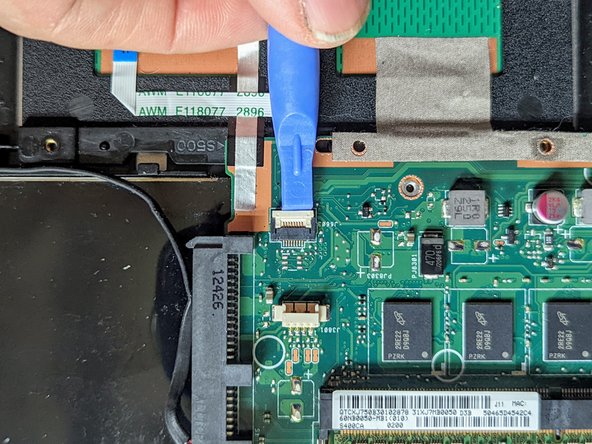
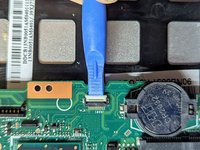
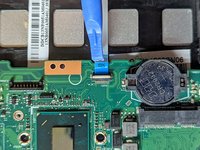
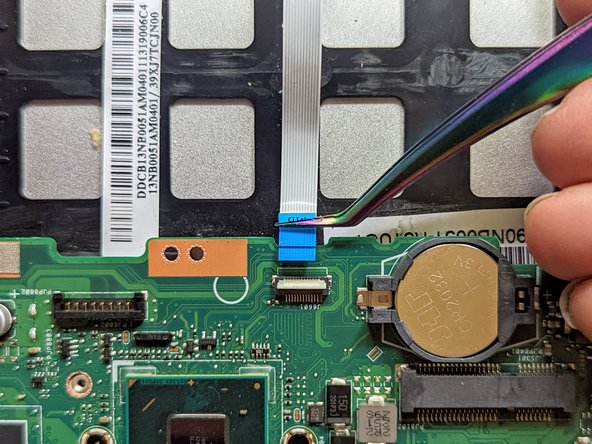
      • Pull out the ribbon cable on the LED side by pulling on the blue tab.

      Ask FixBot

      Add Comment

    3. ASUS VivoBook S400C Keyboard / Palm Rest Replacement: step 10, image 1 of 3 ASUS VivoBook S400C Keyboard / Palm Rest Replacement: step 10, image 2 of 3 ASUS VivoBook S400C Keyboard / Palm Rest Replacement: step 10, image 3 of 3
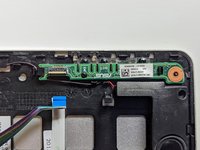
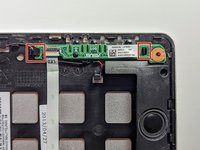
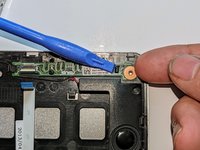
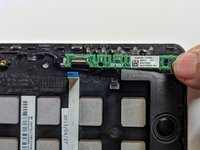
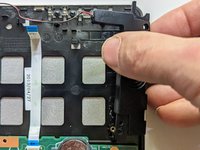
      • The LED board is held in place by a hook on the left end and a latch on the right.

      • Press the latch with a spudger while lifting with a fingernail.

      • Pull the LED board to the right to clear the left-hand hook.

      Ask FixBot

      Add Comment

    1. ASUS VivoBook S400C Keyboard / Palm Rest Replacement, Speakers: step 11, image 1 of 2 ASUS VivoBook S400C Keyboard / Palm Rest Replacement, Speakers: step 11, image 2 of 2
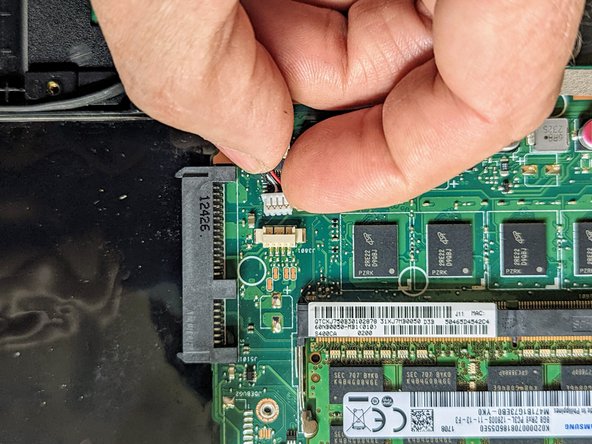
      • Pull out the black cable connecting the motherboard to the speakers.

      Ask FixBot

      Add Comment

    2. ASUS VivoBook S400C Keyboard / Palm Rest Replacement: step 12, image 1 of 2 ASUS VivoBook S400C Keyboard / Palm Rest Replacement: step 12, image 2 of 2
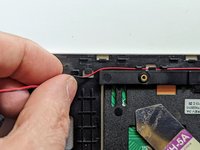
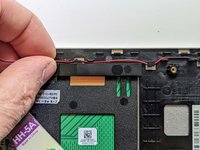
      • Deroute the speaker wire from the motherboard to the left speaker.

      Ask FixBot

      Add Comment

    3. ASUS VivoBook S400C Keyboard / Palm Rest Replacement: step 13, image 1 of 3 ASUS VivoBook S400C Keyboard / Palm Rest Replacement: step 13, image 2 of 3 ASUS VivoBook S400C Keyboard / Palm Rest Replacement: step 13, image 3 of 3
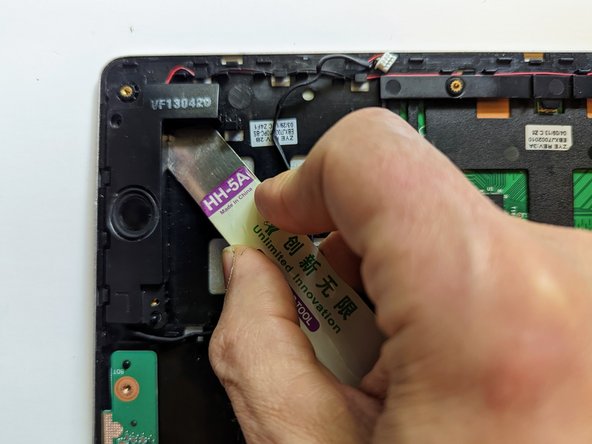
      • Using a metal opening tool, pry off the left speaker.

      • A fairly strong adhesive is used between the speakers and the body of the laptop, requiring considerable force to take apart. Work slowly and use caution when working near the delicate wires connecting the two speakers.

      Ask FixBot

      Add Comment

    4. ASUS VivoBook S400C Keyboard / Palm Rest Replacement: step 14, image 1 of 2 ASUS VivoBook S400C Keyboard / Palm Rest Replacement: step 14, image 2 of 2
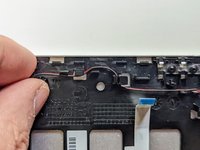
      • Deroute the wires from the left speaker to the right.

      Ask FixBot

      Add Comment

    5. ASUS VivoBook S400C Keyboard / Palm Rest Replacement: step 15, image 1 of 2 ASUS VivoBook S400C Keyboard / Palm Rest Replacement: step 15, image 2 of 2
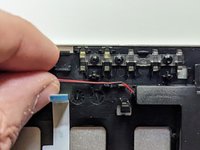
      • Continue to deroute the speaker wire to the right speaker.

      Ask FixBot

      Add Comment

    6. ASUS VivoBook S400C Keyboard / Palm Rest Replacement: step 16, image 1 of 3 ASUS VivoBook S400C Keyboard / Palm Rest Replacement: step 16, image 2 of 3 ASUS VivoBook S400C Keyboard / Palm Rest Replacement: step 16, image 3 of 3
      • Using a metal opening tool, pry off the right speaker.

      • It bears repeating that a fairly strong adhesive is used between the speakers and the body of the laptop, requiring considerable force to take apart.

      Ask FixBot

      Add Comment

    1. ASUS VivoBook S400C Keyboard / Palm Rest Replacement, Heat Shield: step 17, image 1 of 2 ASUS VivoBook S400C Keyboard / Palm Rest Replacement, Heat Shield: step 17, image 2 of 2
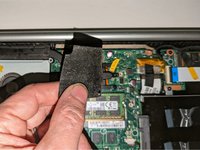
      • Remove the black shield covering the display connector and the heat sink.

      • You may need to use double-sided adhesive tape to resecure the shield.

      Ask FixBot

      Add Comment

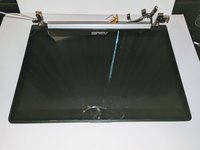
    1. ASUS VivoBook S400C Keyboard / Palm Rest Replacement, Display Assembly: step 18, image 1 of 1
      • Remove the black tape securing the keyboard ribbon cable to the display connector.

      • Fold the ribbon cable the opposite way, resecuring it to the hard drive to keep it out of the way.

      Ask FixBot

      Add Comment

    2. ASUS VivoBook S400C Keyboard / Palm Rest Replacement: step 19, image 1 of 2 ASUS VivoBook S400C Keyboard / Palm Rest Replacement: step 19, image 2 of 2
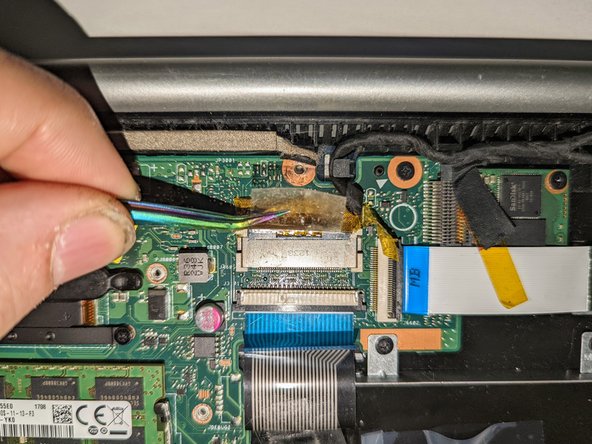
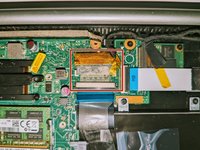
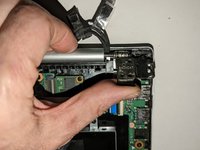
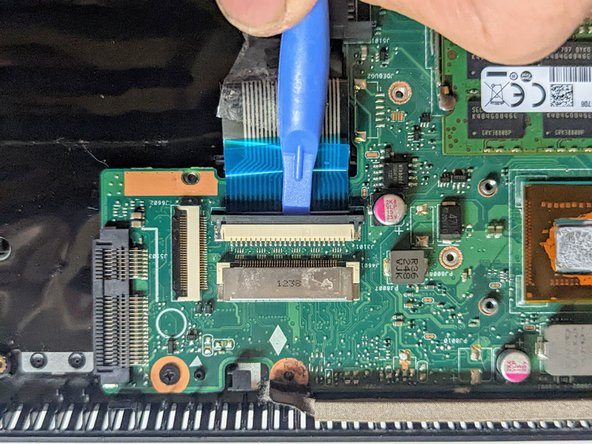
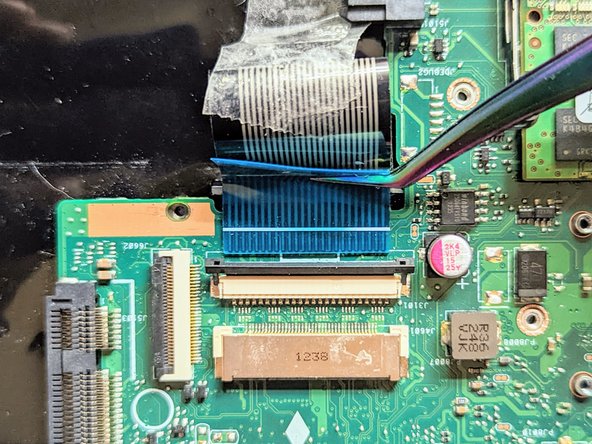
      • Peel off the clear tape from the motherboard display connector.

      Ask FixBot

      Add Comment

    3. ASUS VivoBook S400C Keyboard / Palm Rest Replacement: step 20, image 1 of 2 ASUS VivoBook S400C Keyboard / Palm Rest Replacement: step 20, image 2 of 2
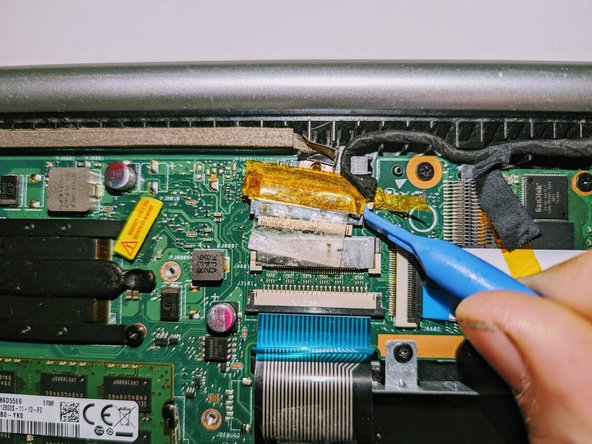
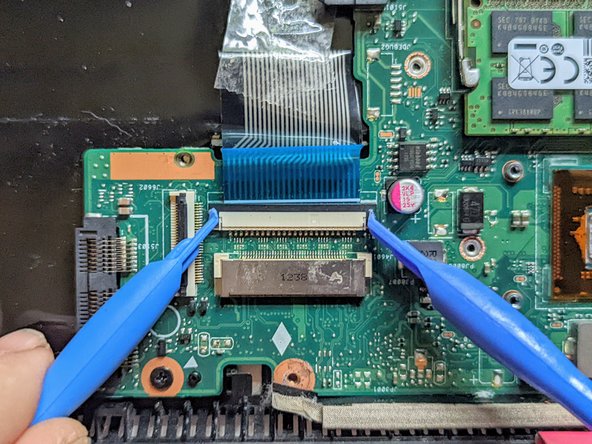
      • Position spudgers on the white tabs on either side of the connector and push evenly to unplug the display.

      Ask FixBot

      Add Comment

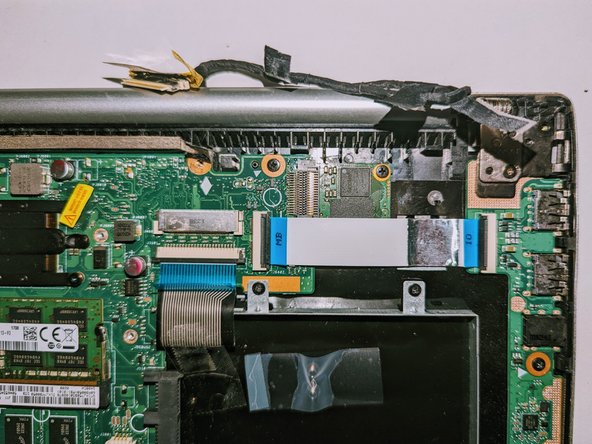
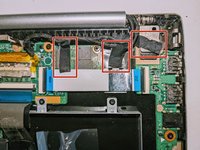
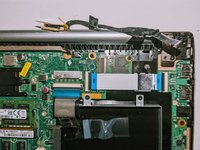
    4. ASUS VivoBook S400C Keyboard / Palm Rest Replacement: step 21, image 1 of 3 ASUS VivoBook S400C Keyboard / Palm Rest Replacement: step 21, image 2 of 3 ASUS VivoBook S400C Keyboard / Palm Rest Replacement: step 21, image 3 of 3
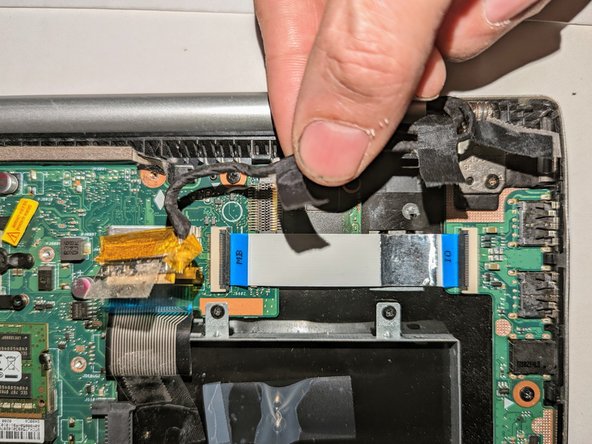
      • Peel off the three pieces of black tape securing the display cable to the motherboard.

      • Deroute the cable from the channel it sits in.

      • Move the cable to the side, out of the way.

      Ask FixBot

      Add Comment

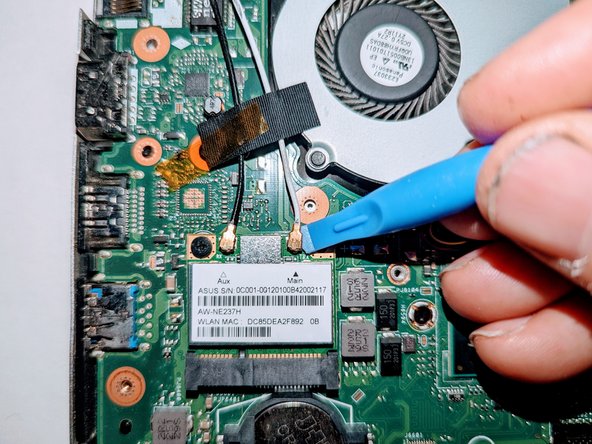
    5. ASUS VivoBook S400C Keyboard / Palm Rest Replacement: step 22, image 1 of 3 ASUS VivoBook S400C Keyboard / Palm Rest Replacement: step 22, image 2 of 3 ASUS VivoBook S400C Keyboard / Palm Rest Replacement: step 22, image 3 of 3
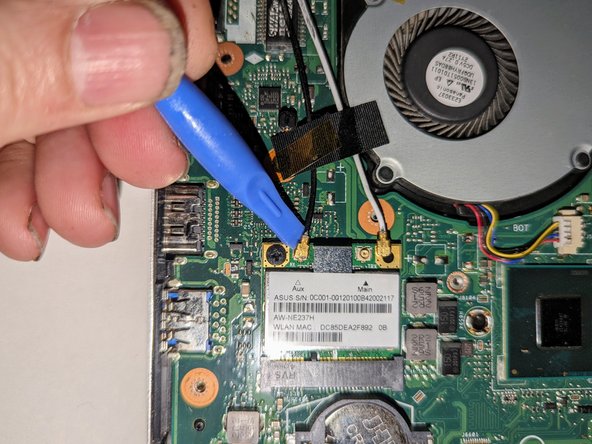
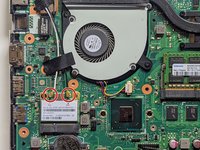
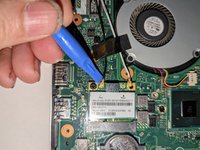
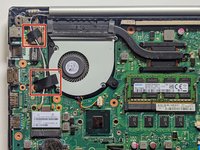
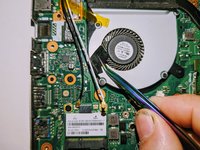
      • Use a spudger to release the cables from the wifi card.

      Ask FixBot

      Add Comment

    6. ASUS VivoBook S400C Keyboard / Palm Rest Replacement: step 23, image 1 of 3 ASUS VivoBook S400C Keyboard / Palm Rest Replacement: step 23, image 2 of 3 ASUS VivoBook S400C Keyboard / Palm Rest Replacement: step 23, image 3 of 3
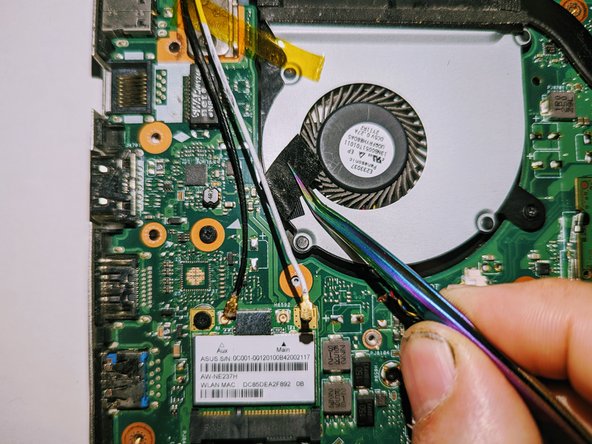
      • Lift the tapes securing the wires to the motherboard.

      • Move the wires to the side out of the way.

      Ask FixBot

      Add Comment

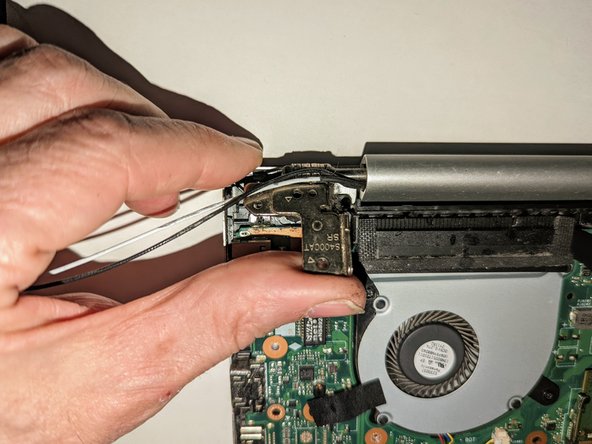
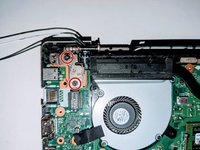
    7. ASUS VivoBook S400C Keyboard / Palm Rest Replacement, Disconnect the Hinges: step 24, image 1 of 2 ASUS VivoBook S400C Keyboard / Palm Rest Replacement, Disconnect the Hinges: step 24, image 2 of 2
      • Remove the two screws securing the hinge on the left.

      • Pry the hinge up by hand to a 90 degree angle.

      Ask FixBot

      Add Comment

    8. ASUS VivoBook S400C Keyboard / Palm Rest Replacement: step 25, image 1 of 2 ASUS VivoBook S400C Keyboard / Palm Rest Replacement: step 25, image 2 of 2
      • Remove the two screws securing the hinge on the right.

      • Pry the hinge up by hand to a 90 degree angle.

      Ask FixBot

      Add Comment

    9. ASUS VivoBook S400C Keyboard / Palm Rest Replacement, Remove the Display: step 26, image 1 of 3 ASUS VivoBook S400C Keyboard / Palm Rest Replacement, Remove the Display: step 26, image 2 of 3 ASUS VivoBook S400C Keyboard / Palm Rest Replacement, Remove the Display: step 26, image 3 of 3
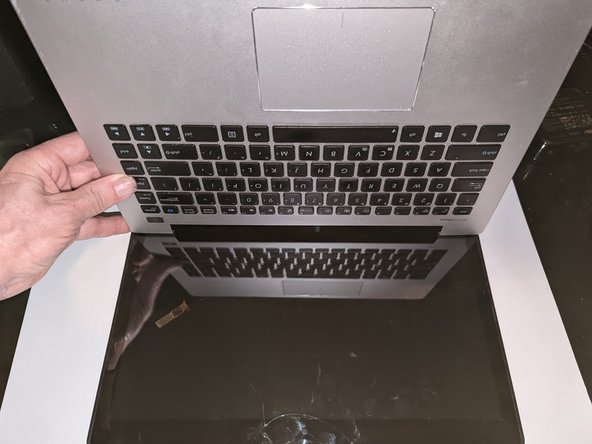
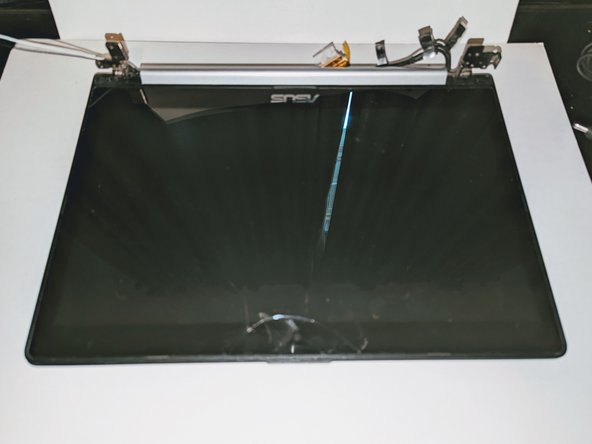
      • Lift the base of the laptop from the front.

      • Raise it to a 90 degree angle.

      • Slide it forward slightly to clear the hinges.

      • The display is now free.

      Ask FixBot

      Add Comment

    1. ASUS VivoBook S400C Keyboard / Palm Rest Replacement, I/O Board: step 27, image 1 of 3 ASUS VivoBook S400C Keyboard / Palm Rest Replacement, I/O Board: step 27, image 2 of 3 ASUS VivoBook S400C Keyboard / Palm Rest Replacement, I/O Board: step 27, image 3 of 3
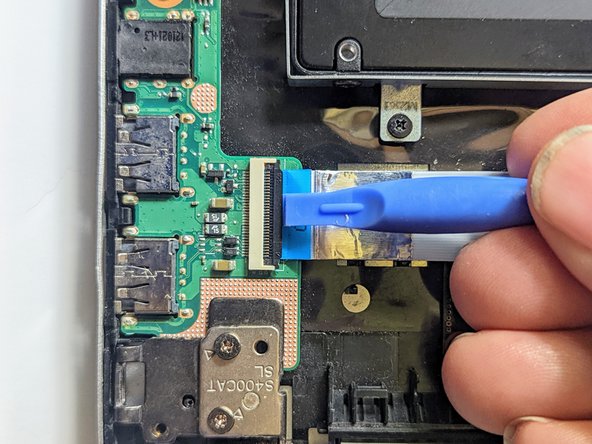
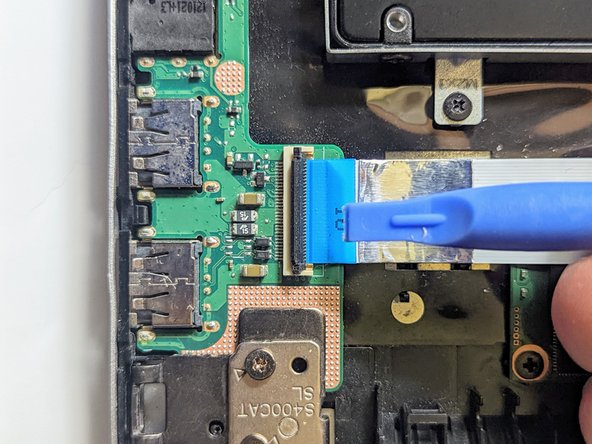
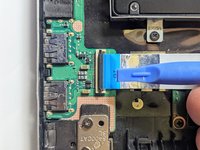
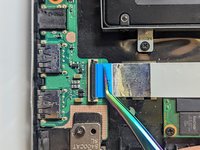
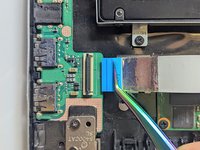
      • Flip up the retaining latch on the I/O board ribbon cable.

      Ask FixBot

      Add Comment

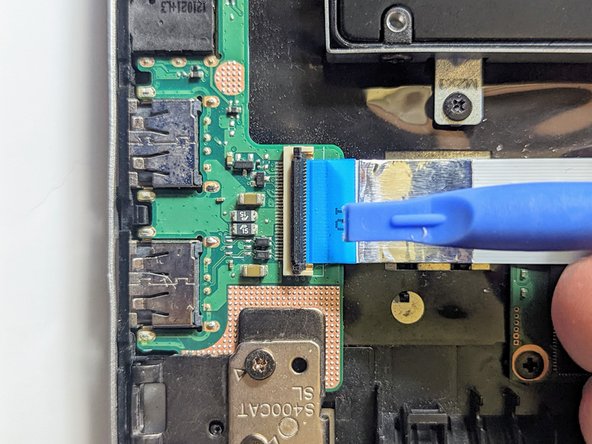
    2. ASUS VivoBook S400C Keyboard / Palm Rest Replacement: step 28, image 1 of 2 ASUS VivoBook S400C Keyboard / Palm Rest Replacement: step 28, image 2 of 2
      • Pull the cable straight out of the connector by the blue tab.

      Ask FixBot

      Add Comment

    3. ASUS VivoBook S400C Keyboard / Palm Rest Replacement: step 29, image 1 of 2 ASUS VivoBook S400C Keyboard / Palm Rest Replacement: step 29, image 2 of 2
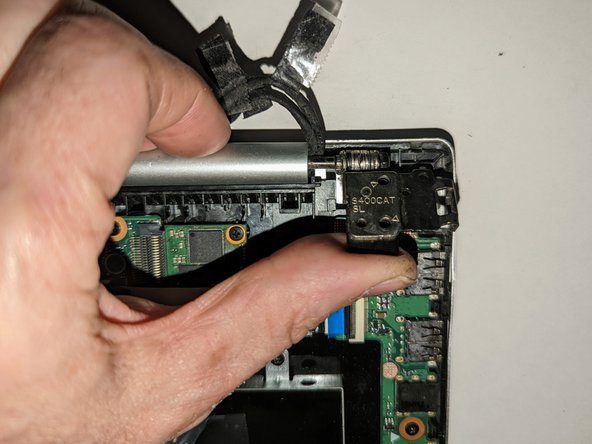
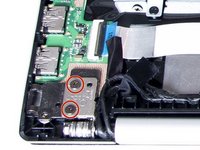
      • Remove the two screws securing the left hinge to the I/O board.

      • Pry the hinge up by hand to a 90 degree angle.

      Ask FixBot

      Add Comment

    4. ASUS VivoBook S400C Keyboard / Palm Rest Replacement: step 30, image 1 of 1
      • Remove the retaining screw.

      Ask FixBot

      Add Comment

    5. ASUS VivoBook S400C Keyboard / Palm Rest Replacement: step 31, image 1 of 1
      • Lift the board on the ribbon cable side far enough to clear the guide pin(s) then pull it back away from the side of the case.

      Ask FixBot

      Add Comment

    1. ASUS VivoBook S400C Keyboard / Palm Rest Replacement, SSD Card: step 32, image 1 of 3 ASUS VivoBook S400C Keyboard / Palm Rest Replacement, SSD Card: step 32, image 2 of 3 ASUS VivoBook S400C Keyboard / Palm Rest Replacement, SSD Card: step 32, image 3 of 3
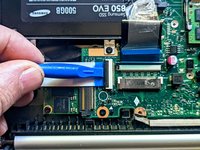
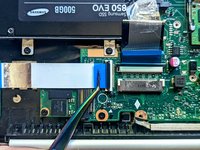
      • Disconnect the I/O Board ribbon cable from the motherboard.

      • Flip up the retaining latch with a spudger.

      Ask FixBot

      Add Comment

    2. ASUS VivoBook S400C Keyboard / Palm Rest Replacement: step 33, image 1 of 2 ASUS VivoBook S400C Keyboard / Palm Rest Replacement: step 33, image 2 of 2
      • Grasp the ribbon cable by the blue tab and pull it straight out from the connector.

      Ask FixBot

      Add Comment

    3. ASUS VivoBook S400C Keyboard / Palm Rest Replacement: step 34, image 1 of 3 ASUS VivoBook S400C Keyboard / Palm Rest Replacement: step 34, image 2 of 3 ASUS VivoBook S400C Keyboard / Palm Rest Replacement: step 34, image 3 of 3
      • Disconnect the I/O Board ribbon cable from the I/O board.

      • Flip up the latch with a spudger.

      Ask FixBot

      Add Comment

    4. ASUS VivoBook S400C Keyboard / Palm Rest Replacement: step 35, image 1 of 3 ASUS VivoBook S400C Keyboard / Palm Rest Replacement: step 35, image 2 of 3 ASUS VivoBook S400C Keyboard / Palm Rest Replacement: step 35, image 3 of 3
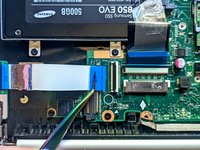
      • Grasp the ribbon cable by the blue tab and pull it straight out from the connector.

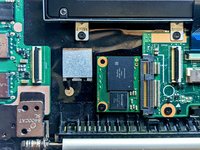
      • Remove the ribbon cable to expose the SSD device.

      Ask FixBot

      Add Comment

    5. ASUS VivoBook S400C Keyboard / Palm Rest Replacement: step 36, image 1 of 1
      • If present, remove any insulating sheet covering the SSD.

      • Remove the single retaining screw.

      Ask FixBot

      Add Comment

    6. ASUS VivoBook S400C Keyboard / Palm Rest Replacement, Unplug the SSD from the motherboard: step 37, image 1 of 2 ASUS VivoBook S400C Keyboard / Palm Rest Replacement, Unplug the SSD from the motherboard: step 37, image 2 of 2
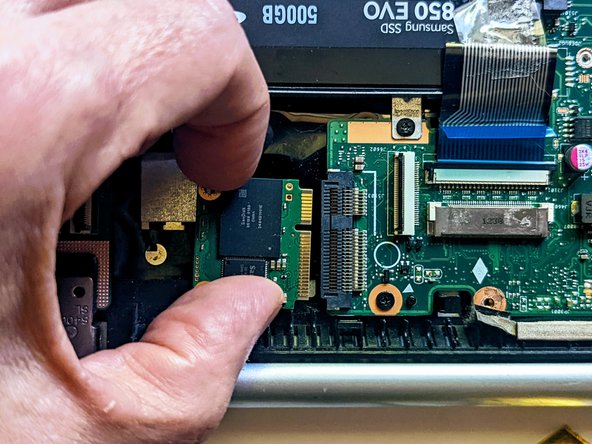
      • Grasp the SSD by the sides and slide it out of the connector.

      Ask FixBot

      Add Comment

    1. ASUS VivoBook S400C Keyboard / Palm Rest Replacement, Fan / Heatsink Assembly: step 38, image 1 of 1
      • The fan and heat sink do not need to be removed for this procedure.

      • Remove the screw securing the fan to the palm rest. All other fan and heatsink screws can remain in place.

      Ask FixBot

      Add Comment

    1. ASUS VivoBook S400C Keyboard / Palm Rest Replacement, Motherboard: step 39, image 1 of 3 ASUS VivoBook S400C Keyboard / Palm Rest Replacement, Motherboard: step 39, image 2 of 3 ASUS VivoBook S400C Keyboard / Palm Rest Replacement, Motherboard: step 39, image 3 of 3
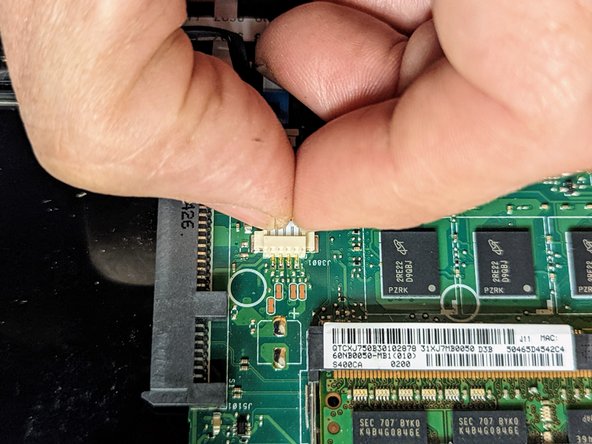
      • Unplug the black cable connecting the motherboard to the speakers.

      Ask FixBot

      Add Comment

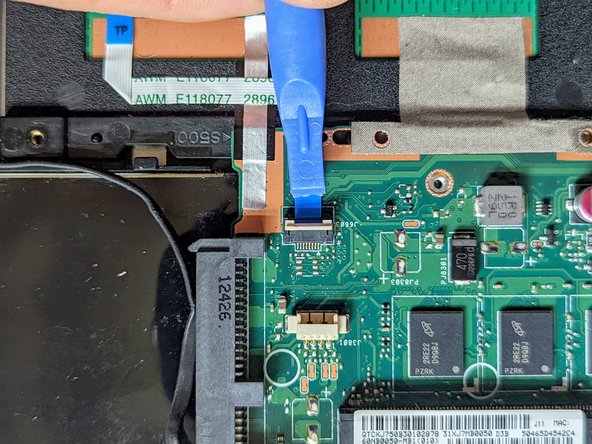
    2. ASUS VivoBook S400C Keyboard / Palm Rest Replacement, Disconnect the Trackpad: step 40, image 1 of 3 ASUS VivoBook S400C Keyboard / Palm Rest Replacement, Disconnect the Trackpad: step 40, image 2 of 3 ASUS VivoBook S400C Keyboard / Palm Rest Replacement, Disconnect the Trackpad: step 40, image 3 of 3
      • Flip up the trackpad ribbon cable retainer with a spudger.

      Ask FixBot

      Add Comment

    3. ASUS VivoBook S400C Keyboard / Palm Rest Replacement: step 41, image 1 of 3 ASUS VivoBook S400C Keyboard / Palm Rest Replacement: step 41, image 2 of 3 ASUS VivoBook S400C Keyboard / Palm Rest Replacement: step 41, image 3 of 3
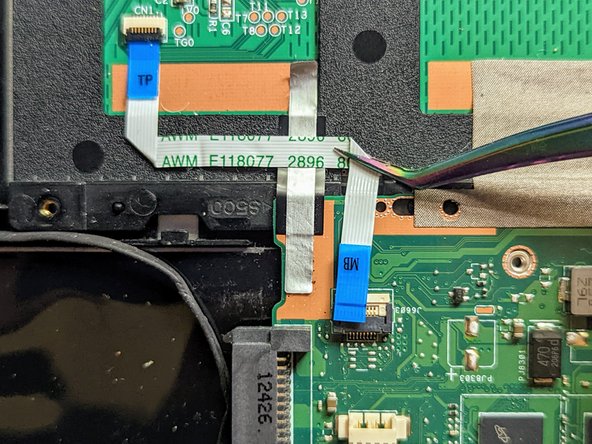
      • Pull the cable straight out from the connector.

      • Peel the trackpad cable off the conductive tape strip below it.

      Ask FixBot

      Add Comment

    4. ASUS VivoBook S400C Keyboard / Palm Rest Replacement: step 42, image 1 of 2 ASUS VivoBook S400C Keyboard / Palm Rest Replacement: step 42, image 2 of 2
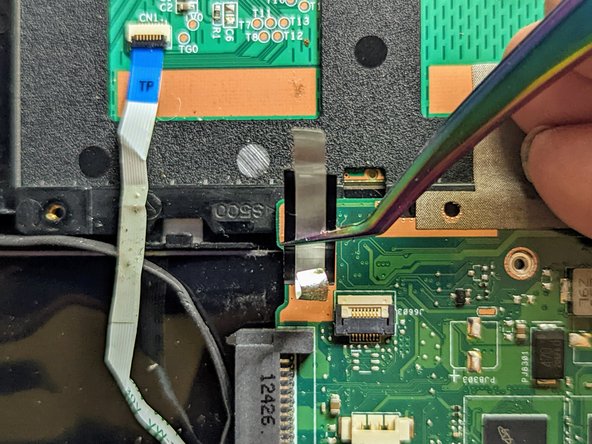
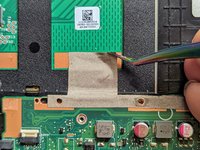
      • Remove the first of the two conductive tapes grounding the trackpad.

      Ask FixBot

      Add Comment

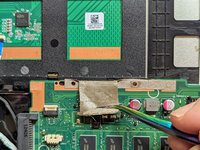
    5. ASUS VivoBook S400C Keyboard / Palm Rest Replacement: step 43, image 1 of 2 ASUS VivoBook S400C Keyboard / Palm Rest Replacement: step 43, image 2 of 2
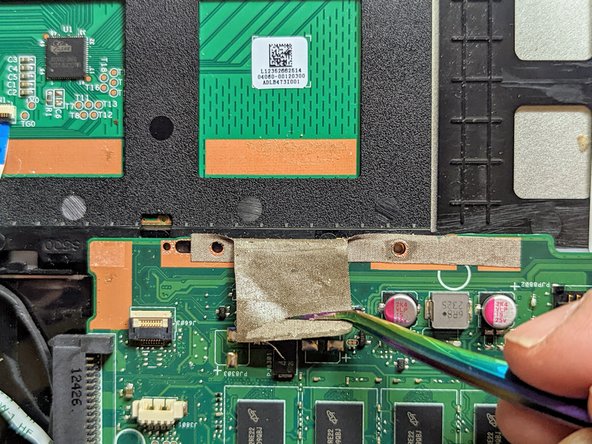
      • Remove the second conductive tape grounding the trackpad.

      Ask FixBot

      Add Comment

    6. ASUS VivoBook S400C Keyboard / Palm Rest Replacement, Disconnect the LED Board Cable: step 44, image 1 of 3 ASUS VivoBook S400C Keyboard / Palm Rest Replacement, Disconnect the LED Board Cable: step 44, image 2 of 3 ASUS VivoBook S400C Keyboard / Palm Rest Replacement, Disconnect the LED Board Cable: step 44, image 3 of 3
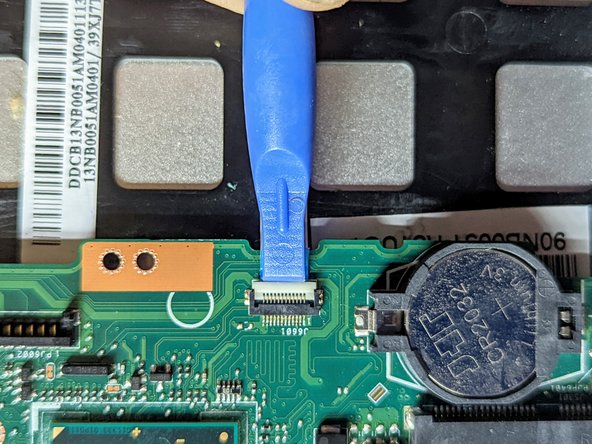
      • Use a spudger to flip up the LED board cable retainer.

      Ask FixBot

      Add Comment

    7. ASUS VivoBook S400C Keyboard / Palm Rest Replacement: step 45, image 1 of 2 ASUS VivoBook S400C Keyboard / Palm Rest Replacement: step 45, image 2 of 2
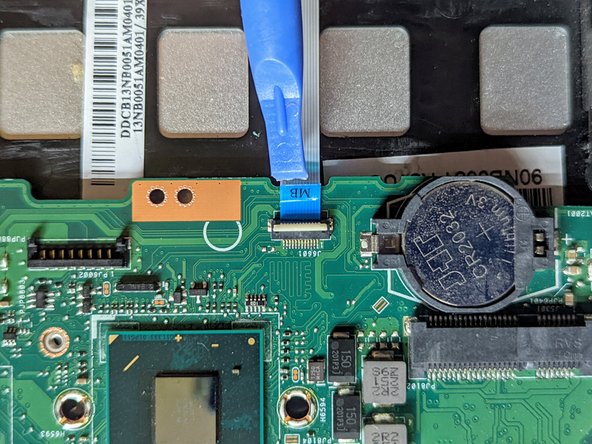
      • Pull the ribbon cable straight out from the connector.

      Ask FixBot

      Add Comment

    8. ASUS VivoBook S400C Keyboard / Palm Rest Replacement, Disconnect the Keyboard: step 46, image 1 of 3 ASUS VivoBook S400C Keyboard / Palm Rest Replacement, Disconnect the Keyboard: step 46, image 2 of 3 ASUS VivoBook S400C Keyboard / Palm Rest Replacement, Disconnect the Keyboard: step 46, image 3 of 3
      • Place a spudger on the ears on either side of the keyboard ribbon cable connector and push evenly on both sides to release it.

      • The retainer will only move a very short distance then stop.

      • Lift it slightly to relieve the tension.

      Ask FixBot

      Add Comment

    9. ASUS VivoBook S400C Keyboard / Palm Rest Replacement: step 47, image 1 of 2 ASUS VivoBook S400C Keyboard / Palm Rest Replacement: step 47, image 2 of 2
      • Unplug the keyboard ribbon cable.

      Ask FixBot

      Add Comment

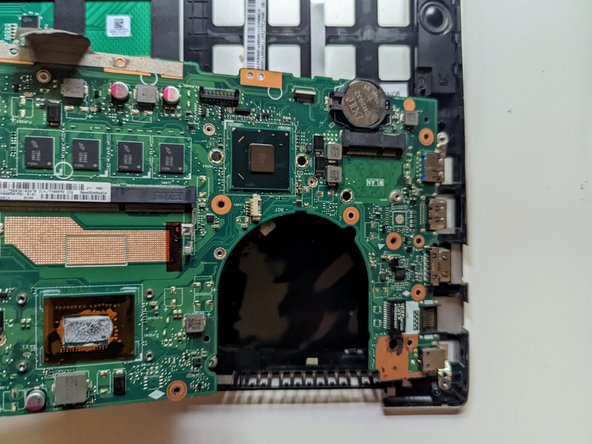
    10. ASUS VivoBook S400C Keyboard / Palm Rest Replacement, Remove the Mounting Screws: step 48, image 1 of 1
      • Remove the two mounting screws.

      • There are triangular arrows printed on the board pointing to each of them.

      Ask FixBot

      Add Comment

    11. ASUS VivoBook S400C Keyboard / Palm Rest Replacement, Remove the Motherboard: step 49, image 1 of 2 ASUS VivoBook S400C Keyboard / Palm Rest Replacement, Remove the Motherboard: step 49, image 2 of 2
      • Lift and slide the motherboard toward the hard drive to clear the connectors on the opposite side from the case.

      Ask FixBot

      Add Comment

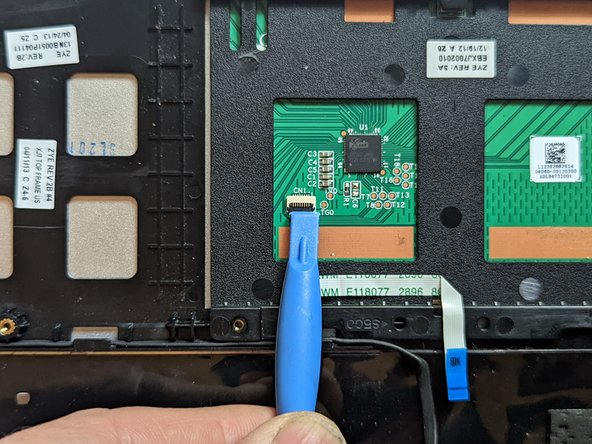
    1. ASUS VivoBook S400C Keyboard / Palm Rest Replacement, Trackpad: step 50, image 1 of 3 ASUS VivoBook S400C Keyboard / Palm Rest Replacement, Trackpad: step 50, image 2 of 3 ASUS VivoBook S400C Keyboard / Palm Rest Replacement, Trackpad: step 50, image 3 of 3
      • Flip the retaining latch on the trackpad ribbon cable connector up with a spudger.

      Ask FixBot

      Add Comment

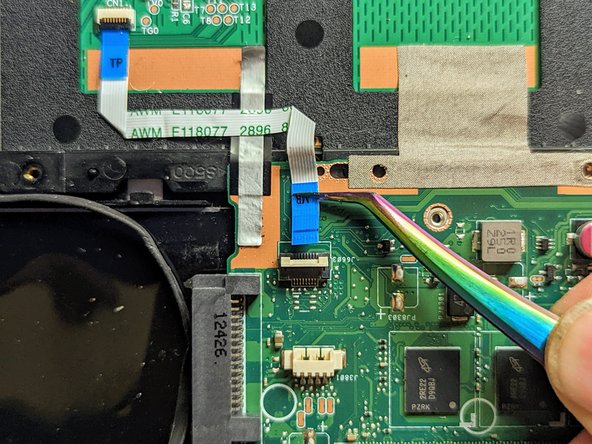
    2. ASUS VivoBook S400C Keyboard / Palm Rest Replacement: step 51, image 1 of 2 ASUS VivoBook S400C Keyboard / Palm Rest Replacement: step 51, image 2 of 2
      Tool used on this step:
      Tweezers
      $4.99
      Buy
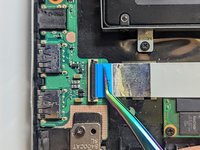
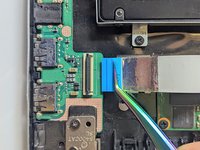
      • Grasp the blue tab with fine tip tweezers and pull the cable straight out from the connector.

      • Gently peel the trackpad ribbon cable off the trackpad.

      Ask FixBot

      Add Comment

    3. ASUS VivoBook S400C Keyboard / Palm Rest Replacement, Remove the Trackpad: step 52, image 1 of 2 ASUS VivoBook S400C Keyboard / Palm Rest Replacement, Remove the Trackpad: step 52, image 2 of 2
      • Lift the side of the trackpad farthest from the side of the case and slide it away from the edge to remove it.

      Ask FixBot

      Add Comment

    1. ASUS VivoBook S400C Keyboard / Palm Rest Replacement, Congratulations!: step 53, image 1 of 1
      • The keyboard / palm rest has now been completely disassembled.

      Ask FixBot

      Add Comment

Conclusion

To reassemble your device, follow these instructions in reverse order to install your parts onto your replacement assembly.

Cancel: I did not complete this guide.

Jerry Wheeler

Member since: 03/21/22

99,164 Reputation

92 Guides authored

0 Guide Comments

Add Comment

View Statistics:

Past 24 Hours: 3

Past 7 Days: 11

Past 30 Days: 27

All Time: 979