Free Shipping on Domestic Orders $75+

ASUS VivoBook S400C Display Assembly Replacement

What you need

  1. ASUS VivoBook S400C Display Assembly Replacement, Remove the Bottom Cover: step 1, image 1 of 1
    • Flip the device over and remove the ten 5.7 mm screws with a Phillips #0 screwdriver.

    Ask FixBot

    Add Comment

  2. ASUS VivoBook S400C Display Assembly Replacement: step 2, image 1 of 2 ASUS VivoBook S400C Display Assembly Replacement: step 2, image 2 of 2
    • Use a spudger or your fingers to go around and lift the edges and release the back panel.

    Ask FixBot

    Add Comment

  3. ASUS VivoBook S400C Display Assembly Replacement, Disconnect the Battery: step 3, image 1 of 1
    • Using a spudger, lift up the plug connecting the battery to the motherboard.

    Ask FixBot

    Add Comment

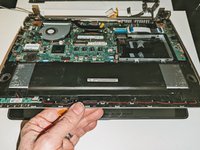
  4. ASUS VivoBook S400C Display Assembly Replacement, Heat Shield: step 4, image 1 of 2 ASUS VivoBook S400C Display Assembly Replacement, Heat Shield: step 4, image 2 of 2
    • Remove the black shield covering the display connector and the heat sink.

    • You may need to use double-sided adhesive tape to resecure the shield.

    Ask FixBot

    Add Comment

  5. ASUS VivoBook S400C Display Assembly Replacement, Display Assembly: step 5, image 1 of 1
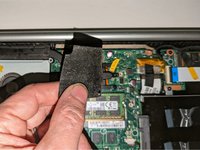
    • Remove the black tape securing the keyboard ribbon cable to the display connector.

    • Fold the ribbon cable the opposite way, resecuring it to the hard drive to keep it out of the way.

    Ask FixBot

    Add Comment

  6. ASUS VivoBook S400C Display Assembly Replacement: step 6, image 1 of 2 ASUS VivoBook S400C Display Assembly Replacement: step 6, image 2 of 2
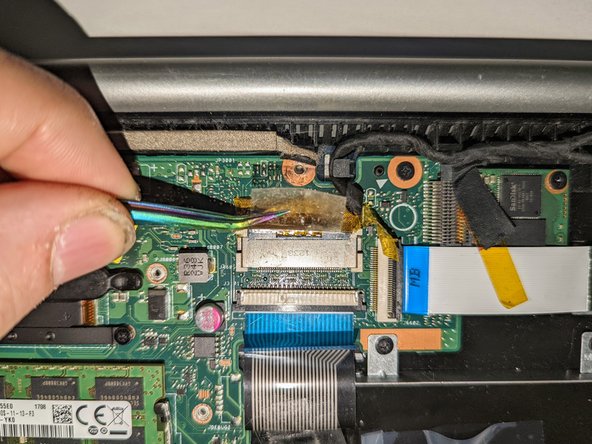
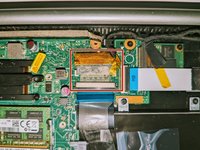
    • Peel off the clear tape from the motherboard display connector.

    Ask FixBot

    Add Comment

  7. ASUS VivoBook S400C Display Assembly Replacement: step 7, image 1 of 2 ASUS VivoBook S400C Display Assembly Replacement: step 7, image 2 of 2
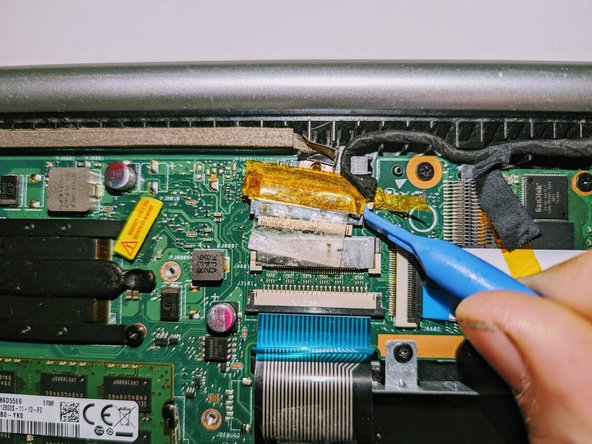
    • Position spudgers on the white tabs on either side of the connector and push evenly to unplug the display.

    Ask FixBot

    Add Comment

  8. ASUS VivoBook S400C Display Assembly Replacement: step 8, image 1 of 3 ASUS VivoBook S400C Display Assembly Replacement: step 8, image 2 of 3 ASUS VivoBook S400C Display Assembly Replacement: step 8, image 3 of 3
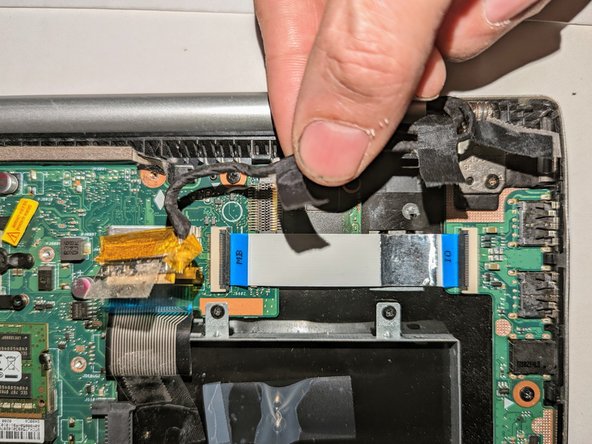
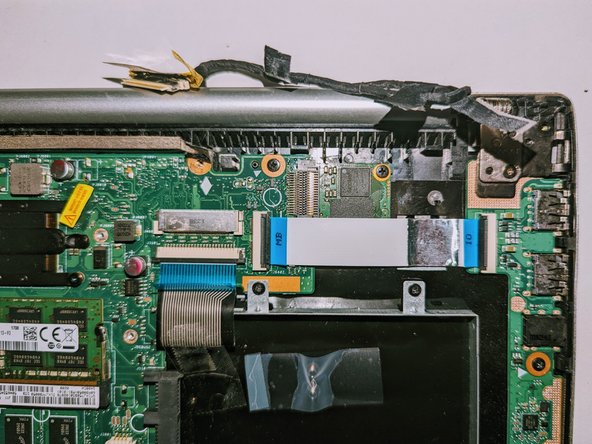
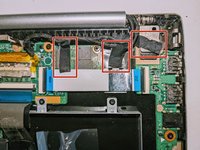
    • Peel off the three pieces of black tape securing the display cable to the motherboard.

    • Deroute the cable from the channel it sits in.

    • Move the cable to the side, out of the way.

    Ask FixBot

    Add Comment

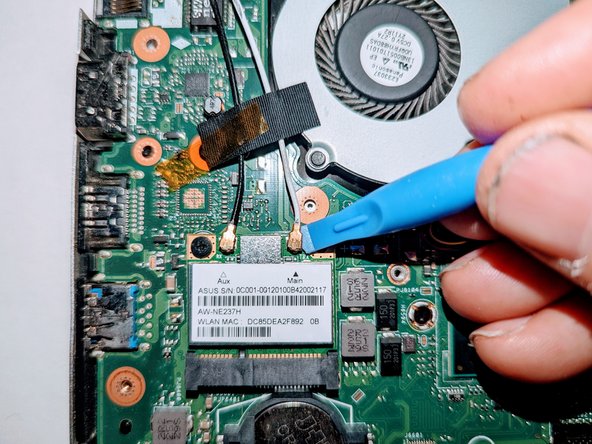
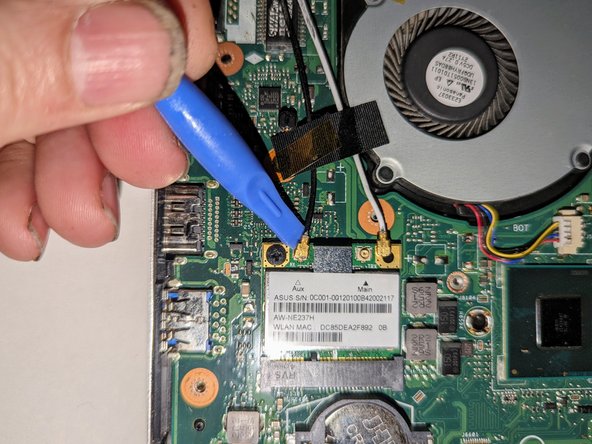
  9. ASUS VivoBook S400C Display Assembly Replacement: step 9, image 1 of 3 ASUS VivoBook S400C Display Assembly Replacement: step 9, image 2 of 3 ASUS VivoBook S400C Display Assembly Replacement: step 9, image 3 of 3
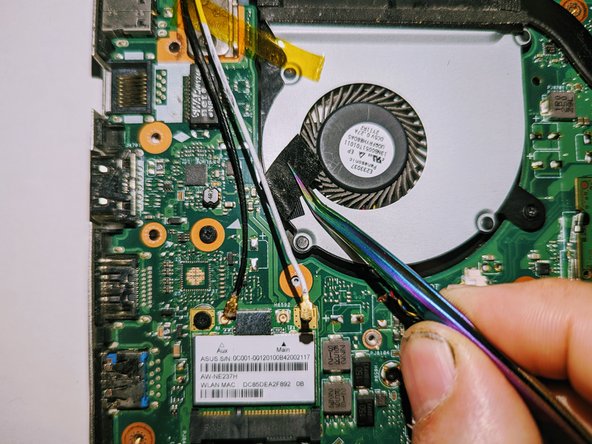
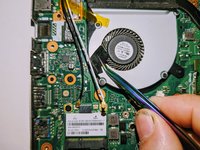
    • Use a spudger to release the cables from the wifi card.

    Ask FixBot

    Add Comment

  10. ASUS VivoBook S400C Display Assembly Replacement: step 10, image 1 of 3 ASUS VivoBook S400C Display Assembly Replacement: step 10, image 2 of 3 ASUS VivoBook S400C Display Assembly Replacement: step 10, image 3 of 3
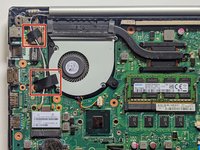
    • Lift the tapes securing the wires to the motherboard.

    • Move the wires to the side out of the way.

    Ask FixBot

    Add Comment

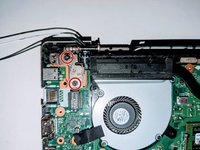
  11. ASUS VivoBook S400C Display Assembly Replacement, Disconnect the Hinges: step 11, image 1 of 2 ASUS VivoBook S400C Display Assembly Replacement, Disconnect the Hinges: step 11, image 2 of 2
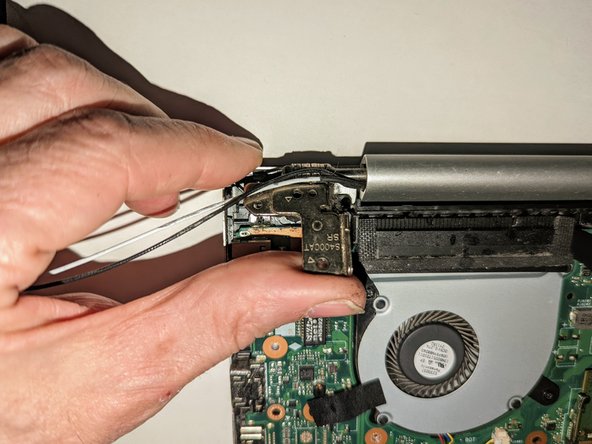
    • Remove the two screws securing the hinge on the left.

    • Pry the hinge up by hand to a 90 degree angle.

    Ask FixBot

    Add Comment

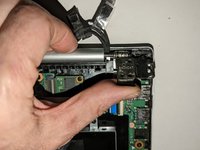
  12. ASUS VivoBook S400C Display Assembly Replacement: step 12, image 1 of 2 ASUS VivoBook S400C Display Assembly Replacement: step 12, image 2 of 2
    • Remove the two screws securing the hinge on the right.

    • Pry the hinge up by hand to a 90 degree angle.

    Ask FixBot

    Add Comment

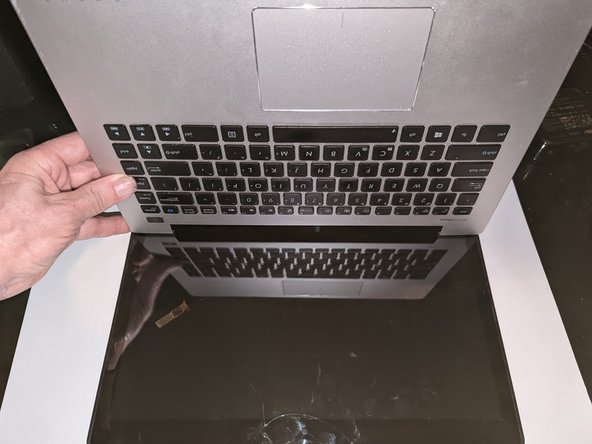
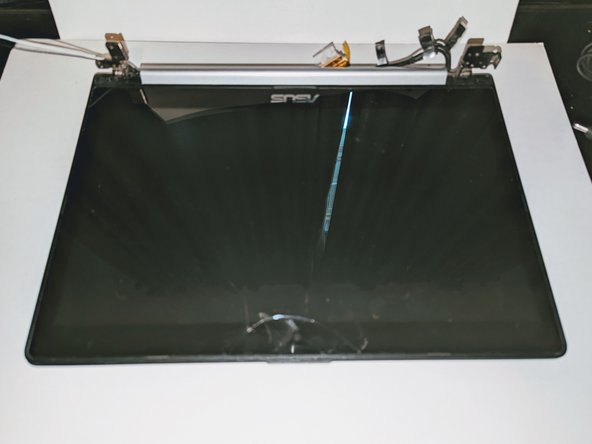
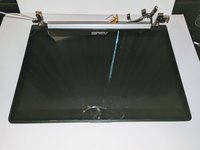
  13. ASUS VivoBook S400C Display Assembly Replacement, Remove the Display: step 13, image 1 of 3 ASUS VivoBook S400C Display Assembly Replacement, Remove the Display: step 13, image 2 of 3 ASUS VivoBook S400C Display Assembly Replacement, Remove the Display: step 13, image 3 of 3
    • Lift the base of the laptop from the front.

    • Raise it to a 90 degree angle.

    • Slide it forward slightly to clear the hinges.

    • The display is now free.

    Ask FixBot

    Add Comment

Conclusion

To reassemble your device, follow these instructions in reverse order.

Cancel: I did not complete this guide.

Jerry Wheeler

Member since: 03/21/22

95,649 Reputation

92 Guides authored

0 Guide Comments

Add Comment

View Statistics:

Past 24 Hours: 2

Past 7 Days: 8

Past 30 Days: 26

All Time: 618