Introduction
If your screen is cracked or not working properly, this guide will show you how to replace the screen on the ASUS U57A-BBL4.
What you need
-
-
-
Carefully pry the two rubber covers at the bottom of the screen off with a metal sprudger.
 Ask FixBot
-
-
-
Remove the two 1.84 mm Phillips head screws at the bottom of the screen using PH00 screw driver.
-
-
-
-
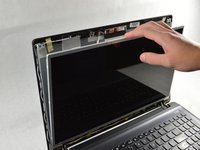
Starting from one of the corners, use your fingers to pry the bezel from the screen.
-
-
-
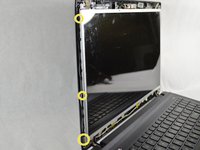
Remove the top two 2 mm Phillips head screws.
-
Remove the four 2 mm Phillips head screws on the bottom.
-
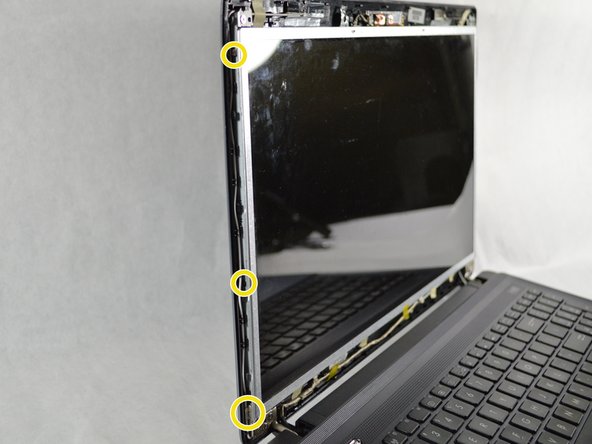
Remove the eight 2 mm Phillips head screws on the sides of the screen. There are four on each side.
-
-
-
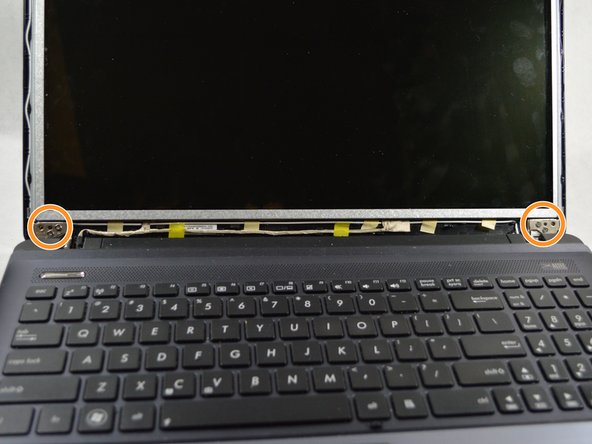
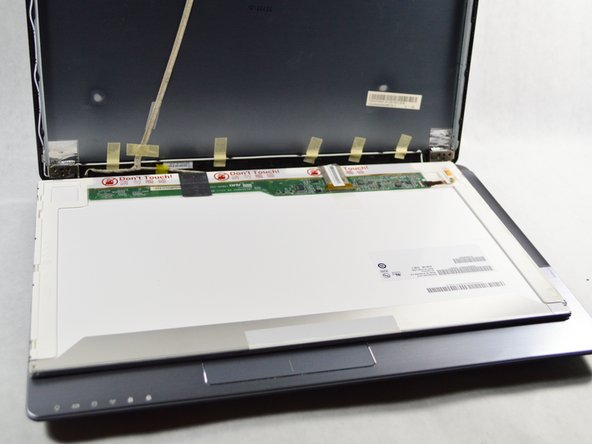
Carefully lower the screen from the casing with your fingers, making sure to keep the bottom intact and lay it face down on the keyboard.
-
-
-
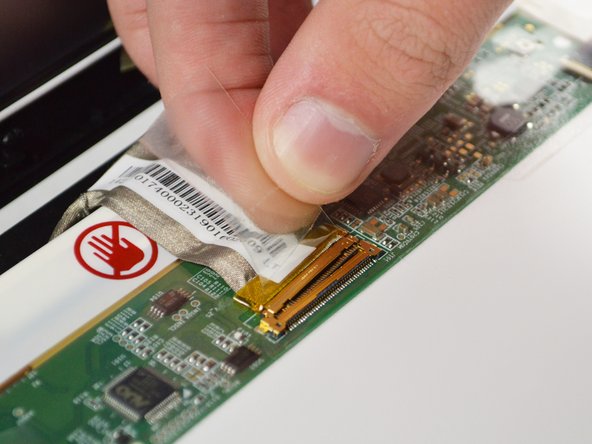
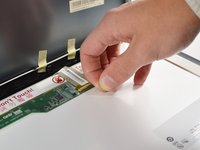
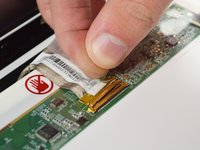
Disconnect the connector cable at the bottom by loosening the adhesive tape and lifting up.
-
Gently slide the cable out of the ridges to free the screen from the casing.
-
-




To reassemble your device, follow these instructions in reverse order.
Cancel: I did not complete this guide.
One other person completed this guide.

Team

UMass Dartmouth, Team S2-G4, Julie Fall 2017 Member of UMass Dartmouth, Team S2-G4, Julie Fall 2017
UMASSD-JULIE-F17S2G4
3 Members
72 Guides authored
