
ASUS U52F-BBG6 Wi-Fi Chip Replacement

Ashley DeHuff and 4 other contributors
Last updated on Dec 9, 2016
Views: 916
View statistics:
- Past 24 Hours:
- 1
- Past 7 Days:
- 17
- Past 30 Days:
- 92
- All Time:
- 916
Comments: 1
1 comment on steps.
Completed: 1 2
1 person has marked this guide "completed." Will you be next?
2 people have marked this guide "completed." Including you — great job!
Favorites: 0 1
No one has favorited (and subscribed to) this guide. Will you be the first?
1 person has favorited (and subscribed to) this guide — and that's you!
Introduction
Go to step 1 ↓Use this guide to replace your Wi-Fi chip. Keep in mind it will take a lot of effort when removing the back panel.
What you need
Tools


-
-
-
Flip the laptop over to the back.
-
Slide the right latch to unlock, then simultaneously slide the left latch outward while pulling the battery out.
 Ask FixBot
-
-
-
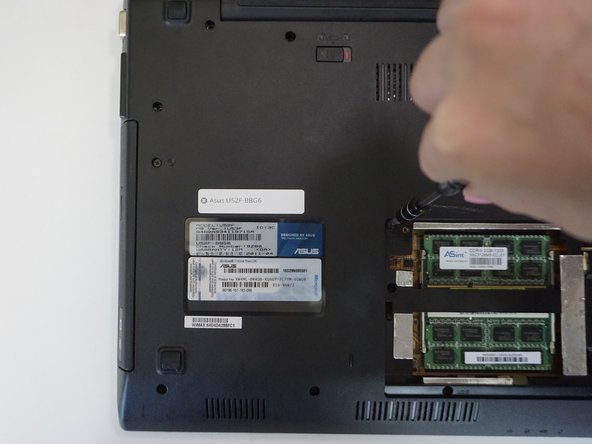
Unscrew all twelve 3mm Phillips screws with the J1 screwdriver.
-
Unscrew two 3mm Phillips screws on the black panel using the PH0 screwdriver.
-
Lift the black panel upward by inserting your fingernail in the space provided.
-
-
-
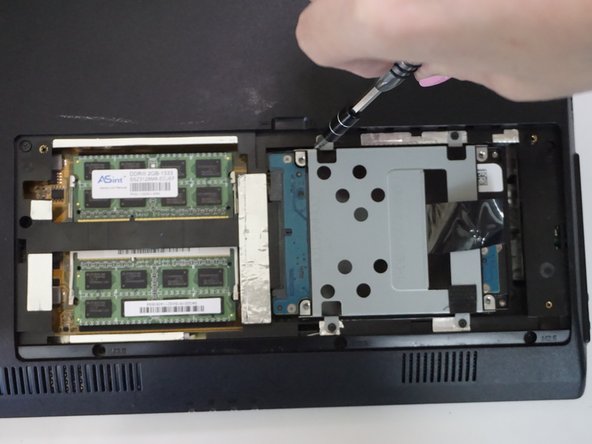
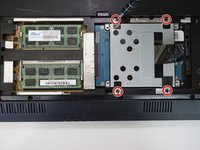
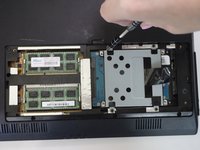
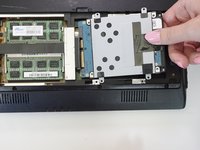
In the RAM and hard drive compartment, unscrew the four 3mm Phillips screws using the J1 screwdriver.
-
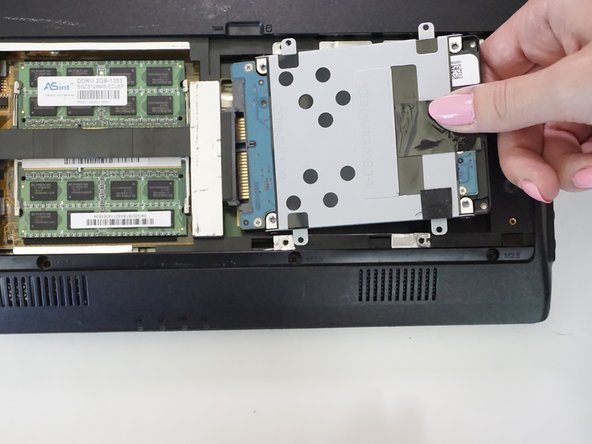
Gently pull out the hard drive.
-
-
-
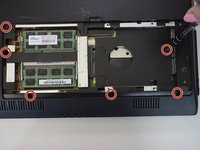
Unscrew six 3mm Phillips screws in the RAM and hard drive compartment with the J1 screwdriver.
-
-
-
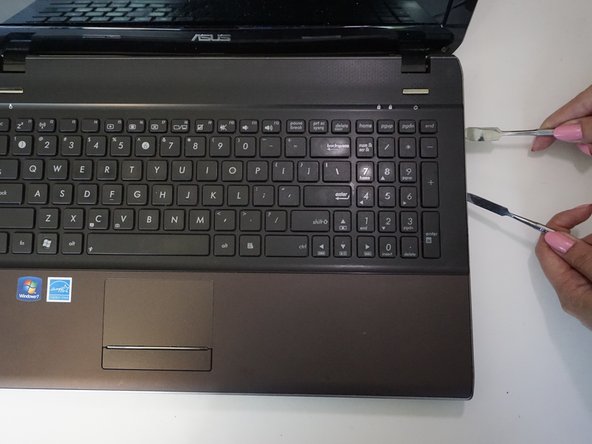
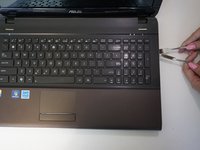
Insert and gently twist the flat metal spudger between the keyboard assembly and the bottom plastic cover so that a small seam is opened.
-
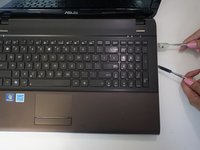
Put in the metal spudger in the seam to hold its place while twisting and levering the flat metal spudger along the whole keyboard.
-
Slowly pry off the back
-
-
-
-
-
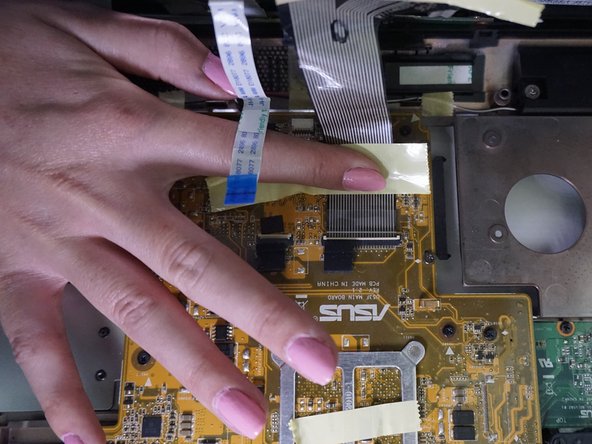
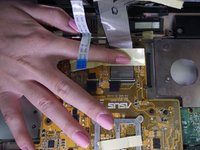
Unlatch the clip attaching the white flattened flexible cord with a blue tip to the circuit board with your thumb.
-
Pull out the white flattened cord.
-
-
-
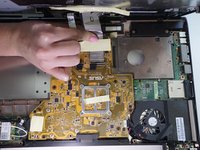
Pull back yellow tape attaching the metal colored flexible flattened cord to the circuit board.
-
Lift up the latch at the end of the cord.
-
Pull out the cord to release the keyboard.
-
-
-
-
-
-
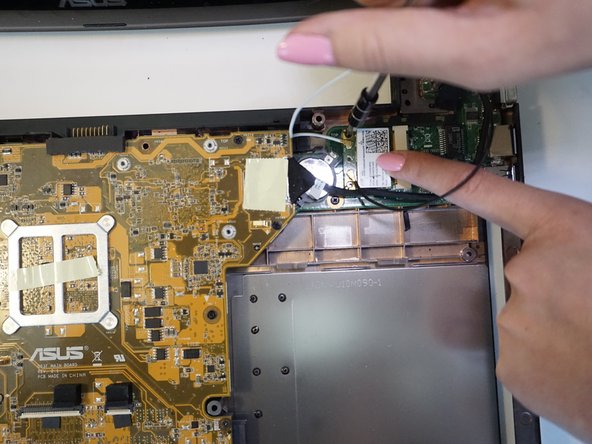
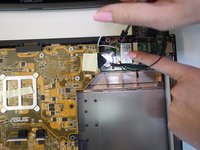
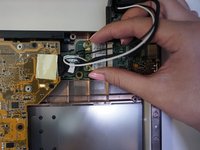
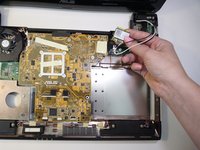
Find the Wi-Fi chip circuit board, which has a white sticker on it and is connected to a black and white wire.
-
-
-
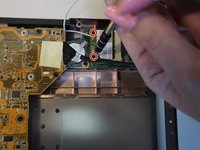
Unscrew the two 3mm Phillips screws using a J1 screwdriver to release the Wi-Fi chip.
-
-











To reassemble your device, follow these instructions in reverse order.
Cancel: I did not complete this guide.
One other person completed this guide.

Team

CSU Fullerton, Team 1-3, Bruce Fall 2016 Member of CSU Fullerton, Team 1-3, Bruce Fall 2016
CSUF-BRUCE-F16S1G3
4 Members
108 Guides authored
