
ASUS Transformer Book Flip TP500LA Trackpad Replacement

Graham Haigood and one other contributor
Last updated on Jun 17, 2021
Views: 458
View statistics:
- Past 24 Hours:
- 2
- Past 7 Days:
- 19
- Past 30 Days:
- 72
- All Time:
- 458
Comments: 5
5 comments on steps.
Completed: 0 1
No one has marked this guide "completed." Will you be the first?
1 person has marked this guide "completed." It's you — great job!
Favorites: 0 1
No one has favorited (and subscribed to) this guide. Will you be the first?
1 person has favorited (and subscribed to) this guide — and that's you!
Action Shots
Be an action hero! This guide needs images that better demonstrate how to perform specific actions.
Needs Better Images
Better photos will improve this guide. Help out by taking, editing, or uploading new ones!
Needs More Images
A few more images would make this guide's procedures crystal clear.
Better Introduction
Improve this guide by completing or revising its introduction.
Introduction
Go to step 1 ↓If your device isn’t properly tracking cursor movements or if your mouse clicks aren’t registering, it may be time to replace the trackpad. Follow these instructions to replace the trackpad in the ASUS Transformer Book Flip TP500LA.
What you need
Tools


-
-
-
Remove the ten 10 mm Phillips #0 screws found on the computer's back case.
 Ask FixBot
-
-
Tool used on this step:Heavy-Duty Spudger$4.99
-
Slide a heavy-duty spudger between the back case and the computer.
-
Slowly work around the edges to undo the clips to fully separate the back case from the computer.
-
Gently lift off the back case.
-
-
-
-
Tool used on this step:Heavy-Duty Spudger$4.99
-
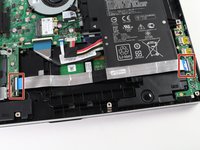
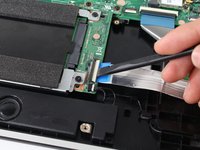
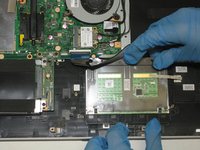
Slide a heavy-duty spudger into the ZIF connector and gently flip up the retaining flap to open the connector.
-
Pull the blue tab to remove the ribbon.
-
-
-
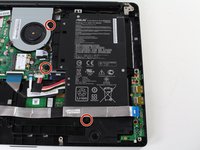
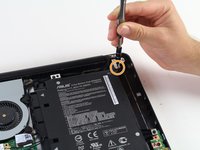
Remove the three 5 mm Phillips #0 screws.
-
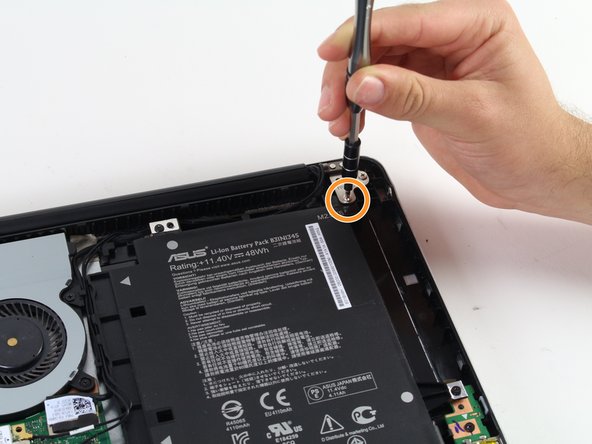
Remove the single 6 mm Phillips #0 screw.
-
-
-
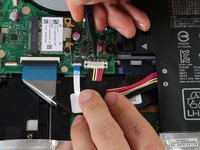
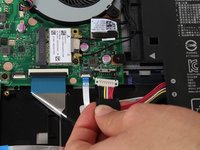
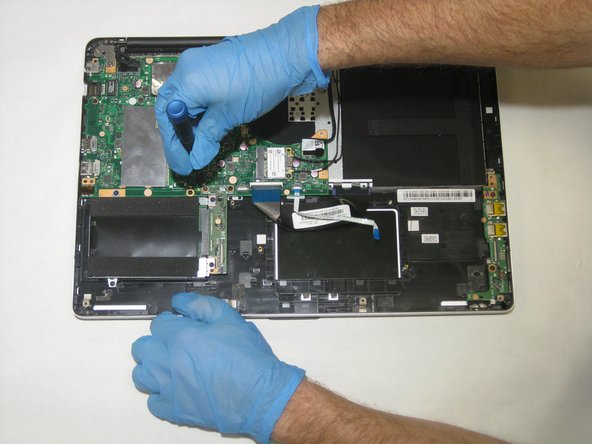
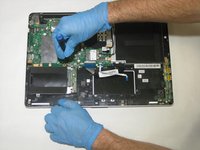
Use the heavy-duty spudger to pry the white 8-pin connector away from the motherboard.
-
Gently pull the connector away from the motherboard.
-
-
-
-
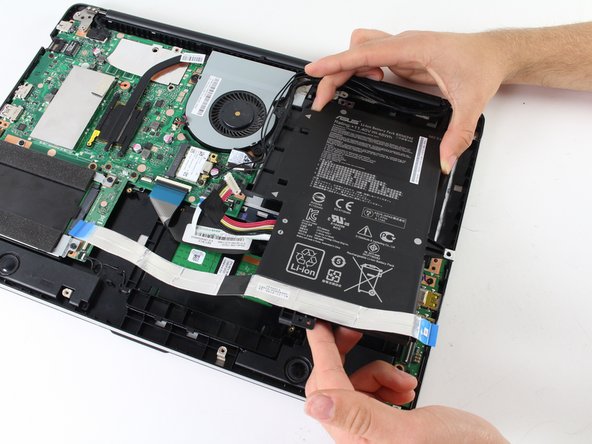
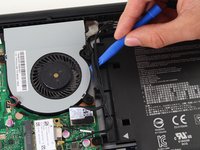
Use the blue plastic opening tool to loosen and remove the three black wires from the battery.
-
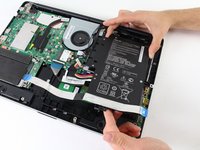
Slide the battery out from the computer to remove.
-
-
-







To reassemble your device, follow these instructions in reverse order.

Team

The Citadel Military College of South Carolina, Team S3-G3, Eggleston Spring 2021 Member of The Citadel Military College of South Carolina, Team S3-G3, Eggleston Spring 2021
CMCSC-EGGLESTON-S21S3G3
3 Members
36 Guides authored
