Free Shipping on Domestic Orders $75+

ASUS ROG Zephyrus M15GU205L Fan Cleaning

What you need

    1. ASUS ROG Zephyrus M15GU205L Fan Cleaning, Battery: step 1, image 1 of 2 ASUS ROG Zephyrus M15GU205L Fan Cleaning, Battery: step 1, image 2 of 2
      • Remove fifteen 10 mm screws from the bottom cover using a Phillips #0 screwdriver.

      Ask FixBot

      Add Comment

    2. ASUS ROG Zephyrus M15GU205L Fan Cleaning: step 2, image 1 of 2 ASUS ROG Zephyrus M15GU205L Fan Cleaning: step 2, image 2 of 2
      • Use a plastic opening tool to separate the back cover from the laptop.

      • It is recommended that you separate the laptop cover from the side and run the tool along the edge of the cover to open it.

      • Be careful not to damage the cover when removing it from the laptop.

      Ask FixBot

      Add Comment

    3. ASUS ROG Zephyrus M15GU205L Fan Cleaning: step 3, image 1 of 1
      • Remove six 4.8 mm screws that secure the battery using a Phillips #00 screwdriver.

      Ask FixBot

      Add Comment

    4. ASUS ROG Zephyrus M15GU205L Fan Cleaning: step 4, image 1 of 2 ASUS ROG Zephyrus M15GU205L Fan Cleaning: step 4, image 2 of 2
      Tool used on this step:
      Tweezers
      $4.99
      Buy
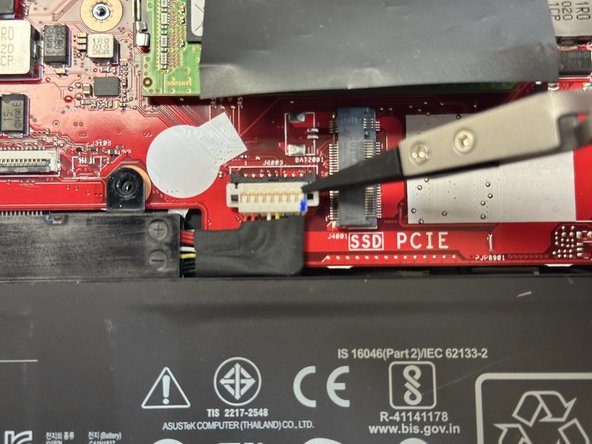
      • Disconnect the 8-pin battery that secures the battery to the motherboard.

      • Use the nylon tipped reverse tweezers to squeeze the edges, then pull out the connector.

      Ask FixBot

      Add Comment

    5. ASUS ROG Zephyrus M15GU205L Fan Cleaning: step 5, image 1 of 1
      • Remove the battery from the computer.

      Ask FixBot

      Add Comment

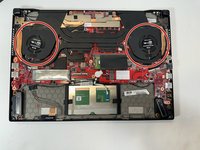
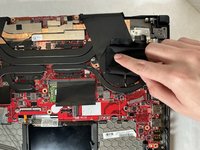
    1. ASUS ROG Zephyrus M15GU205L Fan Cleaning, ASUS ROG Zephyrus M15GU205L Fan Cleaning: step 6, image 1 of 2 ASUS ROG Zephyrus M15GU205L Fan Cleaning, ASUS ROG Zephyrus M15GU205L Fan Cleaning: step 6, image 2 of 2
      Tool used on this step:
      Microfiber Cleaning Cloths
      $3.99
      Buy
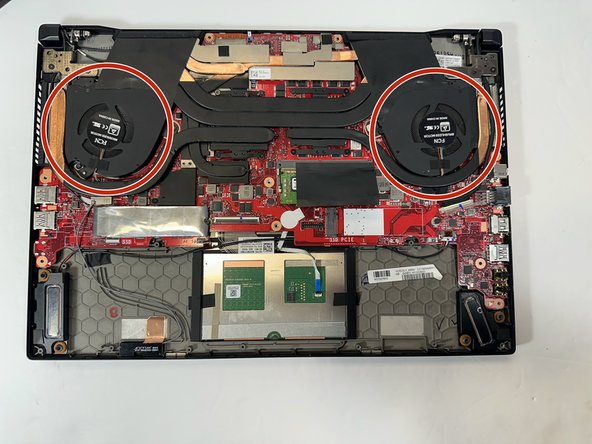
      • Use the microfiber cloth to wipe any surface dust off the fan fins.

      • Wipe lightly as to not push any of the dust inside.

      • Wiping off the dust is optional.

      Ask FixBot

      Add Comment

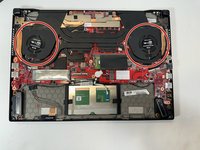
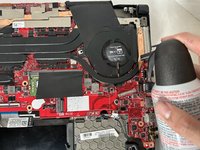
    2. ASUS ROG Zephyrus M15GU205L Fan Cleaning: step 7, image 1 of 2 ASUS ROG Zephyrus M15GU205L Fan Cleaning: step 7, image 2 of 2
      • Use the compressed air to blow out the dust from the fan.

      • Use the information on how to correctly use the product you selected.

      • Use the air until you see the results you are comfortable with.

      Ask FixBot

      Add Comment

Conclusion

To reassemble your device, follow these instructions in reverse order.

Cancel: I did not complete this guide.

One other person completed this guide.

eli2243977

Member since: 09/07/23

323 Reputation

2 Guides authored

Team

Gateway, Team 69-69, Gonzalez Fall 2023 Member of Gateway, Team 69-69, Gonzalez Fall 2023

GCC-GONZALEZ-F23S69G69

4 Members

48 Guides authored

0 Guide Comments

Add Comment

View Statistics:

Past 24 Hours: 2

Past 7 Days: 14

Past 30 Days: 93

All Time: 2,615