
ASUS ROG Spatha X Battery Replacement

cgrabowski1 and 2 other contributors
Last updated on Jun 17, 2025
Views: 1K
View statistics:
- Past 24 Hours:
- 4
- Past 7 Days:
- 36
- Past 30 Days:
- 144
- All Time:
- 1,031
Comments: 0
No one has left comments on this guide. Will you be first?
Go to guide commentsCompleted: 0 1
No one has marked this guide "completed." Will you be the first?
1 person has marked this guide "completed." It's you — great job!
Favorites: 0 1
No one has favorited (and subscribed to) this guide. Will you be the first?
1 person has favorited (and subscribed to) this guide — and that's you!
Needs More Images
A few more images would make this guide's procedures crystal clear.
Introduction
Go to step 1 ↓Use this guide if you are experiencing issues with the battery for the ASUS ROG Spatha X. This is a very easy replacement guide; the necessary tool should be included with your mouse in the box.
What you need
Tools
-
Spudger4.9
-


-
-
-
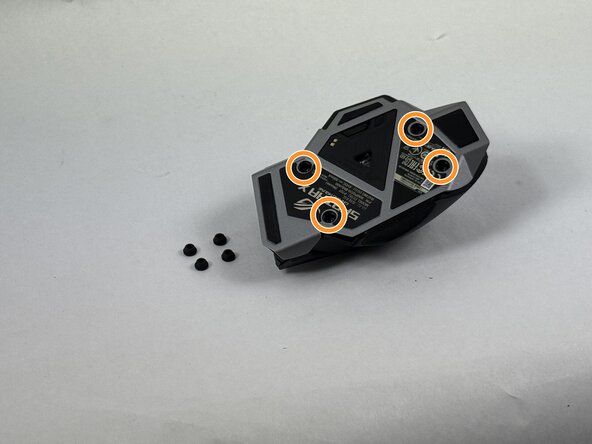
Use the pointed edge of a spudger to remove the four soft rubber covers on the underside of the mouse.
-
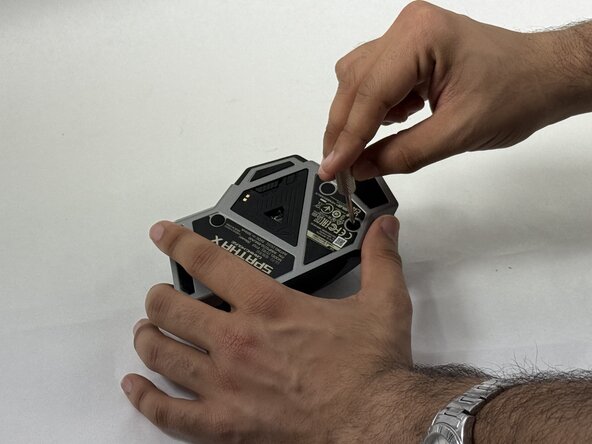
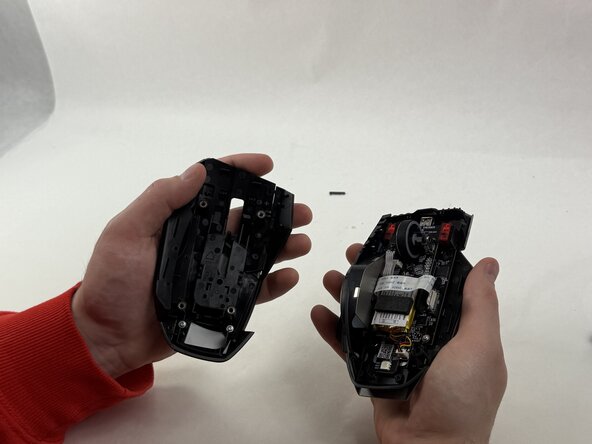
Use the included Torx screwdriver, or a T3 Torx screwdriver, to remove the four 4 mm screws.
 Ask FixBot
-
-
-
-
-
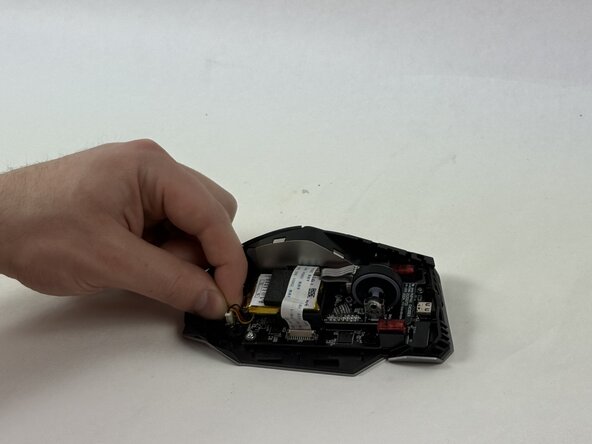
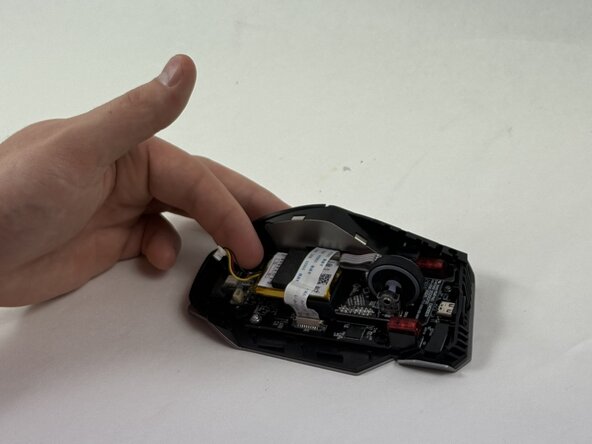
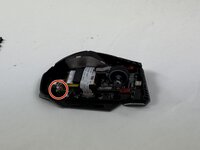
Grip the white battery connector and pull it up and out of its motherboard socket.
-
-
-
-
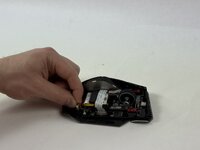
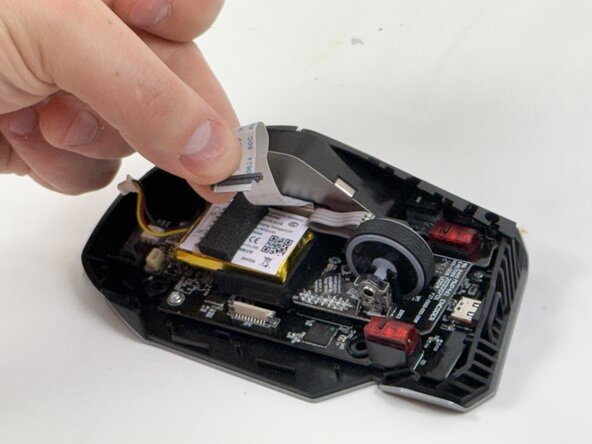
Disconnect the side button assembly ribbon cable from the motherboard.
-
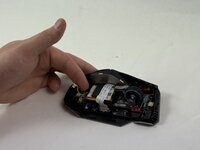
Use an opening tool to gently pry the battery up and out of the chassis.
-
-






For optimal performance, calibrate your newly installed battery after completing this guide.
To reassemble your device, follow the above steps in reverse order.
Take your e-waste to an R2 or e-Stewards certified recycler.

Team

UMass Dartmouth, Team 3-4, Botvin Spring 2025 Member of UMass Dartmouth, Team 3-4, Botvin Spring 2025
UMASSD-BOTVIN-S25S3G4
3 Members
60 Guides authored
