
ASUS ROG G46VW Indicator Lights Replacement

Nicolas Catano and 3 other contributors
Last updated on Jan 3, 2019
Views: 834
View statistics:
- Past 24 Hours:
- 1
- Past 7 Days:
- 15
- Past 30 Days:
- 57
- All Time:
- 834
Comments: 1
1 comment on steps.
Completed: 0 1
No one has marked this guide "completed." Will you be the first?
1 person has marked this guide "completed." It's you — great job!
Favorites: 0 1
No one has favorited (and subscribed to) this guide. Will you be the first?
1 person has favorited (and subscribed to) this guide — and that's you!
Action Shots
Be an action hero! This guide needs images that better demonstrate how to perform specific actions.
Better Introduction
Improve this guide by completing or revising its introduction.
Missing Details
Some of this guide's details are missing. Help users by adding tools, difficulty, or time.
What you need
Tools
-
-
Spudger4.9


-
-
-
Lift the screw cover and remove the screw using a Phillips #0 screwdriver.
 Ask FixBot
-
-
-
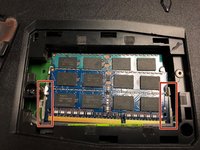
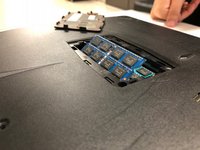
Push outwards on the clips to release the RAM stick. The stick should pop up at an angle.
-
-
-
-
-
-
-
Remove all of the screws from the bottom of the case.
-
If replacing the screen, remove the rubber feet to reveal two more screws.
-
-
-
-
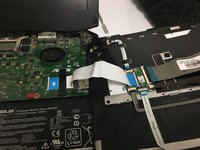
With the motherboard exposed, locate the Indicator Lights and their white plastic housing piece.
-
-
-
Remove all 3 screws from the motherboard connection using the Phillips #0 screwdriver.
-
Pull the plastic white housing piece away from the case.
-
-
-
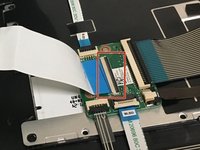
Locate the flat LED cable that connects the lights to the motherboard.
-
Flip the black cover upwards before pulling on the cable.
-
Repeat for the other connector piece.
-
-






To reassemble your device, follow these instructions in reverse order.

Team

University of North Texas, Team S6-G3, Thompson Fall 2018 Member of University of North Texas, Team S6-G3, Thompson Fall 2018
UNT-THOMPSON-F18S6G3
4 Members
84 Guides authored
