
ASUS Q400A-BHI7N03 RAM Replacement

Matthew Gold and 8 other contributors
Last updated on Jan 3, 2024
Views: 1.3K
View statistics:
- Past 24 Hours:
- 1
- Past 7 Days:
- 26
- Past 30 Days:
- 100
- All Time:
- 1,337
Comments: 4
2 comments on steps, 2 guide comments.
Go to guide commentsCompleted: 0 1
No one has marked this guide "completed." Will you be the first?
1 person has marked this guide "completed." It's you — great job!
Favorites: 0 1
No one has favorited (and subscribed to) this guide. Will you be the first?
1 person has favorited (and subscribed to) this guide — and that's you!
Action Shots
Be an action hero! This guide needs images that better demonstrate how to perform specific actions.
Introduction
Go to step 1 ↓If your ASUS Q400A-BHI7N03 laptop has been struggling to keep up with your demands, experiencing sluggish performance and lag when running applications,use this guide to replace its RAM (Random Access Memory). The RAM plays a critical role in your laptop's performance. An insufficient or faulty RAM module can lead to slow operation, unresponsive programs, and decreased productivity. In this guide, we will take you through a step-by-step process to replace the RAM in your ASUS Q400A-BHI7N03 laptop, Before we start the process, inspect your laptop for any potential issues and make sure to turn it off completely and disconnect it from any external power sources.
What you need
Tools
-
Spudger4.9


-
-
-
Turn off the laptop.
-
Disconnect the charging cable from the laptop.
-
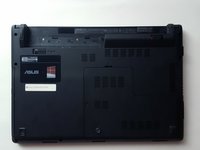
Flip the laptop over so that it is upside down.
-
Orient the laptop so that the battery is away from you.
 Ask FixBot
-
-
-
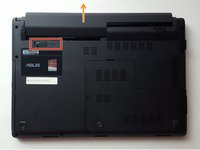
Find the tab in the top left corner. With one finger, pull the tab to the left to the unlocked position.
-
While holding this tab in the unlocked position, gently pull the battery away from you.
-
-
-
-
-
-
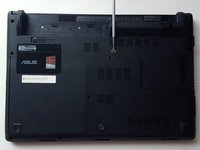
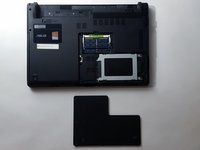
Flip the laptop so that it is upside down and locate a screw near the middle of the laptop. Remove the 8 mm PH0 screw.
-
-
-
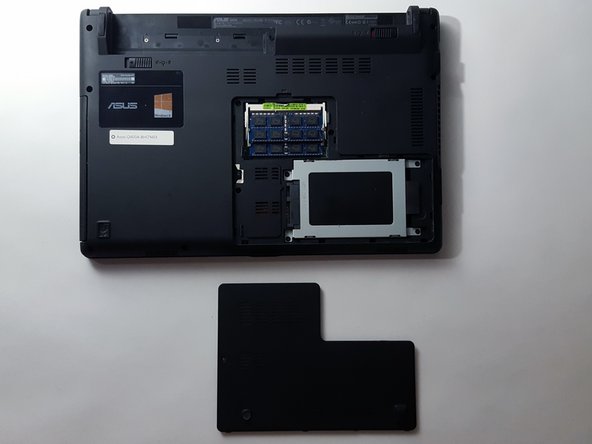
Use a spudger or opening tool to remove the L shaped section of the back cover.
-
-
-
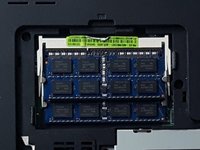
Identify the two metal tabs on both sides of the RAM.
-
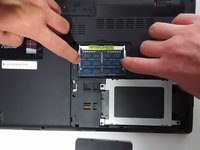
Gently push both tabs outwards at the same time. The RAM will pop up.
-
Carefully pull the RAM out.
-
-
-
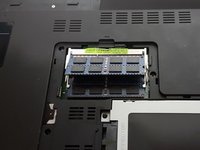
To put RAM back in, lineup the RAM with the plastic holder.
-
Slide it into the slot at a 30 degree angle and push down until it clicks into place.
-
-







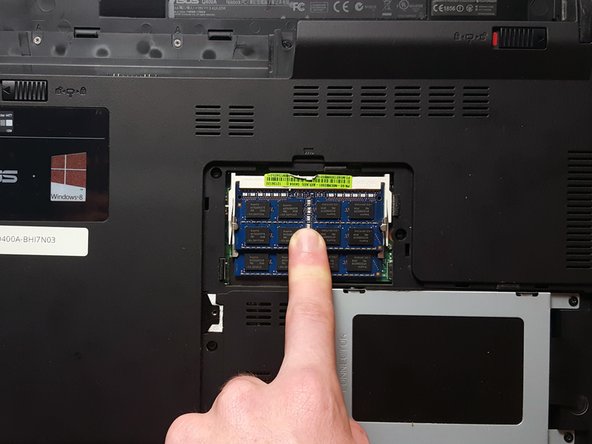
To reassemble your device, follow these instructions in reverse order.

Team

UC Davis, Team 1-4, Rodger Winter 2017 Member of UC Davis, Team 1-4, Rodger Winter 2017
UCD-RODGER-W17S1G4
5 Members
48 Guides authored
2 Guide Comments
Hello there ! I got a question. What type of ram should I buy to replace my Asus ? I trying to upgrade to 16 gb
