
ASUS MeMo Pad FHD10 Battery Replacement

Dmitry and 9 other contributors
Last updated on May 7, 2024
Views: 11K
View statistics:
- Past 24 Hours:
- 3
- Past 7 Days:
- 15
- Past 30 Days:
- 90
- All Time:
- 10,980
Comments: 1
1 guide comment.
Go to guide commentsCompleted: 5 6
5 people have marked this guide "completed." Will you be next?
6 people have marked this guide "completed." Including you — great job!
Favorites: 0 1
No one has favorited (and subscribed to) this guide. Will you be the first?
1 person has favorited (and subscribed to) this guide — and that's you!
Needs More Images
A few more images would make this guide's procedures crystal clear.
Slice and Dice
The steps in this guide should be split up and made into a series of prerequisite guides.
Better Introduction
Improve this guide by completing or revising its introduction.
Introduction
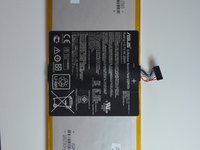
Go to step 1 ↓This guide is for battery’s replacement. The guide follows a step-by-step sequence to take out the back panel, unplug cables and replace the batter. The battery type is 6760mAh Li-polymer with 10 hours battery life.
What you need
Tools


-
-
-
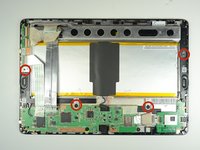
Unplug the charger and remove any memory card you may have in the device.
-
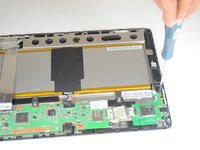
Wedge the plastic opening tool between the front and back cover on every side.
-
Slide the plastic opening tool back and forth to make sure that the back cover is disconnected.
-
Once disconnected, remove the back cover from the device screen.
 Ask FixBot
-
-
Tool used on this step:Tweezers$4.99
-
Remove the protective copper sticker and all tape fixed on the device.
-
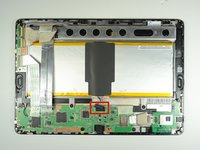
Using tweezers, remove the ribbon cable from their connections attached to the motherboard.
-
-
-
-
Locate the battery cable attached to the motherboard. Using the same technique used on the ribbons, do the same with the battery.
-
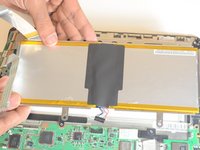
Remove the battery from the device. Once removed, use the plastic tool to separate the metal frame from the battery.
-
-




To reassemble your device, follow these instructions in reverse order.
Cancel: I did not complete this guide.
5 other people completed this guide.

Team

USF Tampa, Team 9-5, Blackwell Winter 2015 Member of USF Tampa, Team 9-5, Blackwell Winter 2015
USFT-BLACKWELL-W15S9G5
4 Members
60 Guides authored
