Free Shipping on Domestic Orders $75+

ASUS K53E-BBR1 Hard Drive Replacement

What you need

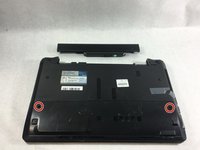
    1. ASUS K53E-BBR1 Hard Drive Replacement, Battery: step 1, image 1 of 1
      • Flip the laptop over so you can see the battery.

      Ask FixBot

      Add Comment

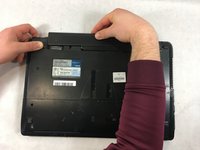
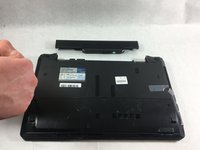
    2. ASUS K53E-BBR1 Hard Drive Replacement: step 2, image 1 of 1
      • Slide the lock on the right side of the battery to the right. If done correctly the slider will stay in place and there will be a red indicator.

      Ask FixBot

      Add Comment

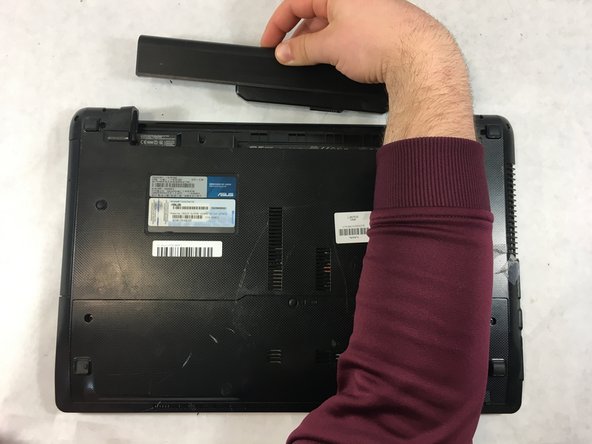
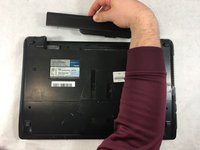
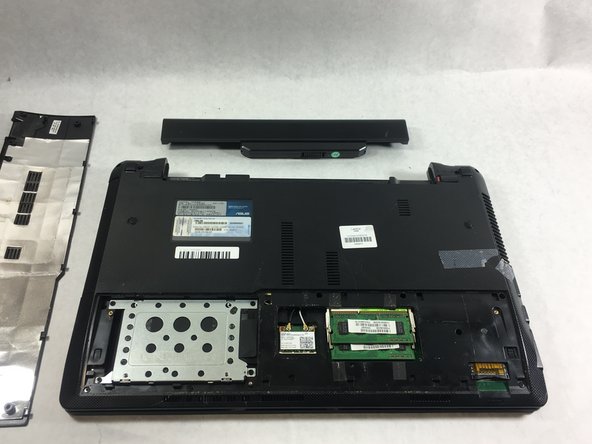
    3. ASUS K53E-BBR1 Hard Drive Replacement: step 3, image 1 of 3 ASUS K53E-BBR1 Hard Drive Replacement: step 3, image 2 of 3 ASUS K53E-BBR1 Hard Drive Replacement: step 3, image 3 of 3
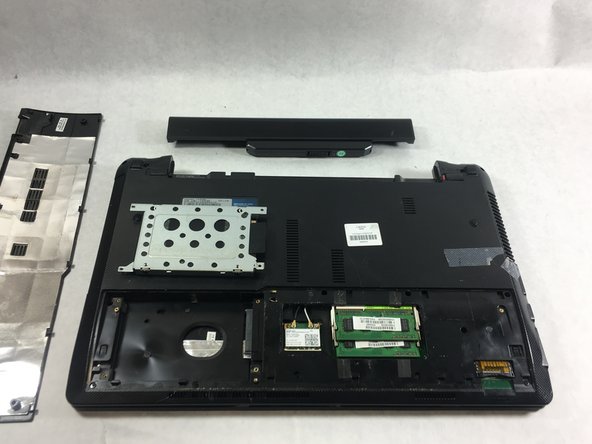
      • Slide the other sliding lock on the left side of the battery to the left, and with your other hand slide the battery out from the laptop.

      Ask FixBot

      Add Comment

    1. ASUS K53E-BBR1 Hard Drive Replacement, Hard Drive: step 4, image 1 of 2 ASUS K53E-BBR1 Hard Drive Replacement, Hard Drive: step 4, image 2 of 2
      • Remove the two 4mm Phillips #0 screws on either side of the laptop.

      Ask FixBot

      Add Comment

    2. ASUS K53E-BBR1 Hard Drive Replacement: step 5, image 1 of 2 ASUS K53E-BBR1 Hard Drive Replacement: step 5, image 2 of 2
      • Slide the back panel towards you until it stops.

      • Lift the panel up out of the laptop casing.

      Ask FixBot

      Add Comment

    3. ASUS K53E-BBR1 Hard Drive Replacement: step 6, image 1 of 1
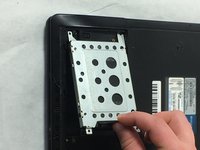
      • Remove the four 3mm Phillips #0 screws holding the hard drive in place.

      Ask FixBot

      Add Comment

    4. ASUS K53E-BBR1 Hard Drive Replacement: step 7, image 1 of 1
      • Disconnect the hard drive from the laptop by sliding it towards the outside edge.

      Ask FixBot

      Add Comment

    5. ASUS K53E-BBR1 Hard Drive Replacement: step 8, image 1 of 2 ASUS K53E-BBR1 Hard Drive Replacement: step 8, image 2 of 2
      • Grab hold of the black cloth tab and pull the hard drive out from the laptop.

      Ask FixBot

      Add Comment

Conclusion

To reassemble your device, follow these instructions in reverse order.

Cancel: I did not complete this guide.

Matthew Merlo

Member since: 03/20/19

267 Reputation

2 Guides authored

Team

0 Guide Comments

Add Comment

View Statistics:

Past 24 Hours: 4

Past 7 Days: 9

Past 30 Days: 35

All Time: 587