Free Shipping on Domestic Orders $75+

ASUS K200MA-DS01T Fan Replacement

What you need

  1. ASUS K200MA-DS01T Fan Replacement, Back Panel: step 1, image 1 of 2 ASUS K200MA-DS01T Fan Replacement, Back Panel: step 1, image 2 of 2
    • With the opening facing you, flip the laptop over and remove the following screws from the back panel:

    • Six 4mm Phillips screws using a Phillips #0 screwdriver.

    • One 12mm Phillips screw in the center using a Phillips #0 screwdriver.

    Ask FixBot

    Add Comment

  2. ASUS K200MA-DS01T Fan Replacement: step 2, image 1 of 2 ASUS K200MA-DS01T Fan Replacement: step 2, image 2 of 2
    • Using a plastic spudger, remove the two rubber stoppers closest to the hinge to reveal the screws underneath.

    Ask FixBot

    Add Comment

  3. ASUS K200MA-DS01T Fan Replacement: step 3, image 1 of 1
    • Remove the following screws:

    • Two 4mm Phillips screws using a Phillips #0 screwdriver.

    Ask FixBot

    Add Comment

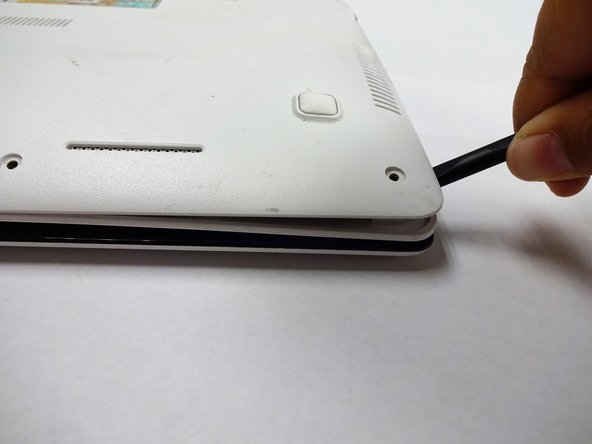
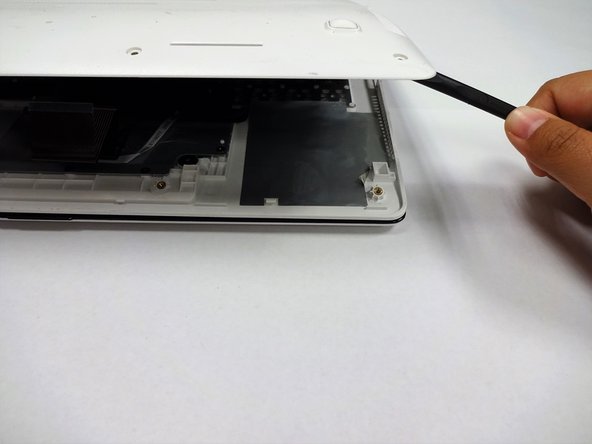
  4. ASUS K200MA-DS01T Fan Replacement: step 4, image 1 of 3 ASUS K200MA-DS01T Fan Replacement: step 4, image 2 of 3 ASUS K200MA-DS01T Fan Replacement: step 4, image 3 of 3
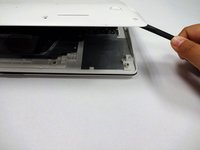
    • Using a plastic spudger (and a fair amount of force), pry the back panel up from the keyboard to separate.

    • You may have to use one spudger to wedge between the back panel and keyboard while using another to pry it open in a different spot.

    Ask FixBot

    Add Comment

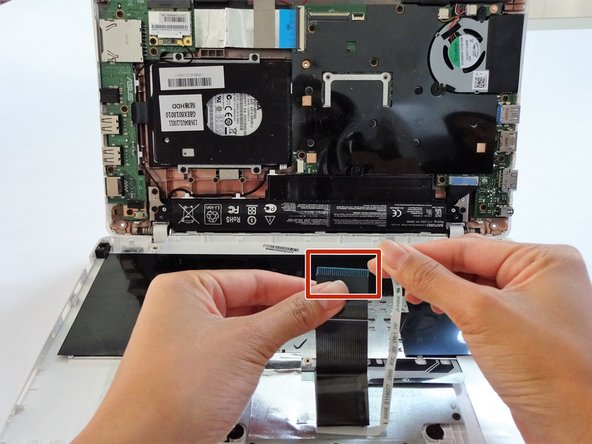
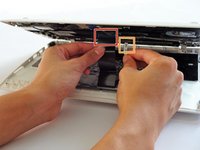
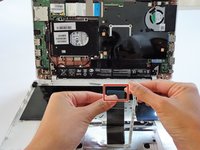
  5. ASUS K200MA-DS01T Fan Replacement, Keyboard: step 5, image 1 of 2 ASUS K200MA-DS01T Fan Replacement, Keyboard: step 5, image 2 of 2
    • To disconnect the keyboard connectors from keyboard and back panel, gently pull wide keyboard connector out.

    • Gently pull the narrow connector away from the keyboard.

    Ask FixBot

    Add Comment

  6. ASUS K200MA-DS01T Fan Replacement: step 6, image 1 of 2 ASUS K200MA-DS01T Fan Replacement: step 6, image 2 of 2
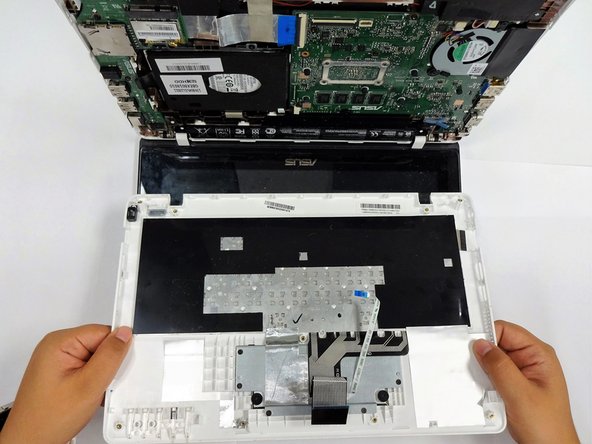
    • Now that the keyboard connectors are unplugged, pull the keyboard off and away from the back panel hinges.

    Ask FixBot

    Add Comment

  7. ASUS K200MA-DS01T Fan Replacement, Battery: step 7, image 1 of 2 ASUS K200MA-DS01T Fan Replacement, Battery: step 7, image 2 of 2
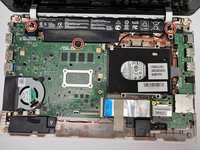
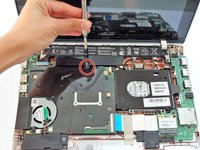
    • Flip the computer over so that the side with the motherboard (large green piece) is laying face-up.

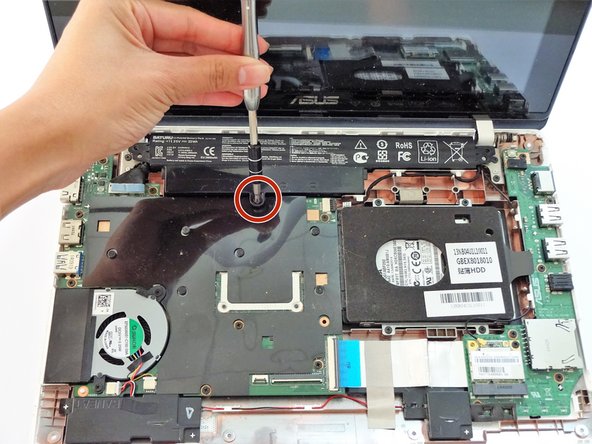
    • Remove the following screws from the middle and far ends of the battery:

    • Three 4mm Phillips screws using a Phillips #0 screwdriver.

    • The battery will be located closest to the screen.

    Ask FixBot

    Add Comment

  8. ASUS K200MA-DS01T Fan Replacement: step 8, image 1 of 3 ASUS K200MA-DS01T Fan Replacement: step 8, image 2 of 3 ASUS K200MA-DS01T Fan Replacement: step 8, image 3 of 3
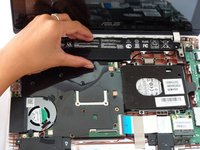
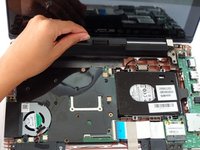
    • Gripping the wider left section, lift the battery up and away from computer.

    Ask FixBot

    Add Comment

  9. ASUS K200MA-DS01T Fan Replacement, Fan: step 9, image 1 of 2 ASUS K200MA-DS01T Fan Replacement, Fan: step 9, image 2 of 2
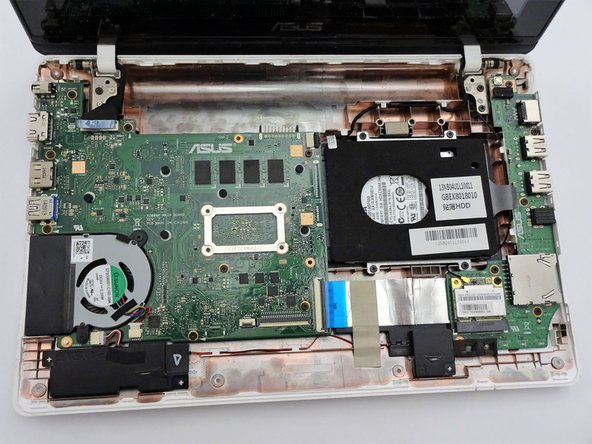
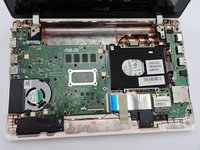
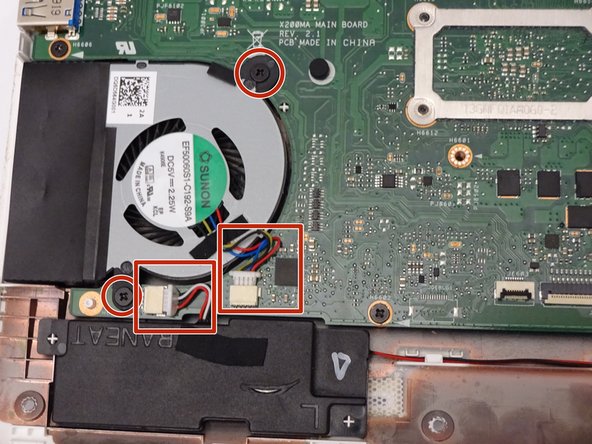
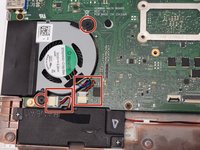
    • Locate the fan, two screws and two color coded wires in the bottom left corner of the computer.

    Ask FixBot

    Add Comment

  10. ASUS K200MA-DS01T Fan Replacement: step 10, image 1 of 1
    • Remove the following screws from the fan:

    • Two 4mm screws using a Phillips #0 screwdriver.

    Ask FixBot

    Add Comment

  11. ASUS K200MA-DS01T Fan Replacement: step 11, image 1 of 2 ASUS K200MA-DS01T Fan Replacement: step 11, image 2 of 2
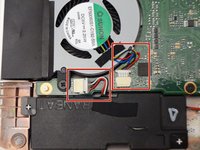
    • Firmly pull colored wires away from wire slot.

    Ask FixBot

    Add Comment

  12. ASUS K200MA-DS01T Fan Replacement: step 12, image 1 of 2 ASUS K200MA-DS01T Fan Replacement: step 12, image 2 of 2
    Tool used on this step:
    Tweezers
    $4.99
    Buy
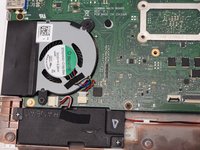
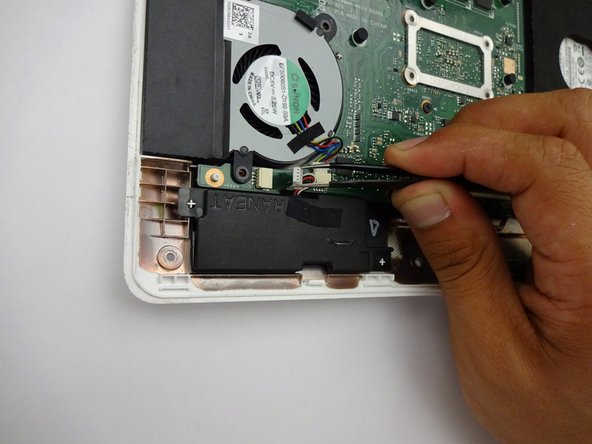
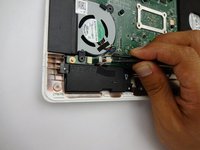
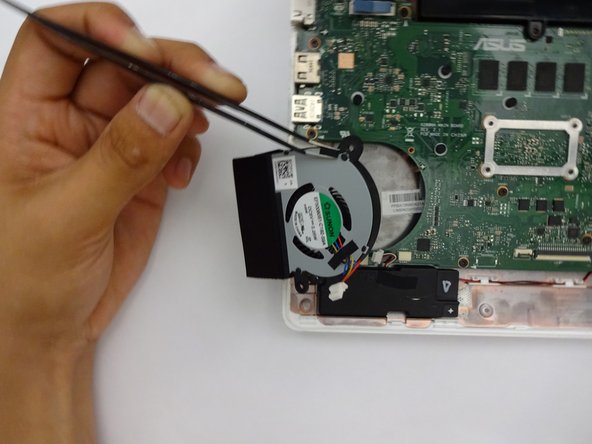
    • After removing both the screws and color coded wires, lift fan out of place.

    • Tools such as spudgers or tweezers may be used for fan removal.

    Ask FixBot

    Add Comment

Conclusion

To reassemble your device, follow these instructions in reverse order.

Cancel: I did not complete this guide.

One other person completed this guide.

Terrinda

Member since: 09/17/18

530 Reputation

4 Guides authored

Team

0 Guide Comments

Add Comment

View Statistics:

Past 24 Hours: 0

Past 7 Days: 7

Past 30 Days: 29

All Time: 377