Free Shipping on Domestic Orders $75+

ASUS Eee PC 900HD Track Pad Replacement

What you need

  1. ASUS Eee PC 900HD Track Pad Replacement, Track Pad: step 1, image 1 of 3 ASUS Eee PC 900HD Track Pad Replacement, Track Pad: step 1, image 2 of 3 ASUS Eee PC 900HD Track Pad Replacement, Track Pad: step 1, image 3 of 3
    • Flip the laptop over and locate the battery lock tabs.

    • Slide the right tab to the unlock position (right) so that a red dot is showing. Then, slide and hold the left tab to its unlock position (left).

    • Pull the battery out.

    Ask FixBot

    Add Comment

  2. ASUS Eee PC 900HD Track Pad Replacement: step 2, image 1 of 3 ASUS Eee PC 900HD Track Pad Replacement: step 2, image 2 of 3 ASUS Eee PC 900HD Track Pad Replacement: step 2, image 3 of 3
    • Remove the four 4.76 mm screws using the Phillips J0 screwdriver.

    • Lift up on the hard drive cover to remove.

    Ask FixBot

    Add Comment

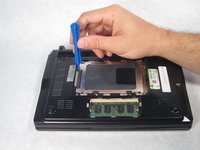
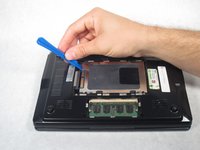
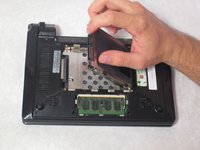
  3. ASUS Eee PC 900HD Track Pad Replacement: step 3, image 1 of 3 ASUS Eee PC 900HD Track Pad Replacement: step 3, image 2 of 3 ASUS Eee PC 900HD Track Pad Replacement: step 3, image 3 of 3
    • Starting from the left, use a plastic opening tool to slide the hard drive all the way to the right.

    • Once the hard drive is all the way to the right, lift it up on the hard drive and pull it out.

    Ask FixBot

    Add Comment

  4. ASUS Eee PC 900HD Track Pad Replacement: step 4, image 1 of 1
    • Remove the 4.76 mm screw under the hard drive using the Phillips J0 screwdriver.

    Ask FixBot

    Add Comment

  5. ASUS Eee PC 900HD Track Pad Replacement: step 5, image 1 of 2 ASUS Eee PC 900HD Track Pad Replacement: step 5, image 2 of 2
    Tool used on this step:
    Tweezers
    $4.99
    Buy
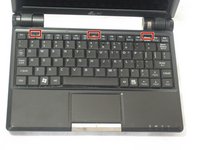
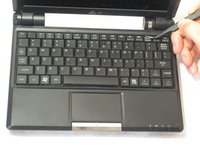
    • Flip the laptop back over and unlock the three keyboard tabs at the top of the keyboard by pushing down on the silver tabs with tweezers .

    Ask FixBot

    Add Comment

  6. ASUS Eee PC 900HD Track Pad Replacement: step 6, image 1 of 2 ASUS Eee PC 900HD Track Pad Replacement: step 6, image 2 of 2
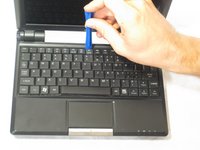
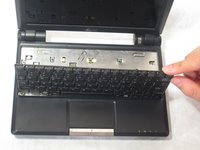
    • Use the plastic opening tool to lift up the keyboard.

    Ask FixBot

    Add Comment

  7. ASUS Eee PC 900HD Track Pad Replacement: step 7, image 1 of 3 ASUS Eee PC 900HD Track Pad Replacement: step 7, image 2 of 3 ASUS Eee PC 900HD Track Pad Replacement: step 7, image 3 of 3
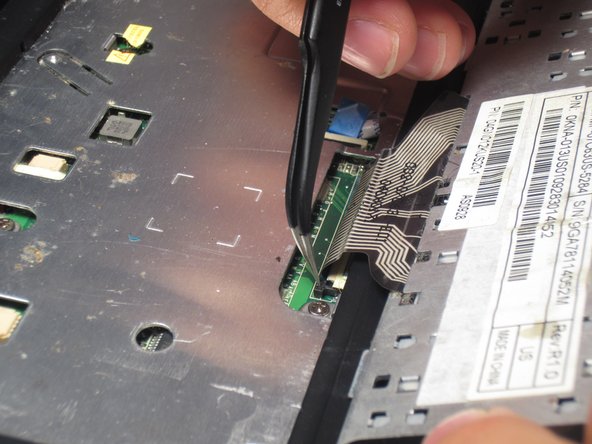
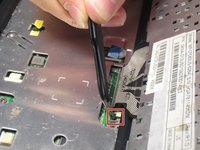
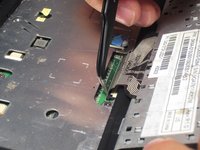
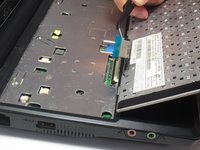
    • Using a pair of tweezers, disconnect the cable at the bottom of the keyboard by flipping the two black lock switches up on both sides of the cable.

    • Carefully pull the cable out.

    Ask FixBot

    Add Comment

  8. ASUS Eee PC 900HD Track Pad Replacement: step 8, image 1 of 3 ASUS Eee PC 900HD Track Pad Replacement: step 8, image 2 of 3 ASUS Eee PC 900HD Track Pad Replacement: step 8, image 3 of 3
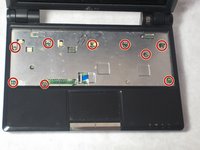
    • Remove the nine 4.76 mm screws from the surface of the laptop using the Phillips J0 screwdriver.

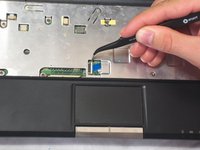
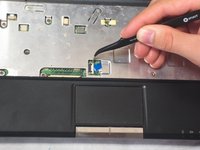
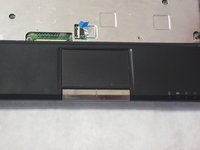
    • Using a pair of tweezers, unlock the blue touch pad ribbon by pushing the white lock tab to the right.

    Ask FixBot

    Add Comment

  9. ASUS Eee PC 900HD Track Pad Replacement: step 9, image 1 of 2 ASUS Eee PC 900HD Track Pad Replacement: step 9, image 2 of 2
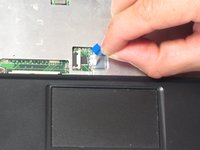
    • Carefully pull the blue touchpad ribbon to the right.

    Ask FixBot

    Add Comment

  10. ASUS Eee PC 900HD Track Pad Replacement: step 10, image 1 of 3 ASUS Eee PC 900HD Track Pad Replacement: step 10, image 2 of 3 ASUS Eee PC 900HD Track Pad Replacement: step 10, image 3 of 3
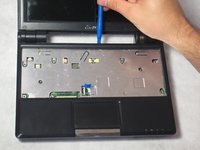
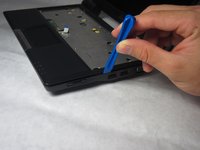
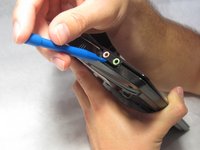
    • Using a plastic opening tool, remove the cover of the laptop by prying up the edges.

    • Be careful around the audio and microphone jacks as they can be easily damaged. Lift the right half of the cover and move it towards the left.

    Ask FixBot

    Add Comment

  11. ASUS Eee PC 900HD Track Pad Replacement: step 11, image 1 of 2 ASUS Eee PC 900HD Track Pad Replacement: step 11, image 2 of 2
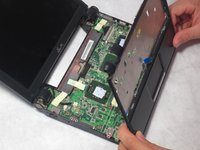
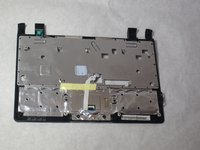
    • Lift up and remove the top cover of the laptop.

    • Flip this cover over to reveal the back.

    Ask FixBot

    Add Comment

  12. ASUS Eee PC 900HD Track Pad Replacement: step 12, image 1 of 2 ASUS Eee PC 900HD Track Pad Replacement: step 12, image 2 of 2
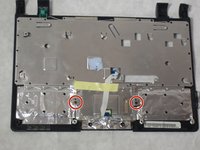
    • Remove the two 4.76 mm screws using the Philips JO screwdriver.

    Ask FixBot

    Add Comment

  13. ASUS Eee PC 900HD Track Pad Replacement: step 13, image 1 of 3 ASUS Eee PC 900HD Track Pad Replacement: step 13, image 2 of 3 ASUS Eee PC 900HD Track Pad Replacement: step 13, image 3 of 3
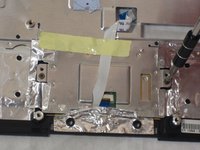
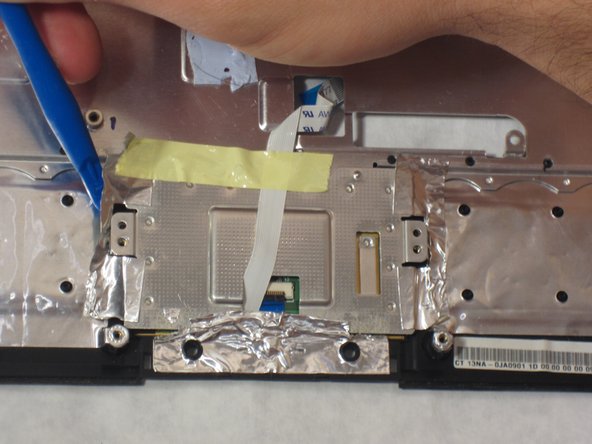
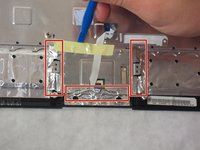
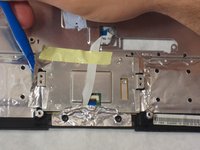
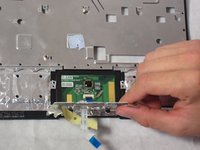
    • Using the plastic opening tool, gently pry the metal foil up around the edges of the trackpad.

    • Caution: Do not completely remove the foil.

    • Lift the metal plate up to expose the trackpad.

    • Now you can safely remove the track pad.

    Ask FixBot

    Add Comment

Conclusion

To reassemble your device, follow these instructions in reverse order.

Cancel: I did not complete this guide.

Kendall Marie Mehlhorn

Member since: 10/13/15

572 Reputation

5 Guides authored

0 Guide Comments

Add Comment

View Statistics:

Past 24 Hours: 0

Past 7 Days: 4

Past 30 Days: 27

All Time: 754