Introduction
Use this guide to replace the SSD of your ASUS EEE PC701SD-WHI004X. Be sure to disconnect the laptop from all sources of power before beginning. You should follow this guide if files are becoming corrupted, or if the Operating System won't load when turning on your PC.
What you need
-
-
-
Flip the laptop over, you should see two battery tabs.
-
Slide the right tab towards the right. The orange dot should be visible. This tab will be locked open.
 Ask FixBot
-
-
-
While holding the left tab towards the left. Gently slide the battery out of the laptop.
-
-
-
-
-
-
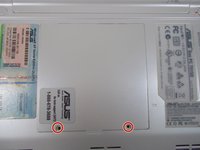
Remove the two 2.5mm Phillips #1 screws.
-
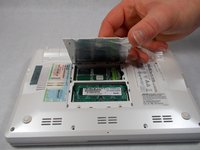
Gently remove back panel by lifting the tab. This will expose the SSD.
-
-
-
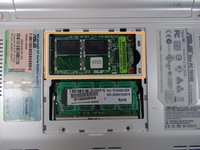
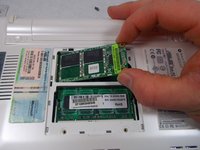
The SSD should now pop up.
-
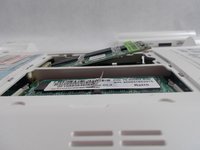
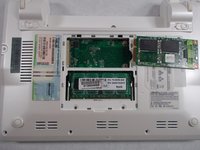
Grasping the sides of the SSD, gently pull it out at the angle it makes with the device.
-
-




Cancel: I did not complete this guide.
One other person completed this guide.

Team

UMass Dartmouth, Team S2-G8, Isaacson Spring 2017 Member of UMass Dartmouth, Team S2-G8, Isaacson Spring 2017
UMASSD-ISAACSON-S17S2G8
3 Members
60 Guides authored
