
ASUS Chromebook C200MA DS01 Wireless Card Replacement

Christopher Lim and 4 other contributors
Last updated on Aug 16, 2017
Views: 1.2K
View statistics:
- Past 24 Hours:
- 1
- Past 7 Days:
- 20
- Past 30 Days:
- 89
- All Time:
- 1,199
Comments: 1
1 guide comment.
Go to guide commentsCompleted: 0 1
No one has marked this guide "completed." Will you be the first?
1 person has marked this guide "completed." It's you — great job!
Favorites: 0 1
No one has favorited (and subscribed to) this guide. Will you be the first?
1 person has favorited (and subscribed to) this guide — and that's you!
Introduction
Go to step 1 ↓This guide will take you through a step-by-step process for the removal of your Chromebook’s wireless card.
What you need
Tools
-
Spudger4.9


-
-
-
Remove the five 8.4 mm Phillips #0 screws.
-
Remove the four 4.6 mm Phillips #0 screws.
 Ask FixBot
-
-
-
Use the plastic opening tool to gently work around the edge of the Chromebook until the back panel starts to lift off.
-
-
-
-
-
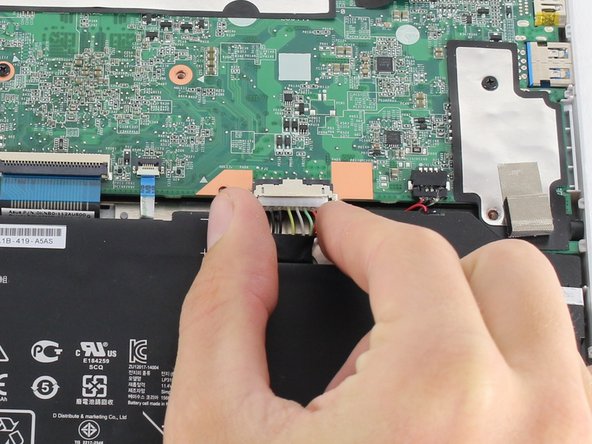
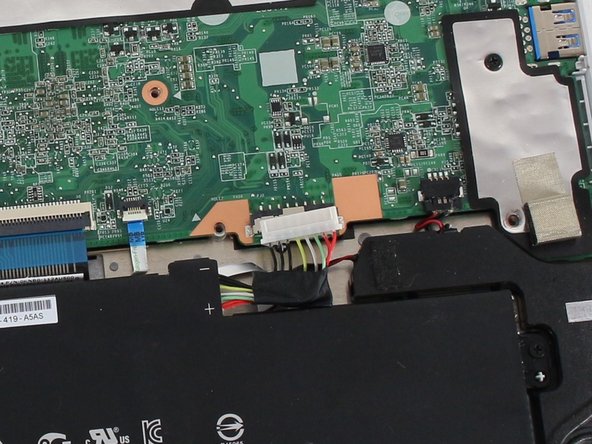
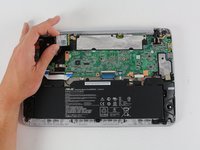
To disconnect the battery, pinch the multi-color bundle cable with your thumb and forefinger and pull directly back.
-
-
-
-
-
Remove the silver 2.8 mm Phillips #0 screw from the wireless card.
-
-
-
-
Use a spudger to disconnect the white and black antenna cables connected to the wireless card.
-
-
-
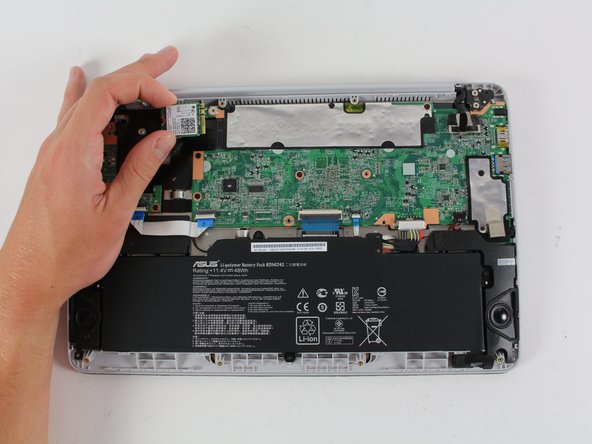
Grab the wireless card between your thumb and index finger and pull directly away from the motherboard.
-
-




To reassemble your device, follow these instructions in reverse order.

Team

Cal Poly, Team S23-G4, Livingston Spring 2017 Member of Cal Poly, Team S23-G4, Livingston Spring 2017
CPSU-LIVINGSTON-S17S23G4
4 Members
120 Guides authored
