Free Shipping on Domestic Orders $75+

ASUS Chromebook C200MA DS01 Touchpad Replacement

What you need

  1. ASUS Chromebook C200MA DS01 Touchpad Replacement, Back Panel: step 1, image 1 of 1
    • Before proceeding, power down your Chromebook. Close the display and lay it on a soft surface, top-side down.

    • Remove the five 8.4 mm Phillips #0 screws.

    • Remove the four 4.6 mm Phillips #0 screws.

    Ask FixBot

    Add Comment

  2. ASUS Chromebook C200MA DS01 Touchpad Replacement: step 2, image 1 of 1
    • Use the plastic opening tool to gently work around the edge of the Chromebook until the back panel starts to lift off.

    Ask FixBot

    Add Comment

  3. ASUS Chromebook C200MA DS01 Touchpad Replacement: step 3, image 1 of 1
    • Remove the back panel by lifting it away from the Chromebook.

    • Some clicking will be heard as the panel is removed from the back, this is completely normal.

    Ask FixBot

    Add Comment

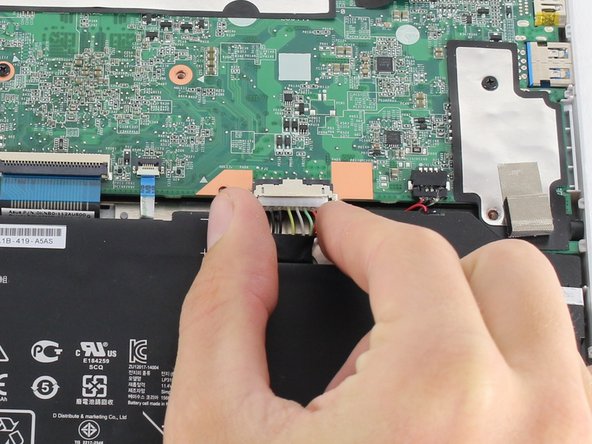
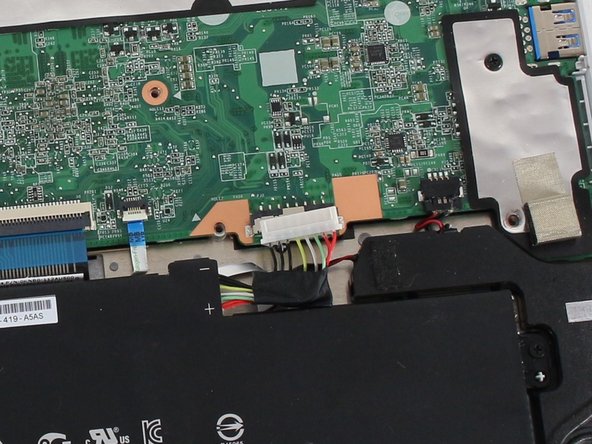
  4. ASUS Chromebook C200MA DS01 Touchpad Replacement, Battery Connection: step 4, image 1 of 3 ASUS Chromebook C200MA DS01 Touchpad Replacement, Battery Connection: step 4, image 2 of 3 ASUS Chromebook C200MA DS01 Touchpad Replacement, Battery Connection: step 4, image 3 of 3
    • To disconnect the battery, pinch the multi-color bundle cable with your thumb and forefinger and pull directly back.

    Ask FixBot

    Add Comment

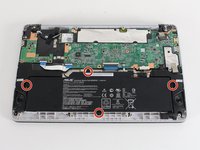
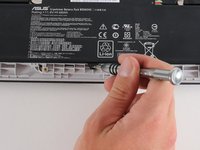
  5. ASUS Chromebook C200MA DS01 Touchpad Replacement, Battery: step 5, image 1 of 2 ASUS Chromebook C200MA DS01 Touchpad Replacement, Battery: step 5, image 2 of 2
    • Remove the four 4.7 mm Phillips #0 screws that secure the battery to the Chromebook.

    Ask FixBot

    Add Comment

  6. ASUS Chromebook C200MA DS01 Touchpad Replacement: step 6, image 1 of 1
    • Pull out the battery.

    Ask FixBot

    Add Comment

  7. ASUS Chromebook C200MA DS01 Touchpad Replacement, Touchpad: step 7, image 1 of 1
    • Locate the touchpad.

    • Locate the touch pad cable connector.

    Ask FixBot

    Add Comment

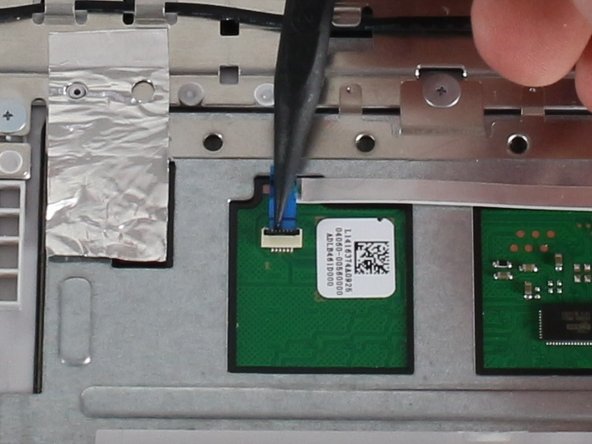
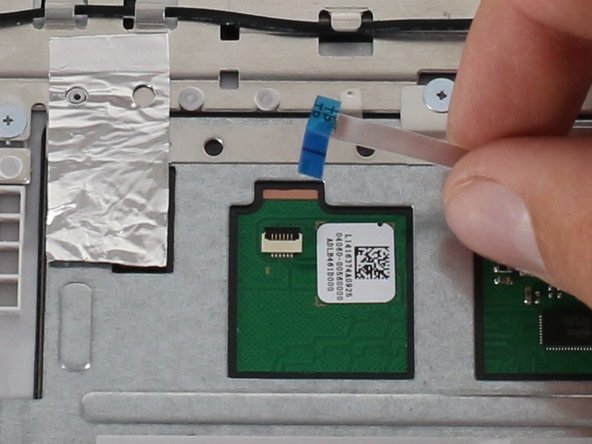
  8. ASUS Chromebook C200MA DS01 Touchpad Replacement: step 8, image 1 of 3 ASUS Chromebook C200MA DS01 Touchpad Replacement: step 8, image 2 of 3 ASUS Chromebook C200MA DS01 Touchpad Replacement: step 8, image 3 of 3
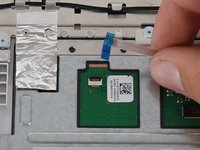
    • Disconnect the touch pad ZIF(zero insertion force) connector.

    • Flip the flap up using a spudger or your fingers.

    • Pull gently on the ribbon cable to disconnect.

    Ask FixBot

    Add Comment

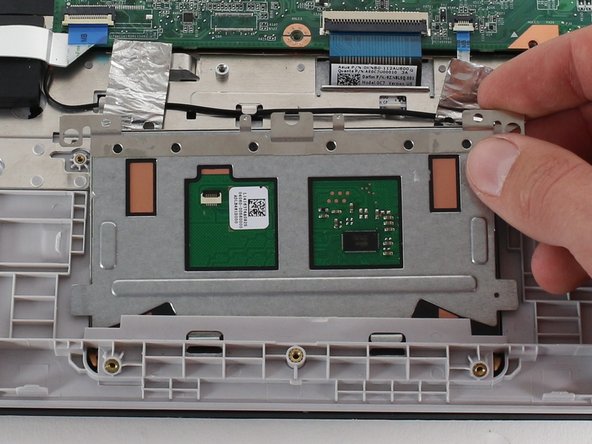
  9. ASUS Chromebook C200MA DS01 Touchpad Replacement: step 9, image 1 of 1
    • Gently remove the adhesive on the touch pad ribbon cable.

    Ask FixBot

    Add Comment

  10. ASUS Chromebook C200MA DS01 Touchpad Replacement: step 10, image 1 of 3 ASUS Chromebook C200MA DS01 Touchpad Replacement: step 10, image 2 of 3 ASUS Chromebook C200MA DS01 Touchpad Replacement: step 10, image 3 of 3
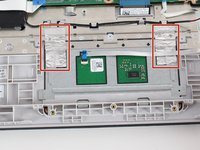
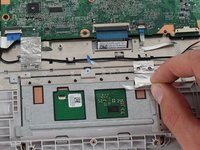
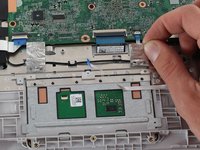
    • Gently remove the metallic tape from the touch pad only.

    • Try not to tear the tape, it can be re-used during reassembly.

    Ask FixBot

    Add Comment

  11. ASUS Chromebook C200MA DS01 Touchpad Replacement: step 11, image 1 of 1
    • Remove the three 1.8 mm Phillips #00 screws.

    Ask FixBot

    Add Comment

  12. ASUS Chromebook C200MA DS01 Touchpad Replacement: step 12, image 1 of 2 ASUS Chromebook C200MA DS01 Touchpad Replacement: step 12, image 2 of 2
    • Lift the far edge of the touch pad to remove it.

    Ask FixBot

    Add Comment

Conclusion

To reassemble your device, follow these instructions in reverse order.

Cancel: I did not complete this guide.

Christopher Lim

Member since: 04/26/17

779 Reputation

7 Guides authored

Team

Cal Poly, Team S23-G4, Livingston Spring 2017 Member of Cal Poly, Team S23-G4, Livingston Spring 2017

CPSU-LIVINGSTON-S17S23G4

4 Members

19 Guides authored

0 Guide Comments

Add Comment

View Statistics:

Past 24 Hours: 1

Past 7 Days: 7

Past 30 Days: 21

All Time: 809