Free Shipping on Domestic Orders $75+

ASUS Chromebook C100PA-RBRKT07 Trackpad Replacement

What you need

  1. ASUS Chromebook C100PA-RBRKT07 Trackpad Replacement, Lower Case: step 1, image 1 of 1
    • Use the T5 screwdriver to remove the nine 2.1 mm screws from the bottom of the device.

    Ask FixBot

    Add Comment

  2. ASUS Chromebook C100PA-RBRKT07 Trackpad Replacement: step 2, image 1 of 1
    • Use the iFixit opening tool to remove the 4 pads to reveal six 3.1 mm screws underneath.

    Ask FixBot

    Add Comment

  3. ASUS Chromebook C100PA-RBRKT07 Trackpad Replacement: step 3, image 1 of 1
    Tool used on this step:
    Tweezers
    $4.99
    Buy
    • Use the T5 screwdriver to remove the six 3.1 mm screws under the pads.

    • There might be a layer of tape that covers the screws. Remove the tape first with a pair of tweezers.

    Ask FixBot

    Add Comment

  4. ASUS Chromebook C100PA-RBRKT07 Trackpad Replacement: step 4, image 1 of 1
    • Use the iFixit opening tool to remove the back of the laptop.

    Ask FixBot

    Add Comment

  5. ASUS Chromebook C100PA-RBRKT07 Trackpad Replacement: step 5, image 1 of 1
    • Use the blunt nose tweezers to separate the keyboard from the internal components.

    Ask FixBot

    Add Comment

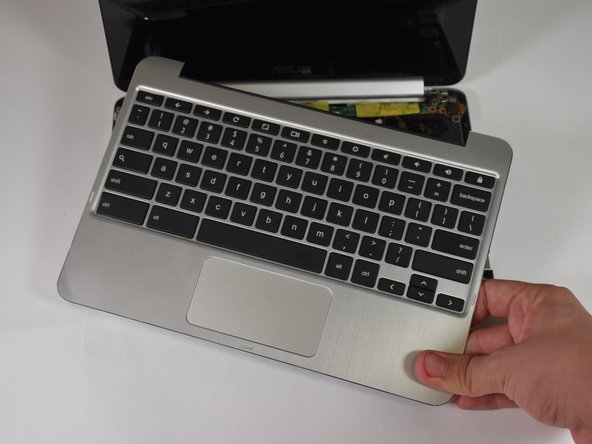
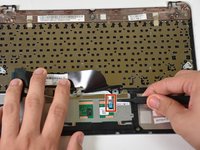
  6. ASUS Chromebook C100PA-RBRKT07 Trackpad Replacement, Trackpad: step 6, image 1 of 2 ASUS Chromebook C100PA-RBRKT07 Trackpad Replacement, Trackpad: step 6, image 2 of 2
    • Grip the keyboard and carefully pull it off the device.

    Ask FixBot

    Add Comment

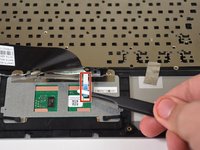
  7. ASUS Chromebook C100PA-RBRKT07 Trackpad Replacement: step 7, image 1 of 2 ASUS Chromebook C100PA-RBRKT07 Trackpad Replacement: step 7, image 2 of 2
    Tool used on this step:
    Tweezers
    $4.99
    Buy
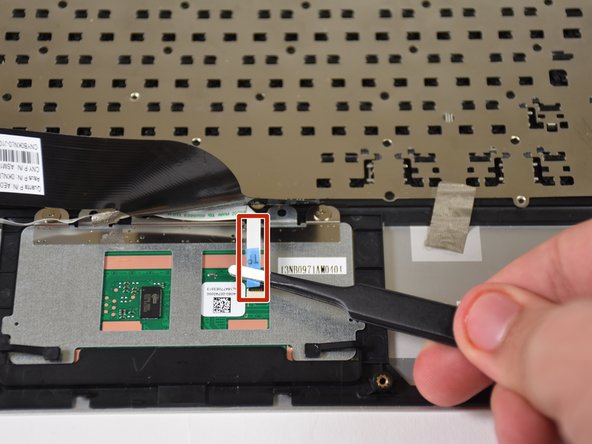
    • On the back of the keyboard assembly, use the tweezers to pull the white cable from the track pad.

    Ask FixBot

    Add Comment

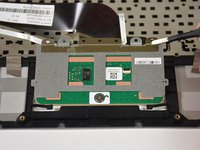
  8. ASUS Chromebook C100PA-RBRKT07 Trackpad Replacement: step 8, image 1 of 1
    • Remove the three 1 mm screws from the track pad using the JIS 00 screwdriver.

    Ask FixBot

    Add Comment

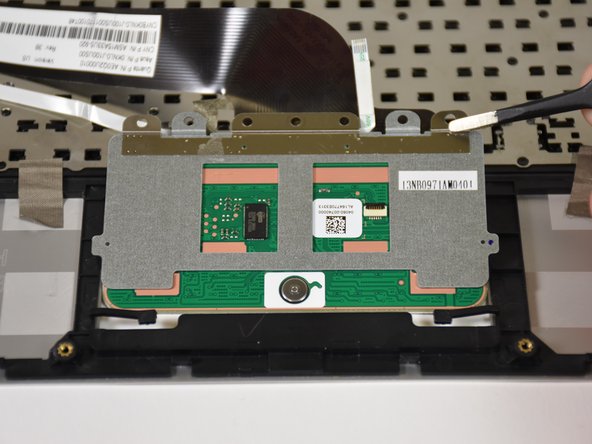
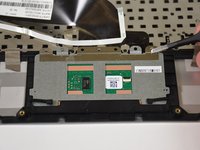
  9. ASUS Chromebook C100PA-RBRKT07 Trackpad Replacement: step 9, image 1 of 2 ASUS Chromebook C100PA-RBRKT07 Trackpad Replacement: step 9, image 2 of 2
    • Grip the track pad with the tweezers and slide it up and out of the keyboard assembly.

    Ask FixBot

    Add Comment

Conclusion

To reassemble your device, follow these instructions in reverse order.

Cancel: I did not complete this guide.

Lauren Schirle

Member since: 01/24/19

205 Reputation

2 Guides authored

Team

Cal Poly, Team S19-G4, White Winter 2019 Member of Cal Poly, Team S19-G4, White Winter 2019

CPSU-WHITE-W19S19G4

4 Members

12 Guides authored

0 Guide Comments

Add Comment

View Statistics:

Past 24 Hours: 0

Past 7 Days: 14

Past 30 Days: 28

All Time: 573