Free Shipping on Domestic Orders $75+

ASUS Chromebook C100PA-RBRKT07 Audio Ports Replacement

Views: 412

View statistics:

Past 24 Hours:
1
Past 7 Days:
12
Past 30 Days:
54
All Time:
412
Comments: 0

No one has left comments on this guide. Will you be first?

Go to guide comments
Completed: 0

No one has marked this guide "completed." Will you be the first?

Favorites: 0

No one has favorited (and subscribed to) this guide. Will you be the first?

Time Required: 5 - 20 minutes
Difficulty: Moderate
ASUS Chromebook C100PA-RBRKT07 Audio Ports Replacement

Introduction

Go to step 1 ↓

Details to remove the battery of ASUS Chromebook Flip C100PA-RBRKT07

What you need

Tools

    1. ASUS Chromebook C100PA-RBRKT07 Audio Ports Replacement, Lower Case: step 1, image 1 of 1
      • Use the T5 screwdriver to remove the nine 2.1 mm screws from the bottom of the device.

      Ask FixBot

      Add Comment

    2. ASUS Chromebook C100PA-RBRKT07 Audio Ports Replacement: step 2, image 1 of 1
      • Use the iFixit opening tool to remove the 4 pads to reveal six 3.1 mm screws underneath.

      Ask FixBot

      Add Comment

    3. ASUS Chromebook C100PA-RBRKT07 Audio Ports Replacement: step 3, image 1 of 1
      Tool used on this step:
      Tweezers
      $4.99
      Buy
      • Use the T5 screwdriver to remove the six 3.1 mm screws under the pads.

      • There might be a layer of tape that covers the screws. Remove the tape first with a pair of tweezers.

      Ask FixBot

      Add Comment

    4. ASUS Chromebook C100PA-RBRKT07 Audio Ports Replacement: step 4, image 1 of 1
      • Use the iFixit opening tool to remove the back of the laptop.

      Ask FixBot

      Add Comment

    5. ASUS Chromebook C100PA-RBRKT07 Audio Ports Replacement: step 5, image 1 of 1
      • Use the blunt nose tweezers to separate the keyboard from the internal components.

      Ask FixBot

      Add Comment

    1. ASUS Chromebook C100PA-RBRKT07 Audio Ports Replacement, Audio Ports: step 6, image 1 of 1
      • Remove the four 3mm J1 screws attached to the audio cards.

      Ask FixBot

      Add Comment

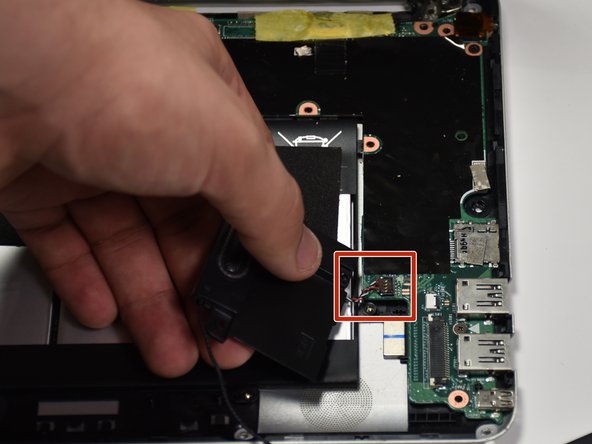
    2. ASUS Chromebook C100PA-RBRKT07 Audio Ports Replacement: step 7, image 1 of 2 ASUS Chromebook C100PA-RBRKT07 Audio Ports Replacement: step 7, image 2 of 2
      • Lift and remove the audio cards.

      • Separate the wires from the motherboard.

      Ask FixBot

      Add Comment

Conclusion

To reassemble your device, follow these instructions in reverse order.

Cancel: I did not complete this guide.

Tomas Martinez

Member since: 01/24/19

185 Reputation

1 Guide authored

Team

Cal Poly, Team S19-G4, White Winter 2019 Member of Cal Poly, Team S19-G4, White Winter 2019

CPSU-WHITE-W19S19G4

4 Members

72 Guides authored

0 Guide Comments

Add Comment

View Statistics:

Past 24 Hours: 1

Past 7 Days: 12

Past 30 Days: 54

All Time: 412