
ASTRO C40 TR Controller Joystick Replacement

Last updated on Sep 16, 2026
Views: 6K
View statistics:
- Past 24 Hours:
- 3
- Past 7 Days:
- 36
- Past 30 Days:
- 149
- All Time:
- 5,950
Comments: 0
No one has left comments on this guide. Will you be first?
Go to guide commentsCompleted: 1 2
1 person has marked this guide "completed." Will you be next?
2 people have marked this guide "completed." Including you — great job!
Favorites: 0 1
No one has favorited (and subscribed to) this guide. Will you be the first?
1 person has favorited (and subscribed to) this guide — and that's you!
Incorrect Tools
Help make this guide better by using the correct tools in images and/or text.
Introduction
Go to step 1 ↓Don’t abandon your Astro C40 TR controller if it has some drift problems! With a new joystick module, some screwdrivers, and minor effort, it’ll be as good as new.
Apart from being able to use a screwdriver, this guide requires no prerequisite on technical background.
You will need:
- An H.20 Hexagonal Screwdriver
- A 30mm TORX Screwdriver
- A joystick module for replacement
What you need
Tools

-
-
-
Unplug your controller from the video game console.
-
Turn the wireless mode off if it is activated on your controller.
 Ask FixBot
-
-
-
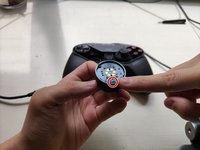
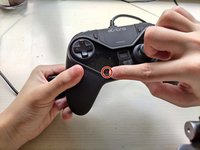
Use an H.20 Hexagonal screwdriver to loosen the two screws on each joystick's side.
-
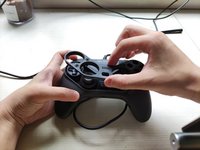
Remove the face cover of the joystick by flipping the controller on its side.
-
-
-
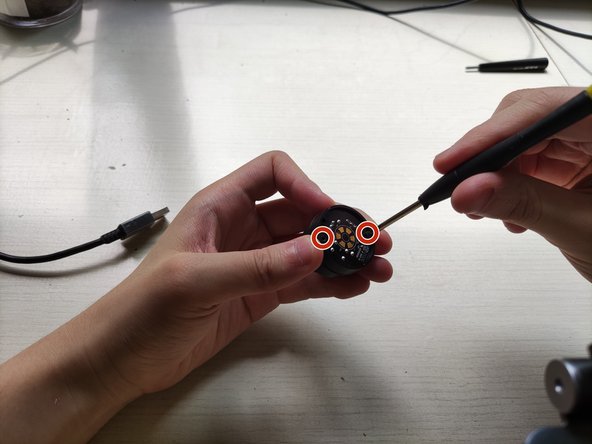
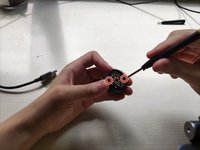
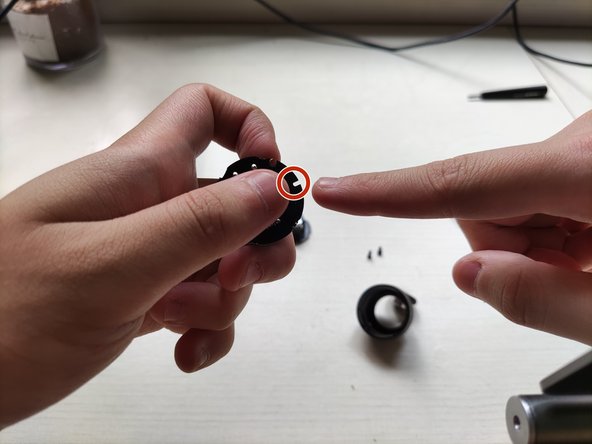
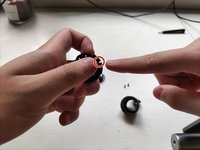
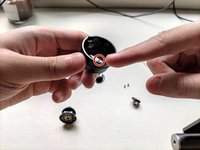
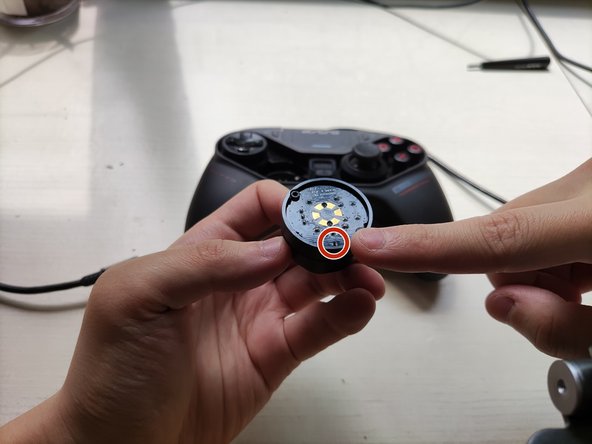
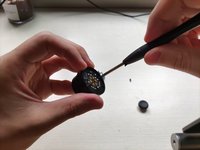
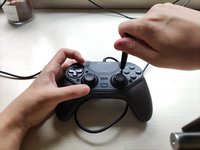
Use the 30mm TORX Screwdriver to remove the screws from the module.
-
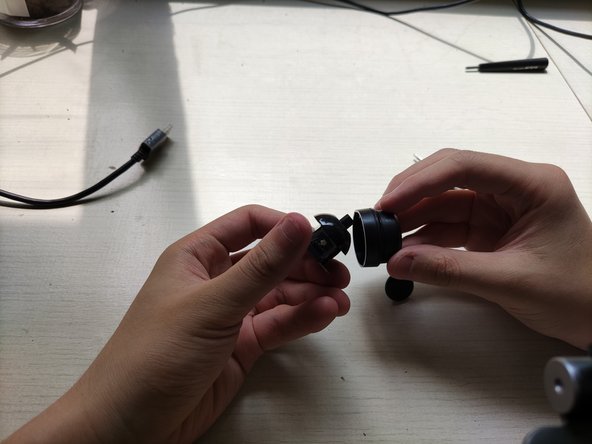
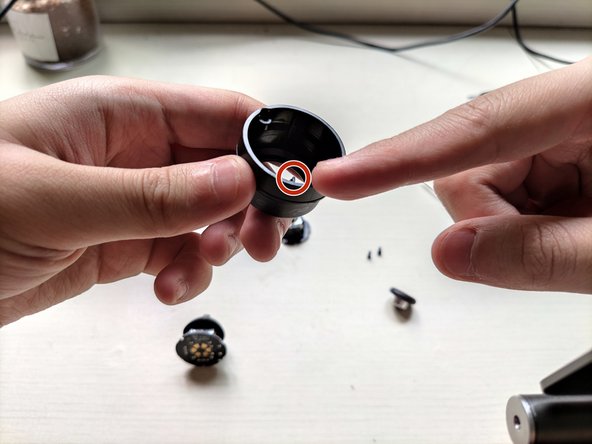
Push on the top frame until it pops off of the module.
-
-
-
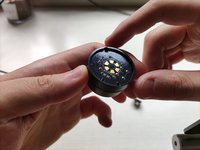
Connect the base frame replacement to the joystick module.
-
Insert the top frame on the module until it clicks back together.
-
-
-
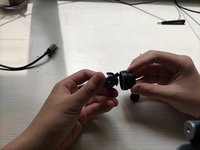
Reassemble the joystick module and plug it back into the controller.
-
Make sure the replacement and base frame are tightly screwed together.
-
Align the module and controller as you put joystick back together.
-
-
-
-
Reassemble the controller by placing the face cover back on.
-
Tighten the screws on the face cover with the H.20 Hexagonal Screwdriver.
-
-
-
Recalibrate the controller so the new joystick can be detected by the console.
-
Connect the controller to the console and activate wire-connect mode by clicking the controller's top right corner.
-
Push the button on the back of the controller. Hold it until the controller vibrates. Release the button and repeat.
-
-








To reassemble your device, follow these instructions in reverse order.
Cancel: I did not complete this guide.
One other person completed this guide.

Team

York University, Team E-21, Melo-Thaiss Fall 2021 Member of York University, Team E-21, Melo-Thaiss Fall 2021
YORK-MELO-THAISS-F21SEG21
1 Member
12 Guides authored
