
ACN Iris WG4K Key Pad Replacement

Itze Kenney and 2 other contributors
Last updated on May 15, 2017
Views: 626
View statistics:
- Past 24 Hours:
- 3
- Past 7 Days:
- 16
- Past 30 Days:
- 69
- All Time:
- 626
Comments: 2
2 comments on steps.
Completed: 1 2
1 person has marked this guide "completed." Will you be next?
2 people have marked this guide "completed." Including you — great job!
Favorites: 0 1
No one has favorited (and subscribed to) this guide. Will you be the first?
1 person has favorited (and subscribed to) this guide — and that's you!
Introduction
Go to step 1 ↓The keypad is an extremely important component of the ACN Iris WG4K. It is important because it is the only way you can interact with your device. It recieves all of its commands through the soft keys. If the keypad no longer works, lags, or is damaged, look at this guide for instructions on how to replace it.
What you need
Tools

-
-
-
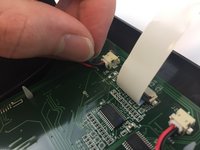
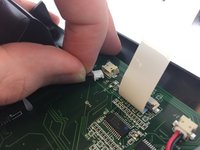
Press upwards with your index finger on the 4P4C connector as shown in the image.
-
Pull the connector gently out of its socket.
 Ask FixBot
-
-
-
-
-
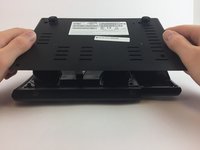
Flip the main body of the video phone so that the bottom is facing up.
-
Use the Phillips #0 Screwdriver to remove the four Phillips head screws (6 mm) highlighted by the red circles.
-
-
-
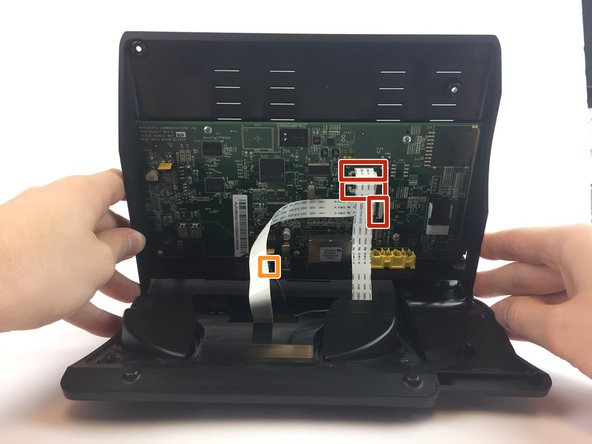
Lift the back case upwards to expose the inside components.
-
Red rectangles indicate the three ribbon cables.
-
The orange square indicates the blade connector.
-
-
-
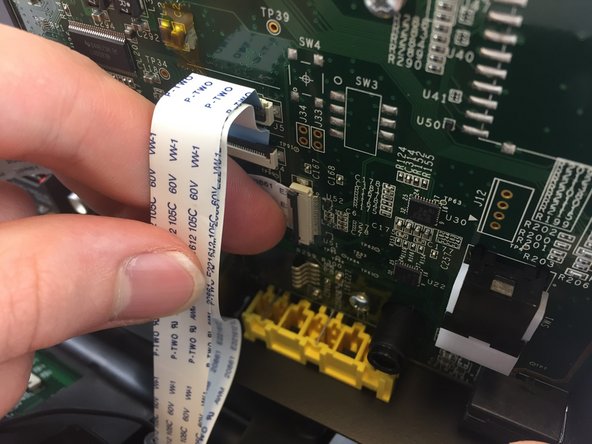
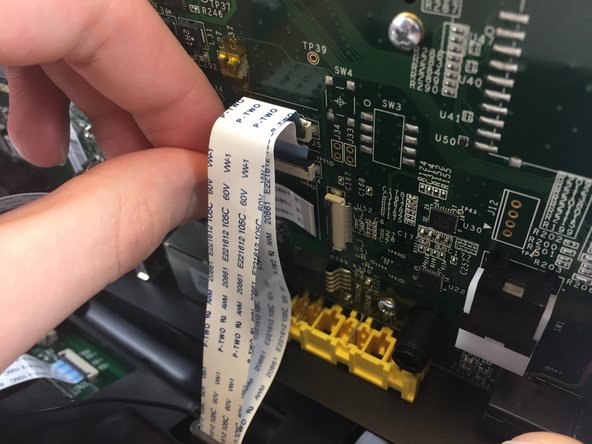
Disconnect the three ribbon cables from their insulation-displacement connectors by flipping up the black plastic clip.
-
Gently pull the ribbon cables out of their insulation-displacement connectors.
-
-
-
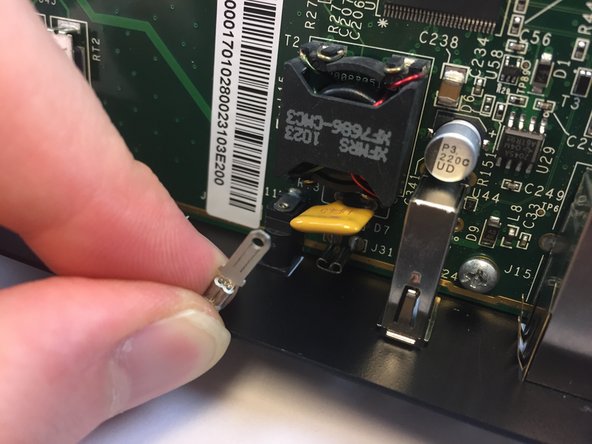
Disconnect the blade connector from the blade receptacle by gripping the exposed area of the blade connector.
-
Gently pull the blade connector out of the blade receptacle.
-
-
-
-
-
Use the Phillips #0 Screwdriver to remove the four Phillips head screws 6 mm highlighted by the red circles.
-
-
-
-
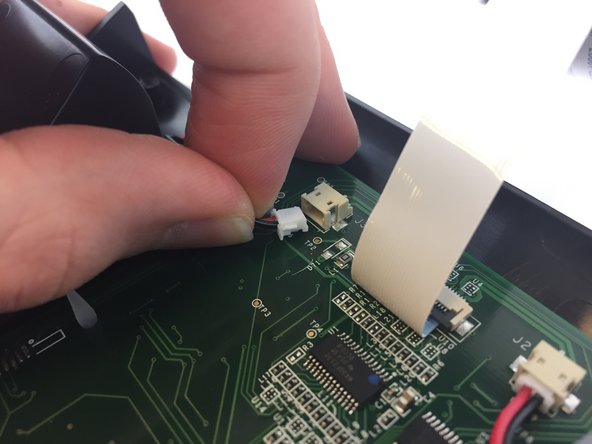
Disconnect the two white 2-pin JST connectors from the keypad/speaker circuit board by tugging gently until they are released.
-
-
-
Use the Philips screw driver to remove the four Phillips head screws 6 mm highlighted by the red circles.
-
-







To reassemble your device, follow these instructions in reverse order.
Cancel: I did not complete this guide.
One other person completed this guide.

Team

USF Tampa, Team 20-4, Remmell Spring 2017 Member of USF Tampa, Team 20-4, Remmell Spring 2017
USFT-REMMELL-S17S20G4
4 Members
120 Guides authored
