
"Replace Filament" Function (During Printing)

Mousta Impressoras 3D and 2 other contributors
Last updated on Jul 10, 2024
Views: 814
View statistics:
- Past 24 Hours:
- 2
- Past 7 Days:
- 24
- Past 30 Days:
- 106
- All Time:
- 814
Comments: 0
No one has left comments on this guide. Will you be first?
Go to guide commentsCompleted: 0 1
No one has marked this guide "completed." Will you be the first?
1 person has marked this guide "completed." It's you — great job!
Favorites: 0 1
No one has favorited (and subscribed to) this guide. Will you be the first?
1 person has favorited (and subscribed to) this guide — and that's you!
Community-Contributed Guide
An awesome member of our community made this guide. It was not created by iFixit staff.
-
-
-
During printing, select the "Swap Filament" option in the Quick Settings menu
 Ask FixBot
-
-
-
Wait for the machine to stop printing.
-
Turn the knob or pull the filament through the extruder to remove the old filament.
-
Note: Do not press the button yet. Only at the end of the filament exchange, to resume printing.
-
-
-
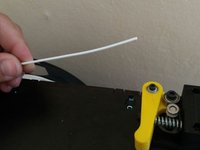
Press the ear and pull the filament out of the extruder.
-
-
-
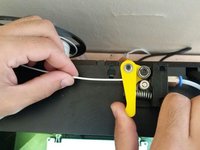
Press the extruder ear and push the filament through the hole.
-
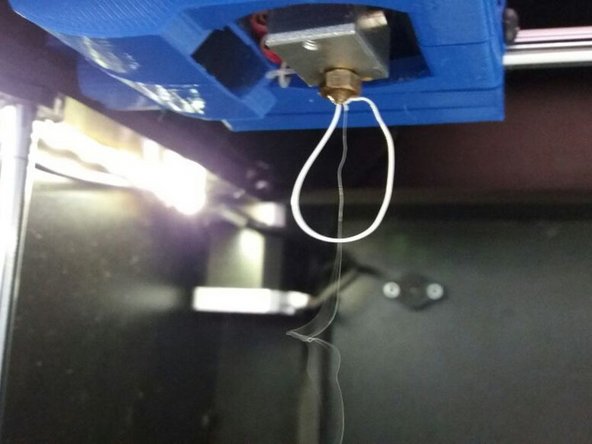
Continue pushing the filament until it comes out of the already heated nozzle.
-
-
-
-
Clean the replacement material in the nozzle and press the side button to end the filament exchange and resume printing.
-
-


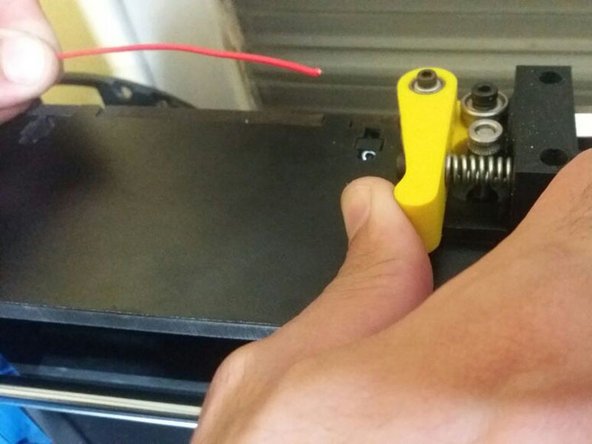

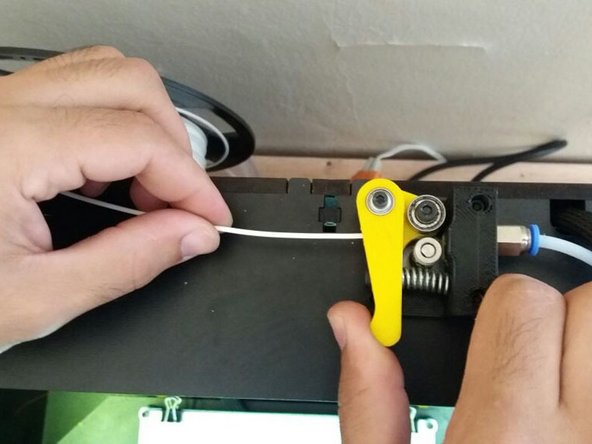

Ready! Filament exchanged successfully!
Special thanks to these translators:
100%

irlanda is helping us fix the world! Want to contribute?
Start translating ›

